Create a project
Managing your customer Project is the central functionality of the application. It starts with identifying the customer and their needs and potentially goes all the way to after-sales service, including defining the project, creating one or more quotes, commercial negotiation, signing an order, checking payments, managing orders to the supplier, invoicing, etc.
In order to create a project, go to the "Project" tab and select "New Project".
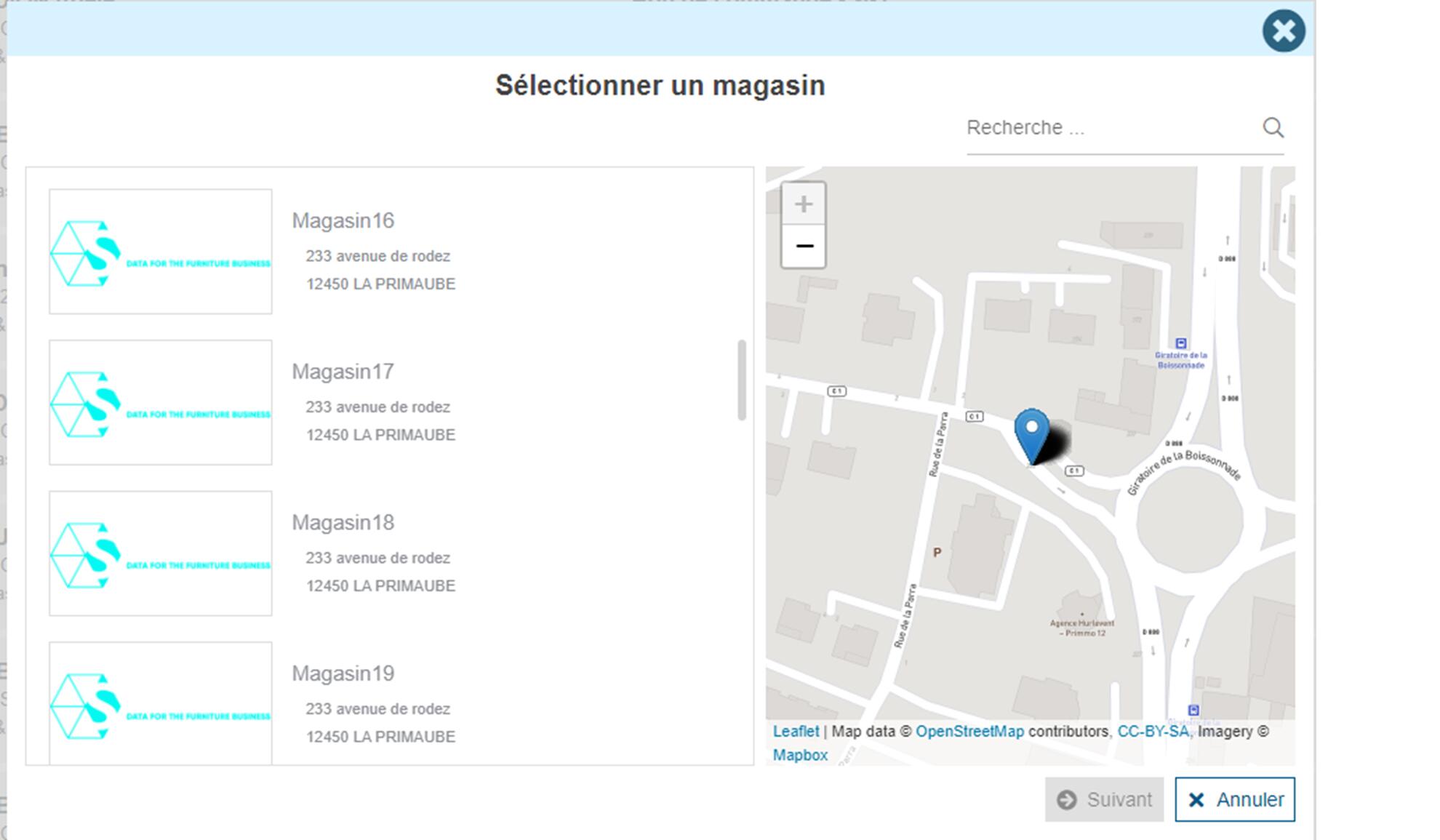
Store selection
If the user is assigned to several stores, the store selection will be proposed to define on which store the project must be created. It will not be possible to assign a project created on one store to another.
The customer
Existing customer
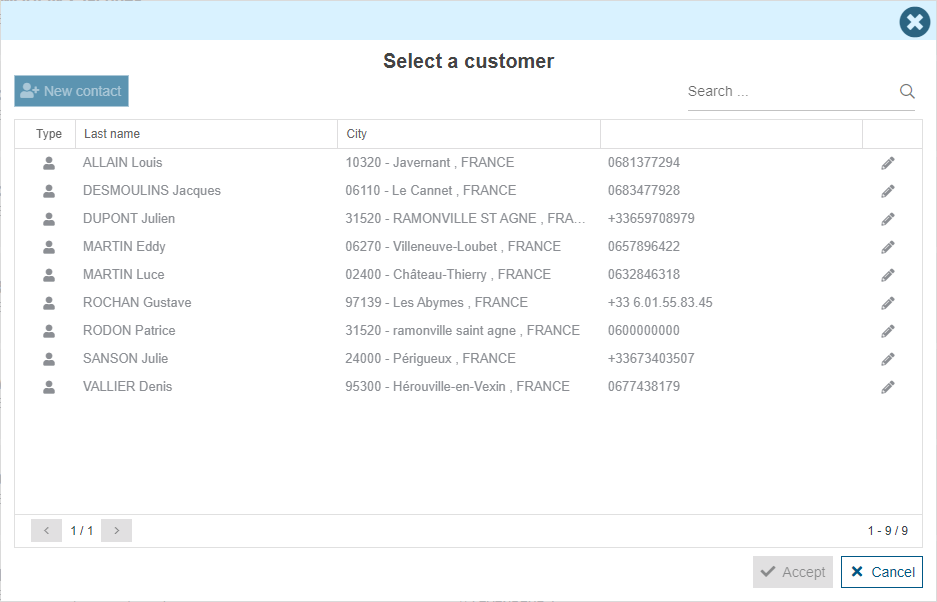
The first step in creating a project is to select the customer. Retail operations offers to choose the customer from the list of contacts known to the application. We find all the contacts of the stores to which the user is assigned. A search field allows us to find an existing customer. Once selected, we see an overview of the information known about this customer and the store to which he is attached. A setting is possible on request so that the list corresponds to the entire company and not only to the stores to which the user has access.
New customer
If the contact does not exist yet in your system, you can select the "New customer" action. This launches the creation of a new customer record (cf.Customer).
Duplicate customer
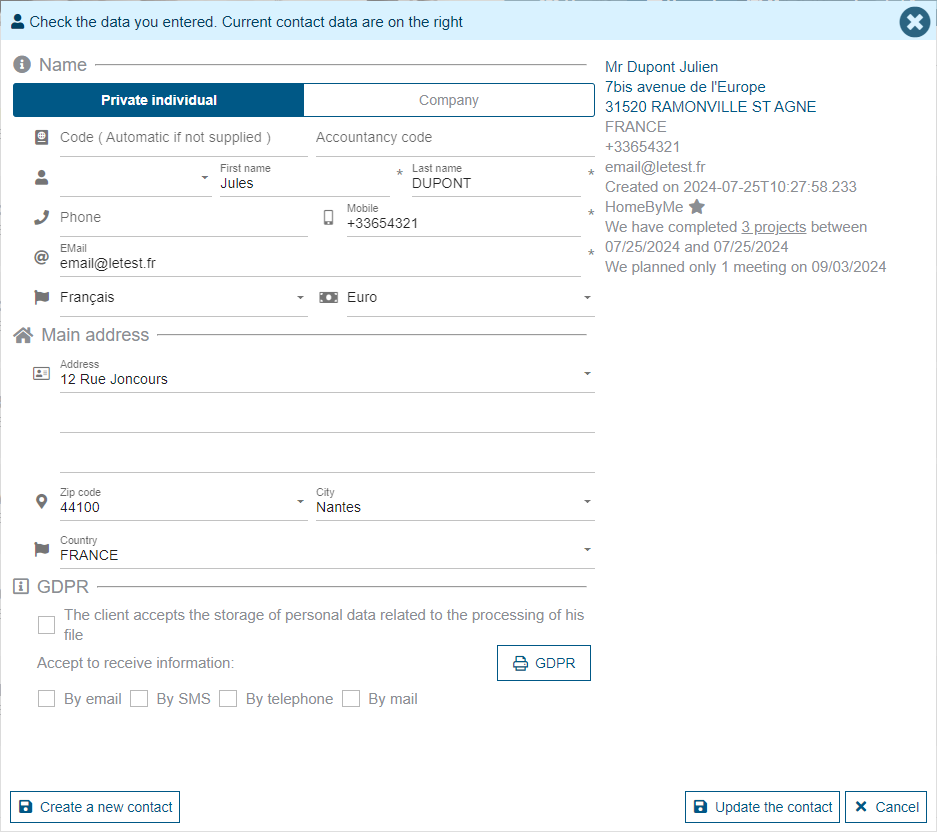
Once the customer is entered, a check is performed to verify whether this customer is already known by the user's company. If a match is found, Retail operations informs the user of this match, he can then update the information of the customer found or decide to create a new customer anyway. Updating customer information does not impact the documents that could be attached to the old entry but only updates the general information of the customer.

If multiple matches are found, a selection screen is displayed. The user can choose the customer to match or decide to create a new customer.

Project definition
Once the client is selected, the application asks to name the project. Depending on the settings enabled at the user's store level, it may also be possible to type the project: test project, exhibition project.

Discovery
Once the project is named, we arrive at the entry of the discovery of the client's need. By default, the application offers two discoveries: kitchen project and closet project.
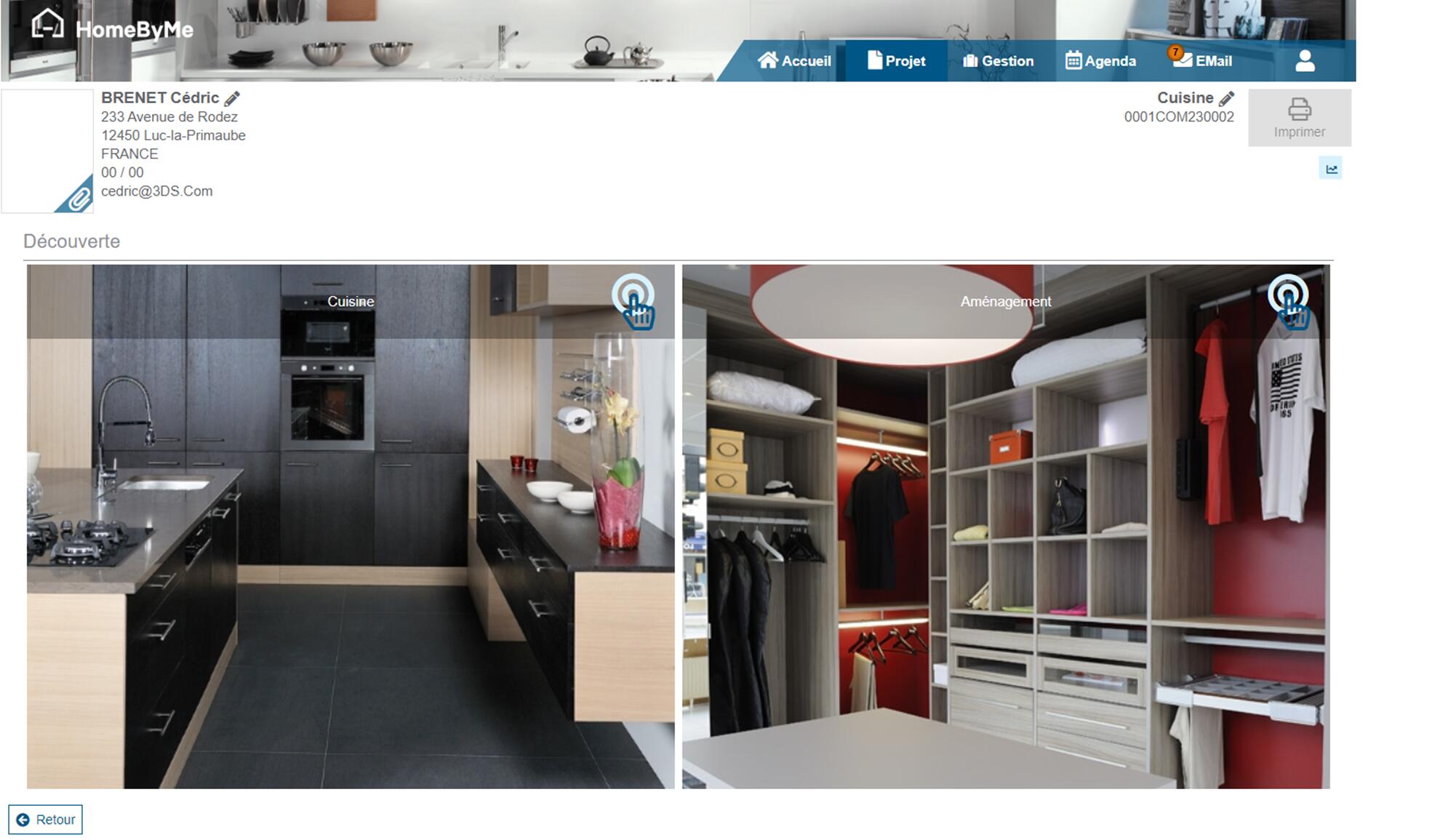
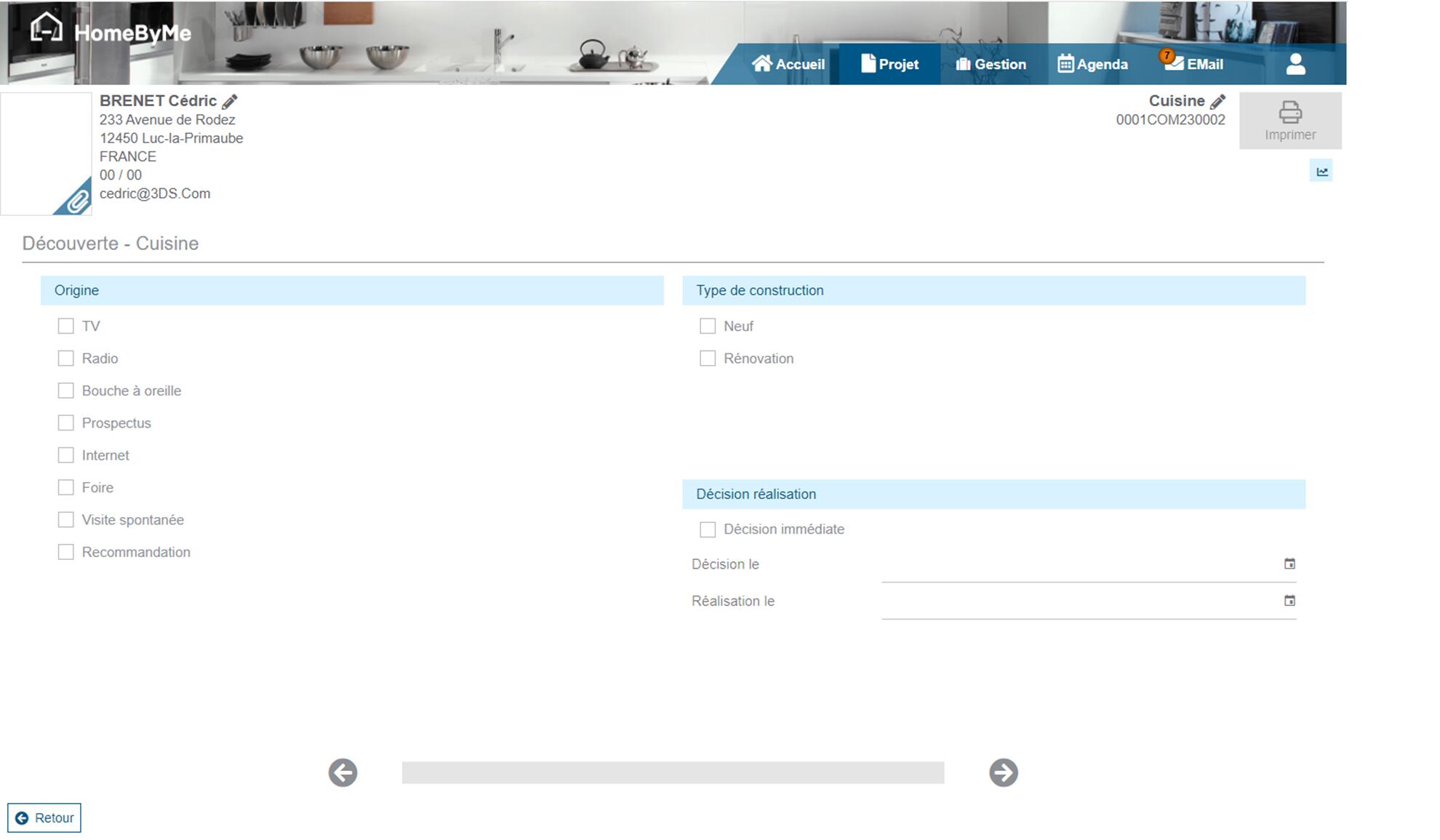
On estimate, it is possible to customize the number and content of the discoveries. The maximum number of possible discoveries is four. The discovery of a kitchen project like a closet project begins with general questions about the origin of the client, the type of home and the deadlines of the project. Next, questions on the form of the layout, the style, the materials and the desired services are proposed:
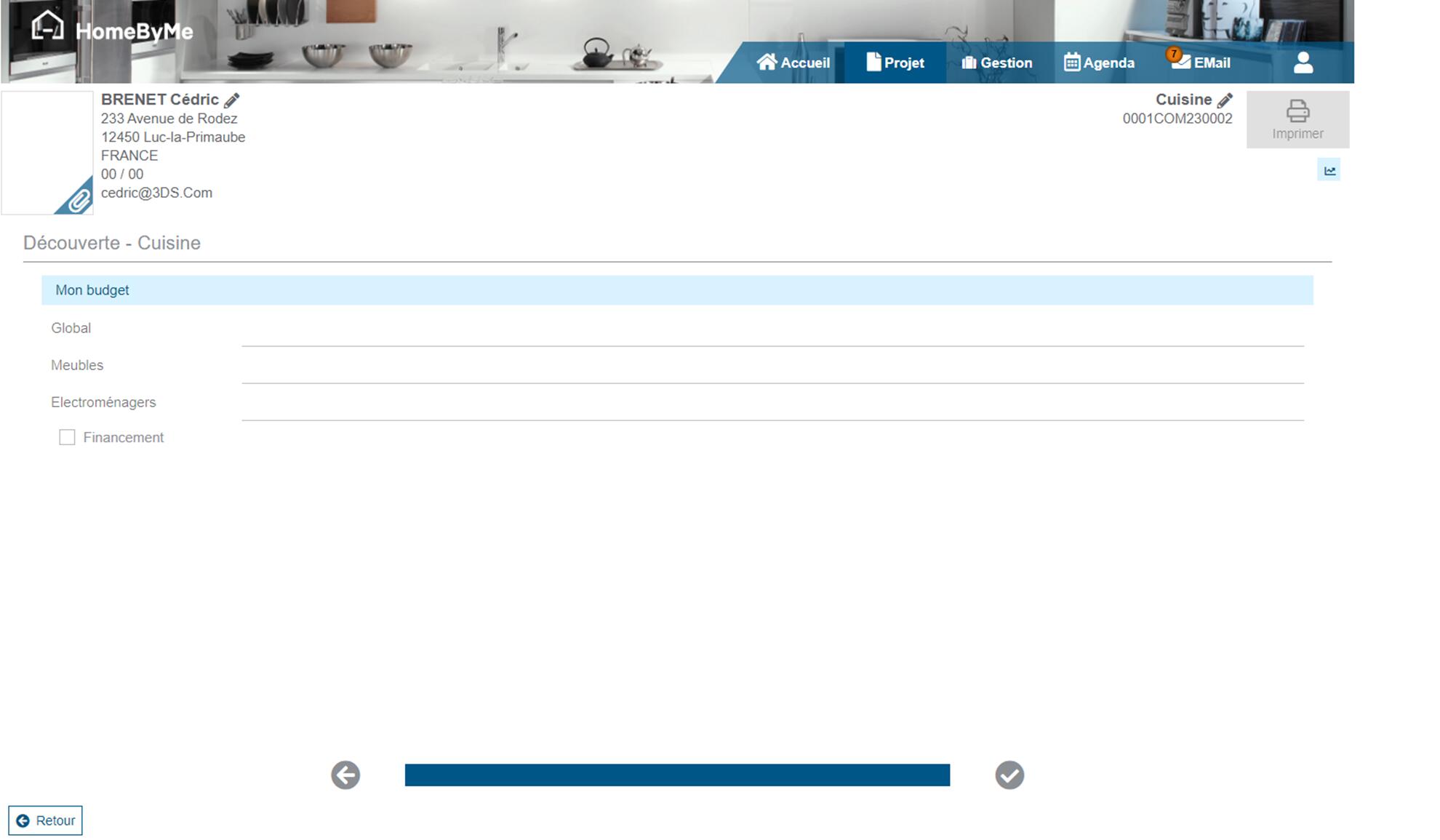
Finally, we ask the question of the budget that the client wishes to invest in his project:
What's next
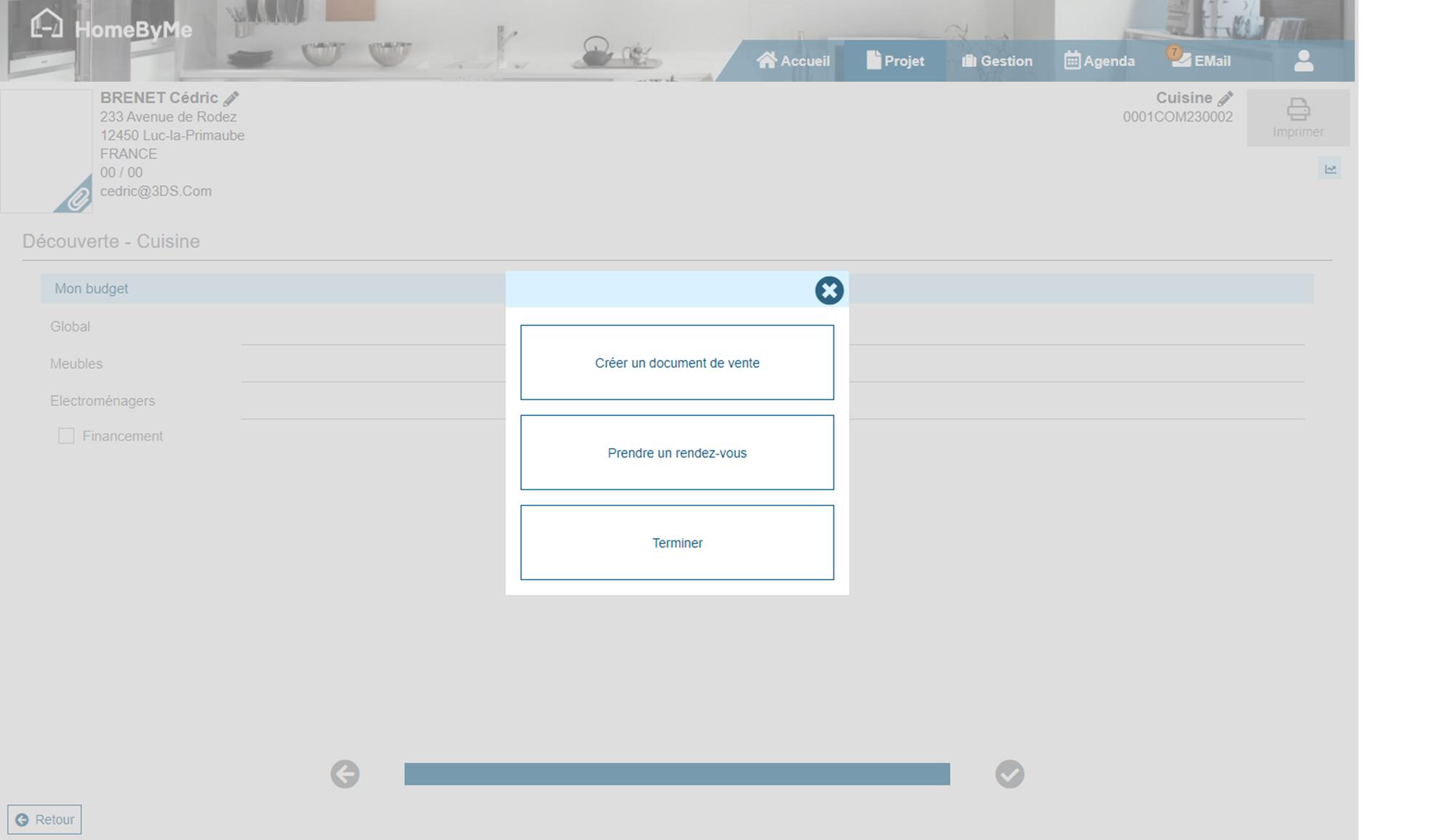
At the end of the discoveries, a choice is offered to the user:
- Create a commercial document
- Make an appointment with the client
- Complete the project
The list of commercial documents available to the user is customizable on request. This list will be common for all users of the company.