HomeByMe Launcher
Principle diagram
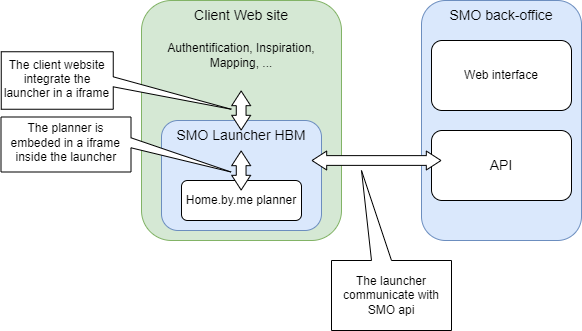
Utility
The HomeByMe Launcher is a web application enabling a website to easily integrate an HBM configurator in conjunction with a Retail operations solution.
It can:
- create a new project on first save
- open read-only or modify existing HBM projects in Retail operations
- automatically update the Retail operations document when the HBM project is saved in the Launcher.
How it works
In order to launch the Home.by.me application, the calling web site must use the HomeByMe Launcher, which will itself dialogue with the home.by.me application, acting as an intermediary between the two systems.
To do this, the calling site must embed the HomeByMe Launcher in an iFrame and initialize it by passing it several arguments detailed later in this document. From there, the use of postMessage methods will enable the two entities to dialogue.
When the user finalizes his project on the [Home.by.me] application (http://Home.by.me), feedback is provided.
In addition, it is also possible for the calling site to use the WEB Services provided to retrieve information on the Retail operations projects that concern it, see: API doc.
To use the launcher, you first need an external Retail operations API account, which will enable you to call the {LAUNCHER_TOKEN} creation api point.
A {LAUNCHER_TOKEN} only gives access to a single Retail operations document, which means that once a Launcher has been opened, it can only access a single document. If you want to open another document/project, you need to generate a new {LAUNCHER_TOKEN} and reopen the iframe with this new token.
Calling the Retail operations Back Office portal
In order to launch the Retail operations portal, it is necessary to pass various parameters in the call URL.
These parameters allow you to pass security as well as transmit various information to the home.by.me application.
{URL}?launcherToken={LAUNCHER_TOKEN}&application={APPLICATION}&distribution={DISTRIBUTION}
Below are the details of the values corresponding to these parameters:
{URL} : website address (provided by Dassault Systèmes)
Mandatory parameters
{LAUNCHER_TOKEN} : Authentication token to be generated from the api GET /api/externals/v1/launcher/token.
Optional parameters
{APPLICATION} : Code of the application that must be launched at startup. If nothing is specified, the HBMKITCHEN application is used by default:
- HBMKITCHEN: Retail operations portal for the Home.by.me integration
- HBMRETAILER: Retail operations portal for the integration of the Home.by.me Retail version
{DISTRIBUTION} : In the case where several different distributions/brands can be called for the same integration, it is necessary to specify the desired distribution when opening the glider. This value is a character string corresponding to a distributionID of HomeByMe.
LauncherToken generation
The launcher token must be generated from the api GET /api/externals/v1/launcher/token using the API account.
For a new project : the launcher token api must be called with the parameter
{
    type: 'create'
}
For an existing project : the launcher token api must be called with the parameter
{
    type: 'edit'
    , projectID: int // projectID from Retail operations
    , documentTypeID: int // documentTypeID from Retail operations
    , documentID: int // documentID from Retail operations
}
Supported commands
Passage of information
The configurator being included in a web page, it is possible to communicate through different messages. For this we use the cross-domain message sending API included in HTML5.
For more documentation see: https://developer.mozilla.org/fr/docs/Web/API/Window/postMessage
The expected postMessage messages are json strings which must contain an “event” section indicating the Name of the message transmitted, as well as a “content” section whose content will depend on the type of event.
AuthenticationLauncherToken
Message to send to the Retail operations iFrame to refresh the launcher token when requested by the “AuthenticationRequired” PostMessage.
JSON exchange example:
{
    "event" : "AuthenticationLauncherToken",
    "content" : {
        "token": string // new launcher token
    }
}
The new launcher token is generated using the same method as the launcher token present in the url.
InitializeCustomerInfo
Message to send to the Retail operations iFrame in order to pass it information relating to the Consumer/Final Customer as well as their possible Project, if already defined or to the Store concerned.
JSON exchange example:
{
    "event" : "InitializeCustomerInfo",
    "content" : {
        "customer" : {
            "emailAddress" : string, // Customer Email address
            "firstName" : string, // Customer First name
            "lastName" : string, // Customer Last name
            "mobilePhone" : string, // Mobile phone number
            "homePhone" : string, // Home phone number
            "mainAddress" : {
                "street1" : string, // N° and street name
                "street2" : string, // Additional address
                "street3" : string, // Additional address
                "zipCode" : string, // Zip code
                "city" : string, // City
                "countryCode" : string // ISO3 code of the Country
            },
            "internalCode" : string, // Customer Code in the calling system
            "subjectToTax1" : boolean, // Is the Customer subject to tax 1 level
            "subjectToTax2" : boolean, // Is the Customer subject to tax 2 level (VAT)
            "subjectToTax3" : boolean, // Is the Customer subject to tax 3 level
            "subjectToTaxDEEE" : boolean, // Is the Customer subject to eco-contribution on household appliances
            "subjectToTaxDEA" : boolean, // Is the Customer subject to eco-contribution on furniture
            },
        "project" : {
            "name" : string, // Project Name
            "description" : string, // Project Description
            "internalCode" : string // Project Code in the calling system
        },
        "store" : {
            "code" : string, // Destination Store Code
            "name" : string // Store Name
        }
    }
}
The internal code is a mandatory value. In the event that the calling system does not have this information, it can provide it with the email address of the Customer / Consumer.
For tax management, we have added 5 sections (subjectToTax…) for the creation of the End Customer / Consumer.
The possible values are:
- « 0 » : the customer is not subject to it
- « 1 » : the customer is subject to it
- If no value is passed, then we will use the company's default Retail operations setting.
InitializeSettingsForHBM
Message to send to the Retail operations iFrame in order to pass it the NeedMapping information entered in the calling Site and to the integrated HomeByMe glider.
In HomeByMe, it is possible to start a design from predefined Kitchen templates (or “Template”). These models can be offered in different color ranges (all: front color, handle model, worktops, etc.). Each color range can be assigned a Name or Code, which will be entered here in the “styleName” field.
Furthermore, each Kitchen model can also be assigned a series of keywords corresponding to characteristics specific to this model. For example :
- Form of location of elements: “I”, “L”, “U”, “II”
- Integrated or free-standing oven: “integratedOven”, “ovenUnderWorktop”
- Integrated or freestanding refrigerator: “integratedFridge”, “freeStandingFridge”
- etc.
These different keywords make it possible to filter the list of models corresponding to the Consumer's preferences. They can be passed to the integrated planner via two fields in the “templateTags” section:
- “required”: desired characteristics
- “excluded”: characteristics to ignore
The complete list of available characteristics is to be defined between the designer of the Models / Templates and the Client Site who will have to provide the corresponding codes to the integrated planner according to the customization choices that it offers to its Consumer.
JSON exchange example:
{
    "event" : "InitializeSettingsForHBM",
    "content" : {
        "styleName" : string, // Name/Code of the global Template
        "reservedEvents" : string[], // HomeByMe planner events reservation
        "templateTags" : [
            {
            "required" : string[], // List of keywords for required characteristics
            "excluded" : string[]  // List of keywords for rejected characteristics
            }
        ]
    }
}
In addition to those properties you can pass other properties that will be passed directly to the HomeByMe planner, you can find the documentation here: http://kitchen-doc.by.me/docs/planner/dev-guide/dev_iframekitchen.html#template-settings in the template-settings section.
The properties named *Style are filled and overridden by Retail operations depending on the value of the styleName property.
reservedEvents : This table must contain the HomeByMe planner postmessages events that the integrator wishes to implement instead of the Retail operations launcher. Here is the list of HomeByMe planner events implemented by Retail operations which can be reserved :
"ProductListWithBom", "PriceInfoButtonClicked", "PrintButtonClicked"
Some HomeByMe events cannot be reserved. See below
LoadProject
Message to send to the Retail operations iFrame in order to pass it the project code to open in HBM, the document can be specified and must be found in the project corresponding to the project code.
JSON exchange example:
{
    "event" : "LoadProject",
    "content" : {
        "internalCode" : string, // Project Code in the calling system
        "projectCode" : string, // Project Code as generated by Retail operations (6 digits)
        "documentTypeID" : long, // Retail operations Document type identifier
        "documentID" : long // Retail operations Document identifier
    }
}
For this message the calling application can provide us with the project code it generates (“internalCode”) or the project code generated by Retail operations (“projectCode”).
SaveRequested
Message to send to the Retail operations iFrame in order to Save the project open in HomeByMe.
JSON exchange example:
{
    "event" : "SaveRequested"
}
Feedback
As with the passage of information, the concept of postMessage is used by the integrated configurator to alert the calling site of certain events and return important related information to it.
The configurator generates different events.
Ready
Message sent when the integrated configurator is ready to receive commands from the calling site. Until this message is sent, any postMessage commands sent by the calling site are ignored.
{
    "event" : "Ready"
}
ConfiguratorSavedStarted
Message sent when a project save has been requested in the integrated configurator.
{
    "event" : "ConfiguratorSavedStarted"
}
ConfiguratorSaved
Message sent when the user has saved their project in the integrated configurator.
{
    "event" : "ConfiguratorSaved",
    "content" : {
        "projectCode" : string, // Project Code as generated by Retail operations (6 digits)
        "projectName" : string, // Project name chosen by the user on first save
        "projectDesc" : string  // Project description chosen by the user on first save
    }
}
ConfiguratorSavedCopy
Message sent when the user has saved a copy of his project in the integrated configurator. This happens when trying to save a read-only project.
{
    "event" : "ConfiguratorSavedCopy",
    "content" : {
        "projectCode" : string, // Project Code as generated by Retail operations (6 digits)
        "documentID": long, // Retail operations document identifier of the new document
        "documentTypeID ": long, // Retail operations document type identifier of the new document
        "projectName" : string, // Project name chosen by the user on first save
        "projectDesc" : string  // Project description chosen by the user on first save
    }
}
ConfiguratorSaveFailed
Message sent to inform that save of the project has failed.
{
    "event" : "ConfiguratorSaveFailed",
}
ConfiguratorClosed
Message sent when the user clicks on the cross in HBM.
{
    "event" : "ConfiguratorClosed",
}
CustomerInfoNeeded
Message sent when to save the project, Retail operations does not have the information linked to the End Customer / Consumer. The system must communicate this data using the “InitializeCustomerInfo” message. Once this message is received, Retail operations can continue saving a project.
{
    "event" : "CustomerInfoNeeded"
}
ConfiguratorPriceComputed
Message sent when Retail operations calculates the price of the project (Active if the configuration of the HomeByMe environment delegates the calculation to Retail operations).
{
    "event" : "ConfiguratorPriceComputed",
    "content" : {
        "totalPrice" : float // Scene Price calculated by Retail operations
    }
}
AuthenticationRequired
Message sent when Retail operations needs the authentication token be refreshed.
{
    "event" : "AuthenticationRequired"
}
AuthenticationSucceeded
Message sent when Retail operations the authentication token has been refreshed successfully.
{
    "event" : "AuthenticationSucceeded"
}
Planner Events
Some PostMessages come directly from the HomeByMe planner. They can be identified by the presence of an "origin" parameter equal to "HomeByMe"
{
    "event": "Some HomeByMe Event",
    "origin": "HomeByMe",
    "content": { /* ... */ }
}
To know the different events that the HomeByMe Kitchen planner can emit see the doc: http://kitchen-doc.by.me/docs/planner/dev-guide/dev_iframekitchen.html
Or for the HomeByMe Home Retailer Planner: http://home-doc.enterprise.by.me/docs/planner/dev-guide/dev_iframehome.html#website
Some planner events are used exclusively by Retail operations and are not transmitted to the calling website! Here is the complete list of Retail operations-exclusive events that are not accessible:
"AuthenticationFailed", "AuthenticationRequired", "AuthenticationSucceeded", "BOMComputationReady", "CloseApp", "InfoRequestedProject", "ExternalPriceRequested”,"LoginRequired", "LoginSucceeded", "ManualNotesRequestedSucceeded", "Plans2DStart", "Plans2DStop", "ProductListWithBOMRequested", "ProjectInfoGenerated", "ProjectLoadingSucceeded", "ProjectSavingFailed", "ProjectSavingSucceeded", "Ready", "SaveStarted", "SaveSucceeded","TokenExpired"