Billing
Retail operations Compliance
Retail operations is a self-certified software that meets compliance requirements for the creation of invoices, guaranteeing security, inalterability, conservation and archiving of data.
Invoice types
It is possible to classify an invoice into three types:
- Deposit
- Interim
- Balance
This typology is found in the filters of the management menu and is also used to adjust the presentation of the invoice issued for the customer.
Creating an invoice
It is possible to create an invoice in Retail operations using the "New document / Invoice" or "Transform" actions to generate an invoice from an existing document (example: a customer delivery note).
The "new document / Invoice" action is mainly used to create a deposit invoice. This creates an 'empty' invoice in which we add a "Deposit" product to define the amount of the deposit received.
The "transform" action is mainly used to create balance invoices. Since all the products from the previous document are included, the invoice is already complete and ready to be edited. If a deposit invoice has previously been created, you must manually add the "deposit" product to this balance invoice and enter the amount of the deposit in negative before the accounting balance is correct.
Locking an invoice
When you want to print an invoice, a message comes to warn the user that once his invoice is edited, its content will no longer be modifiable.

Once the document is edited, a banner appears to specify that the invoice is locked.
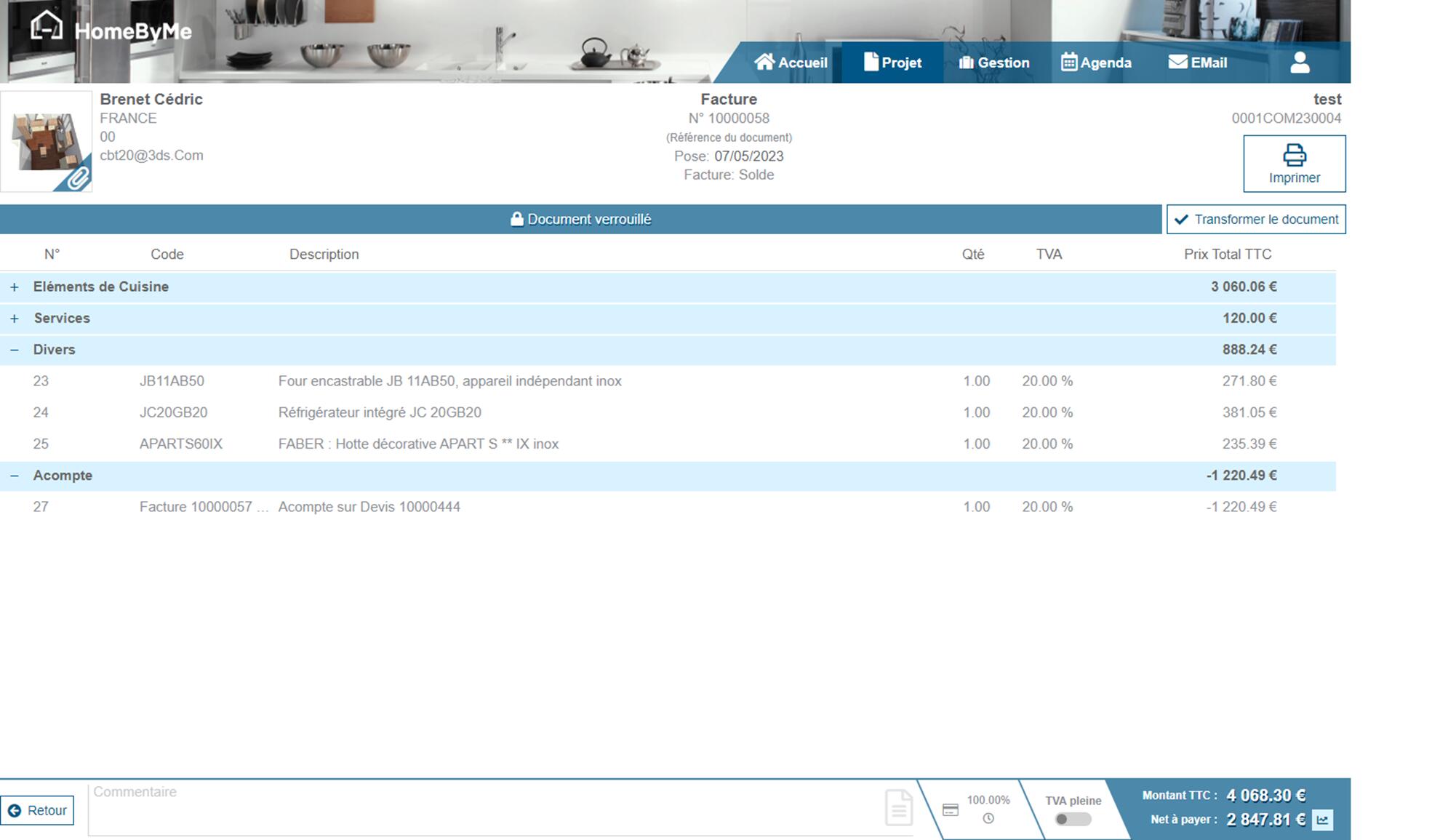
Automatic billing
Automatic or assisted invoicing allows you to create an invoice or credit note with a single click. If you want to activate this feature, you must submit a request to the service team. We'll explain how it all works in this chapter.
Deposit invoice
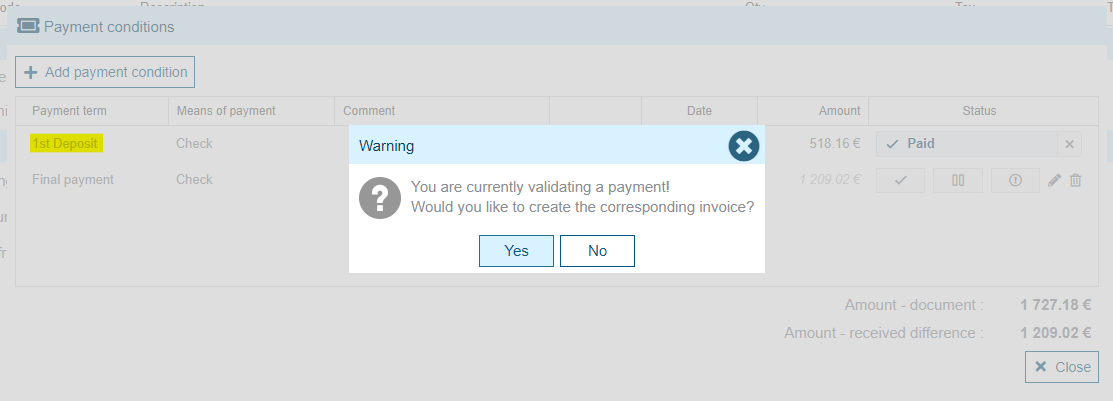
When paying an installment, if it is a deposit type installment, Retail Operations will allow you to automatically create a "deposit" invoice with a pop-up message.
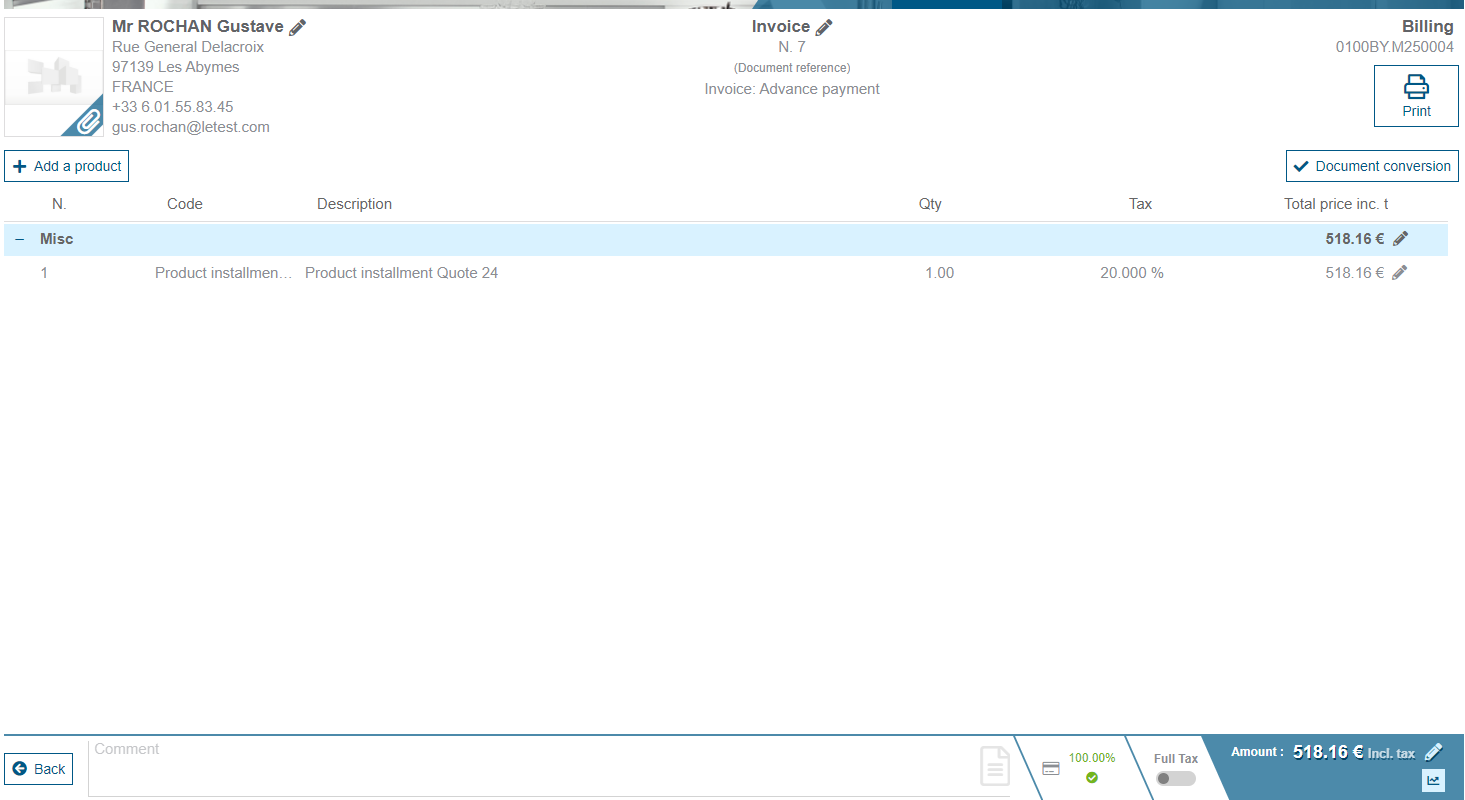
The invoice created contains the "Deposit" product with a pre-established description indicating: Deposit for order (quote) no. XXXX. The amount paid is taken into account as a deposit and the invoice is issued as a deposit invoice. Note that if the quote or order has several VAT rates, as many deposit lines will appear: one per VAT rate.
If you want to check or uncheck this payment it will only be accessible on the invoice.
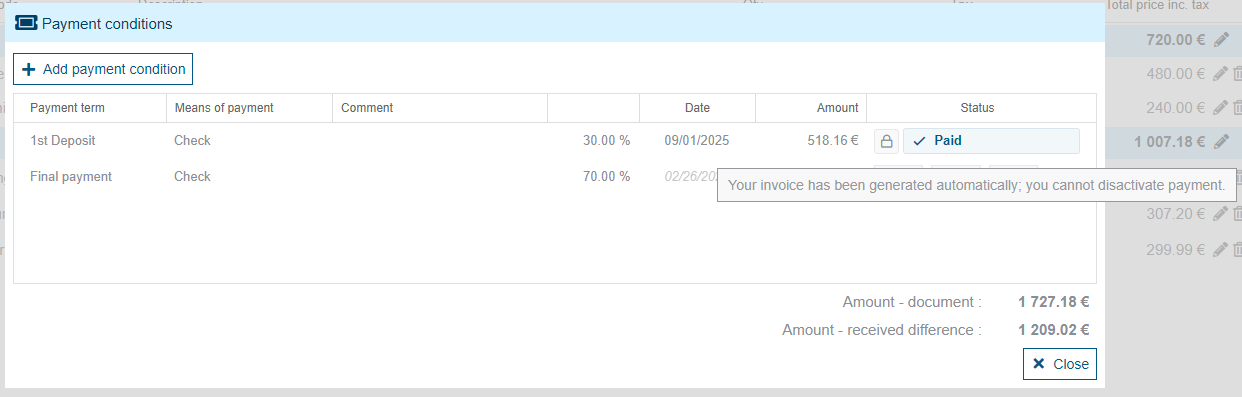
If you ever want to reproduce this deposit invoice, you'll need to generate a credit note from this invoice. This will "free up" the payment due date. You can then make your changes to the sales document and, when you're finished, generate a deposit invoice from this due date.
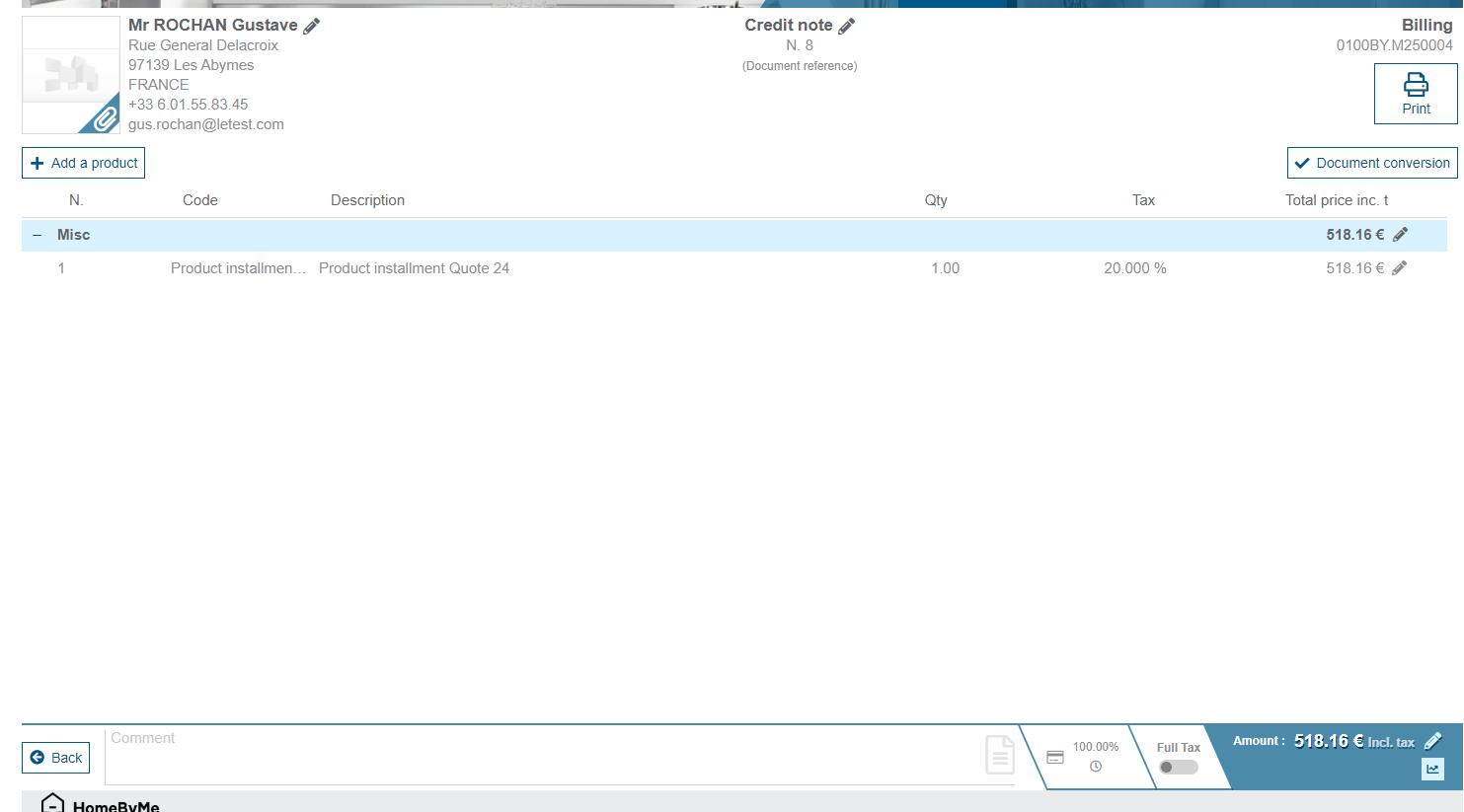
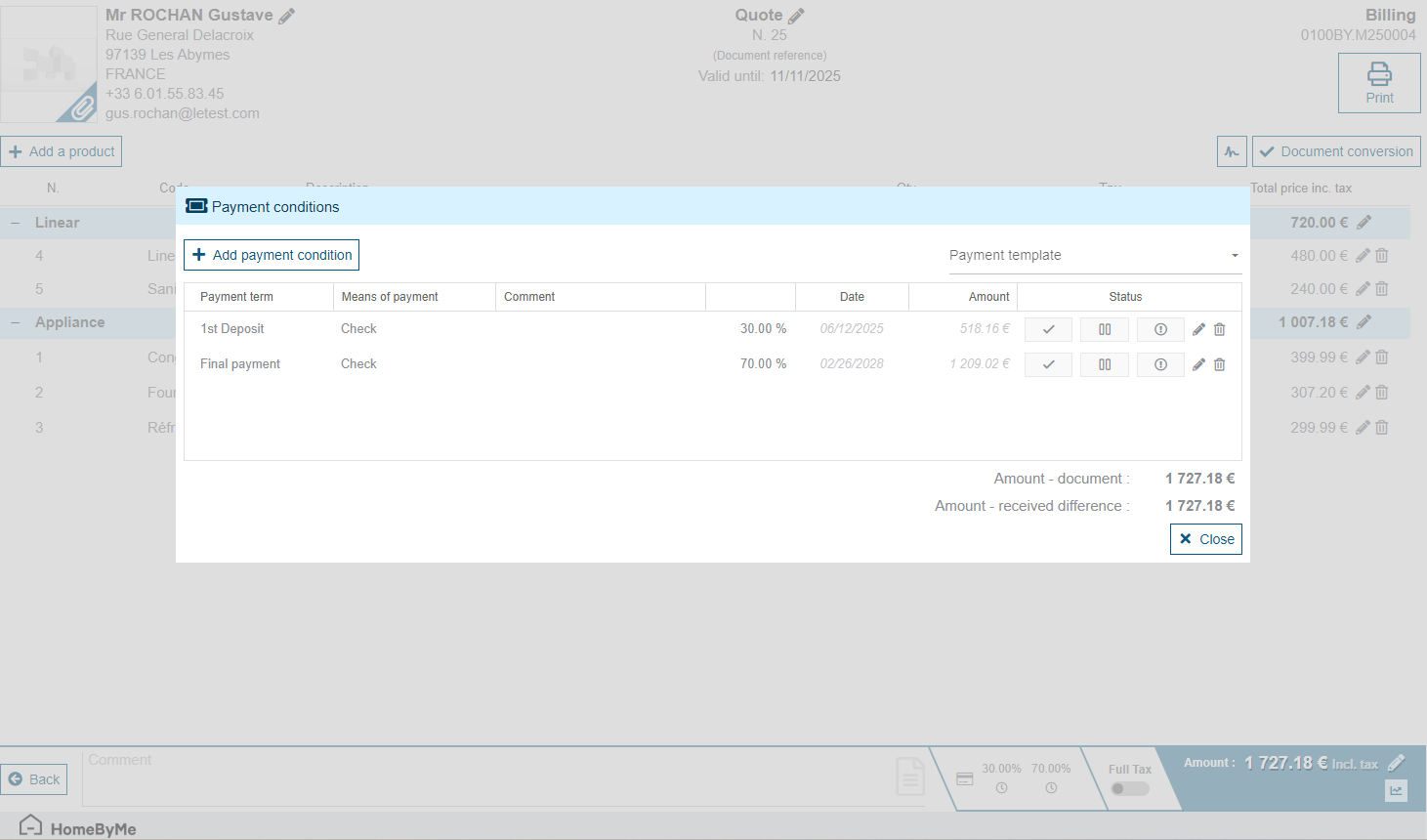
If the due date is negative during a payment, the system will ask you to generate a deposit credit note and not a deposit invoice. This will function in the same way as a deposit invoice (link between the due date and the credit note).
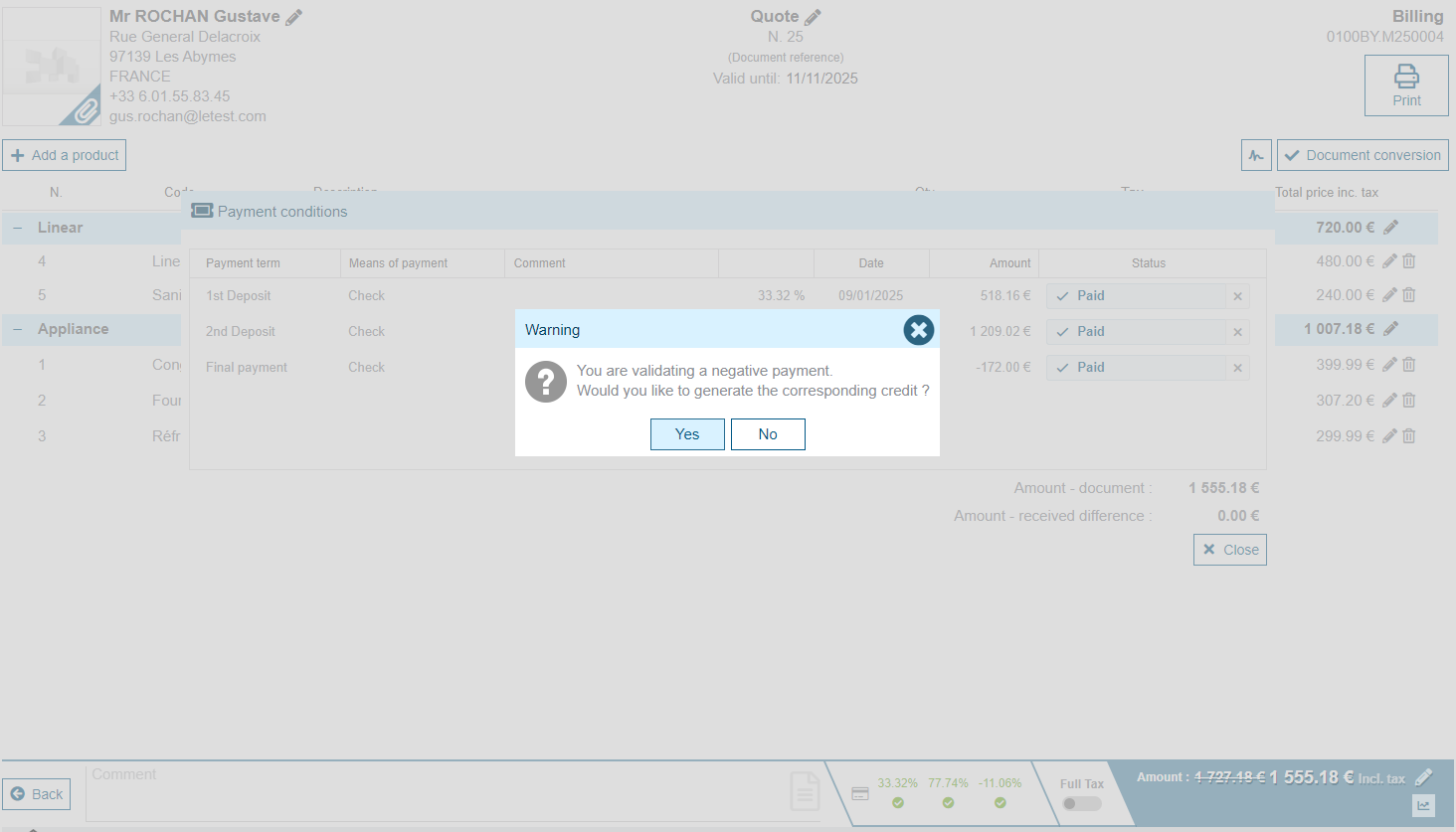
Deadline calculated automatically
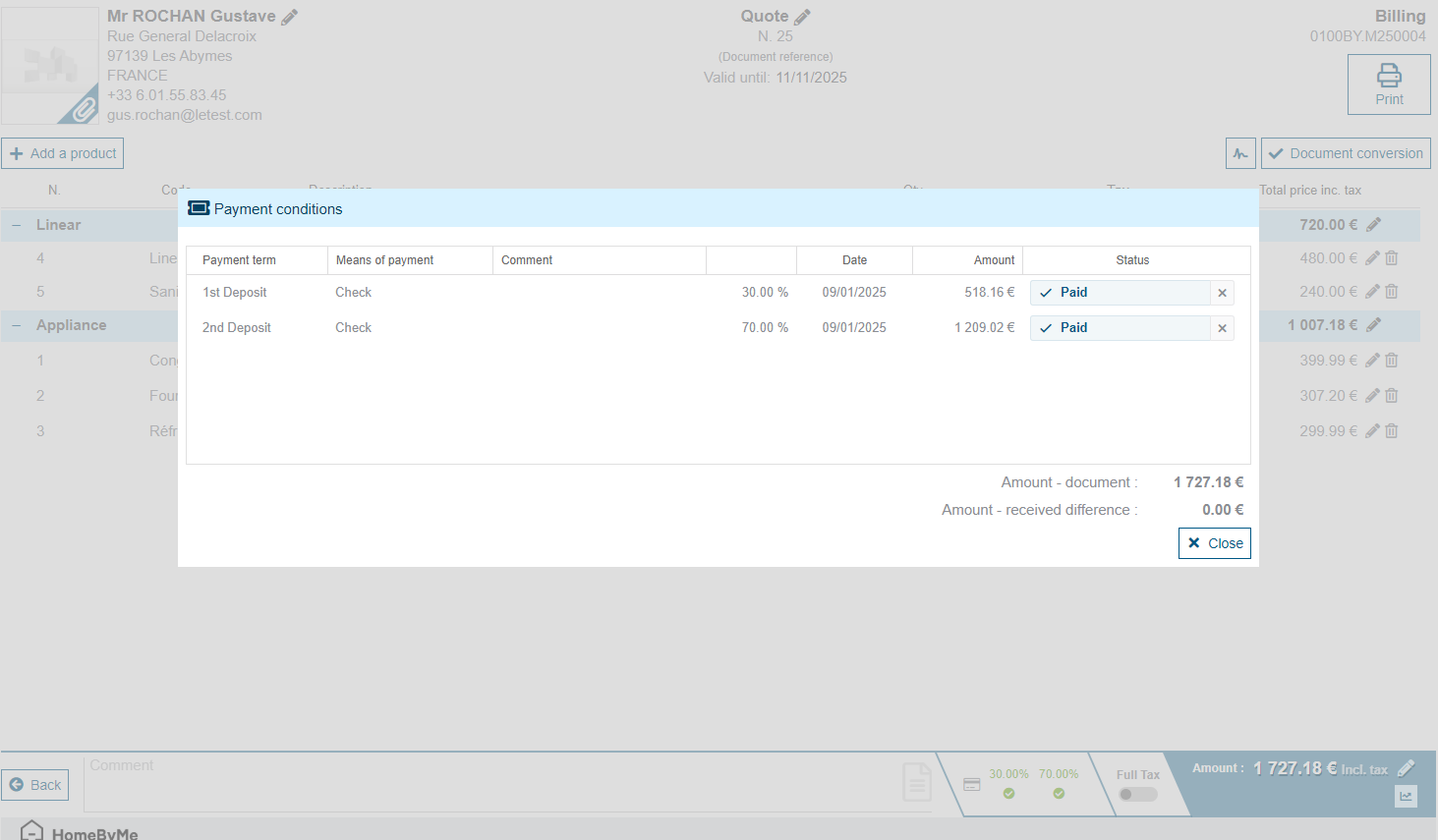
If, when modifying a sales document, you have recovered 100% of the deposit, a new due date will appear. With a negative or positive amount depending on your modifications (discount, VAT, etc.). If it is a positive due date (and not a deposit type due date), it will not affect the payment. You will need to create the balance invoice. If you want to be able to create a deposit invoice, you will need to change the due date type to make it a "deposit" type.
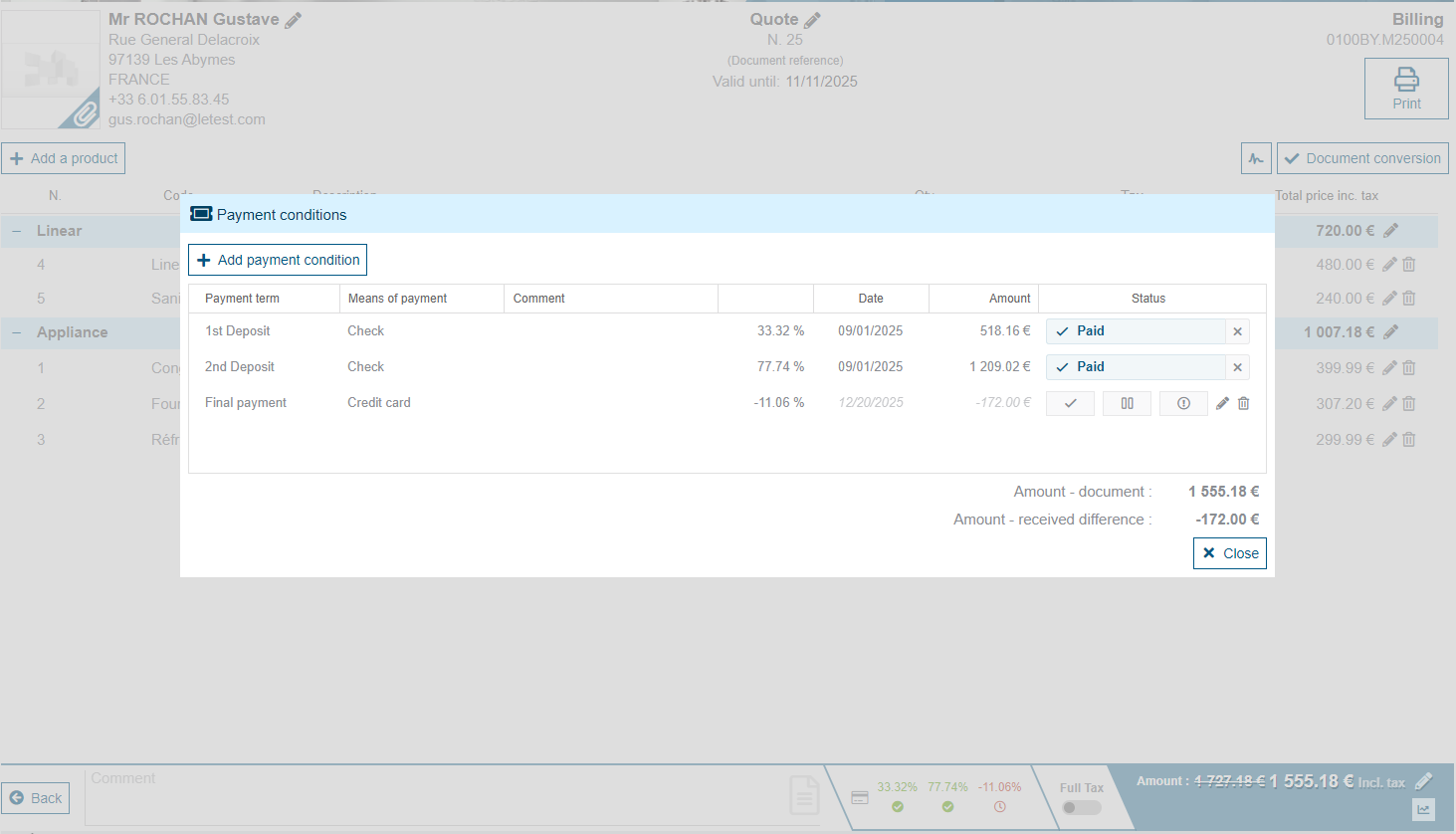
Balance sheet invoice
When generating a balance invoice (from the transform button of a sales document), there will be more checks. The first, if we do not detect a case that we call standard (1 Quote / 1 Order / 1 Deposit / 1 Delivery / 1 Balance Invoice), we will ask you to select the documents to be included in the balance invoice.
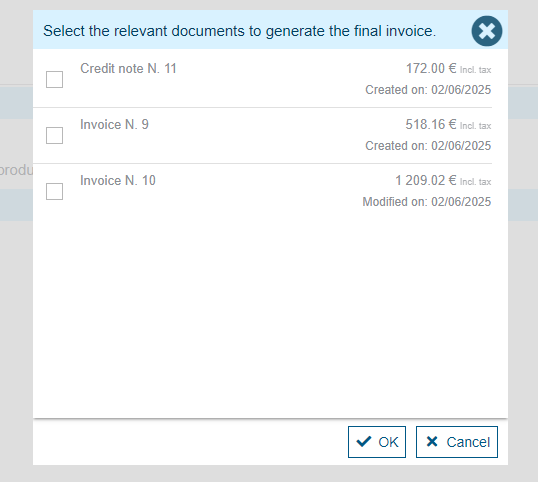
After this selection, we will check that this does not generate a negative invoice. If this is the case, we will block the transformation into a balance invoice. Otherwise, the balance invoice will be created by including all the invoices and deposit credits that you have selected. If you are in a standard case, the amount present on the deposit invoice(s) will be automatically deducted from this balance invoice. The invoice amount and the net amount to pay corresponding to the invoice amount less the deposits are specified at the bottom of the document. Please note that this feature is not available for partial (intermediate) invoice generation.
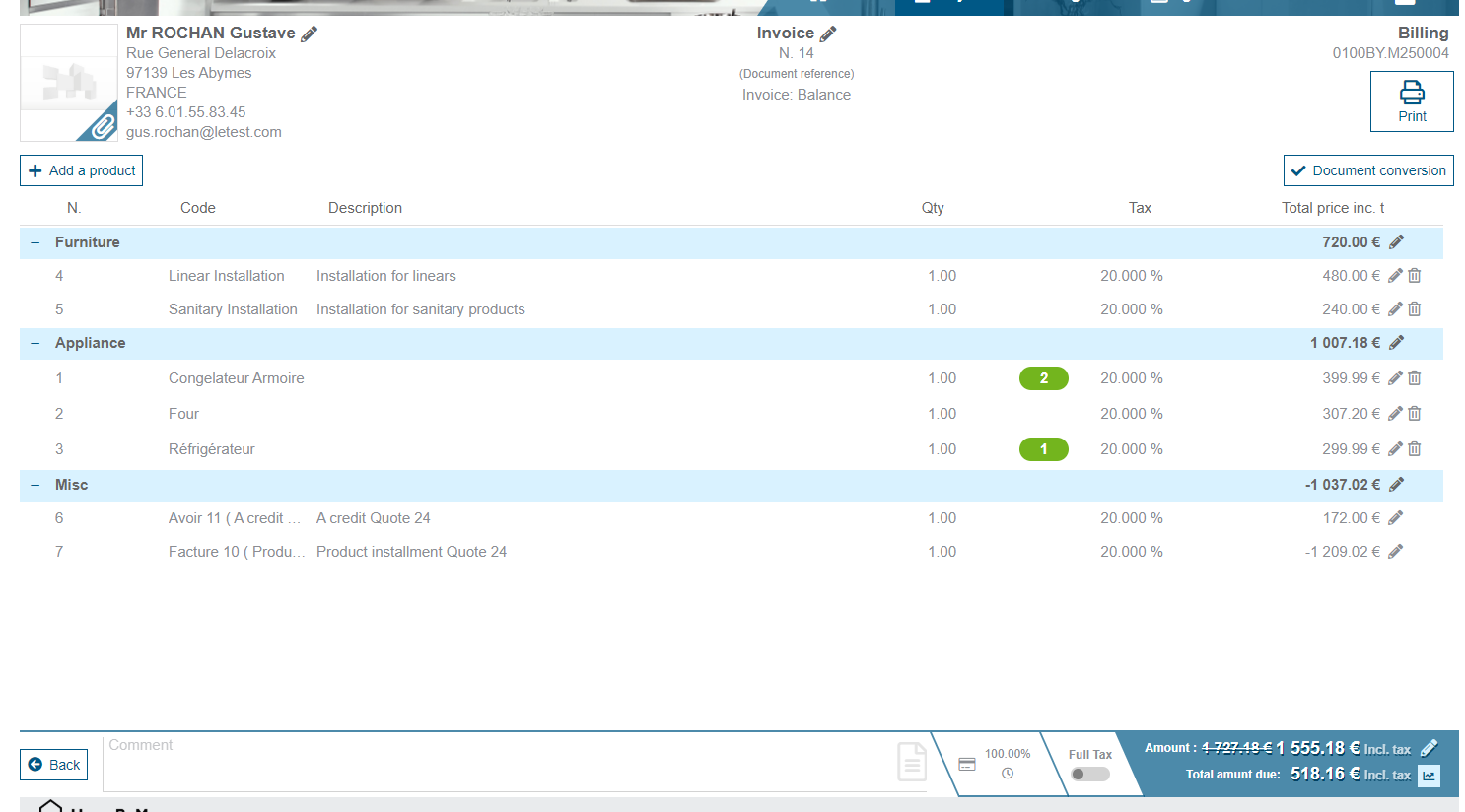
Balance due
If there are one or more errors in your balance invoice, or for any other reason, to regenerate your balance invoice, you will need to issue a credit note on the balance invoice that is "false." Accounting-wise, the entries will be correct. When generating this credit note, we will "release" the document that generated this balance invoice. You will then need to return to the original document and redo the transformation into a balance invoice.