Promotion
Creating a new commercial condition
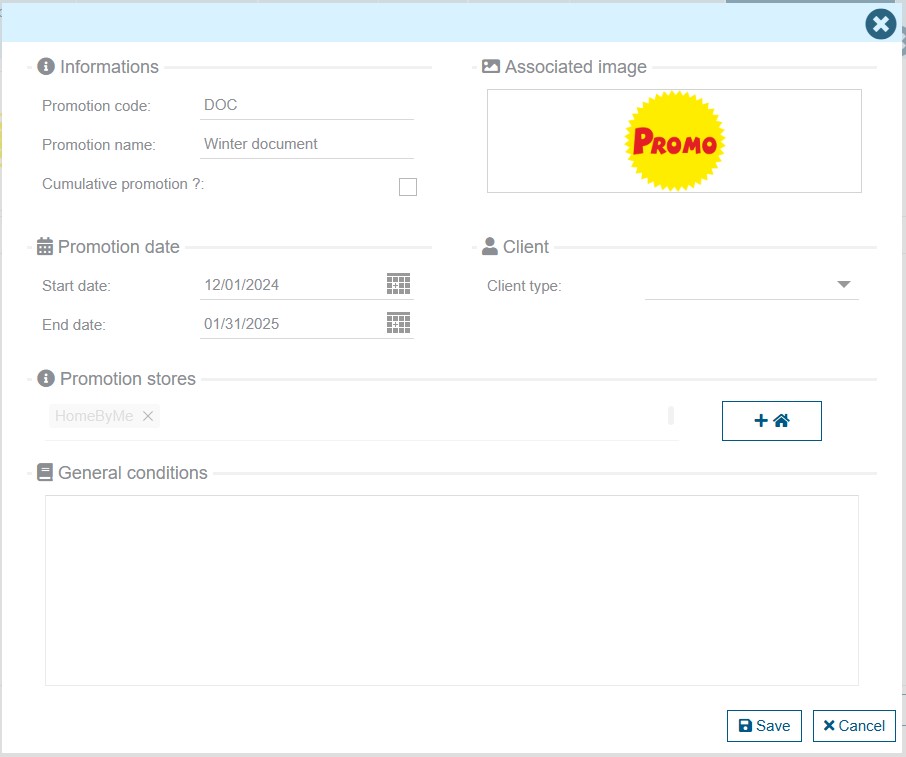
To create a new commercial condition, select the corresponding button and then enter the first information:
- Promotion code: this is a code to enter to make the condition unique
- Promotion name: the name of the condition that will then be visible for its use
- Cumulative promotion: allows you to define on the condition will include several rules that can be cumulative
- Image: allows you to add a logo on the condition. This logo will be visible in the application when using the condition.
- Promotion date: start date and end date of availability for users
- Client type: allows you to define whether the condition will only be applicable for a specific type of customer
- Promotion stores: allows you to choose for which stores this condition will be available
- General conditions: this is the legal text of the commercial condition. This text will be included on customer offers when the condition is applied.
Rules of application
Once the condition is created, you can access the rules entry.
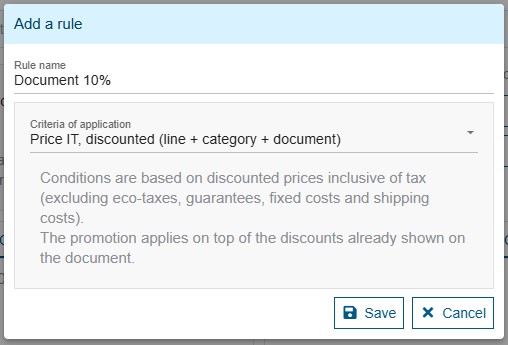
A rule has a name and a criteria of application defining how the rule will apply on the documents.
A commercial condition must have at least one rule to be used. There is no limit to the number of rules.
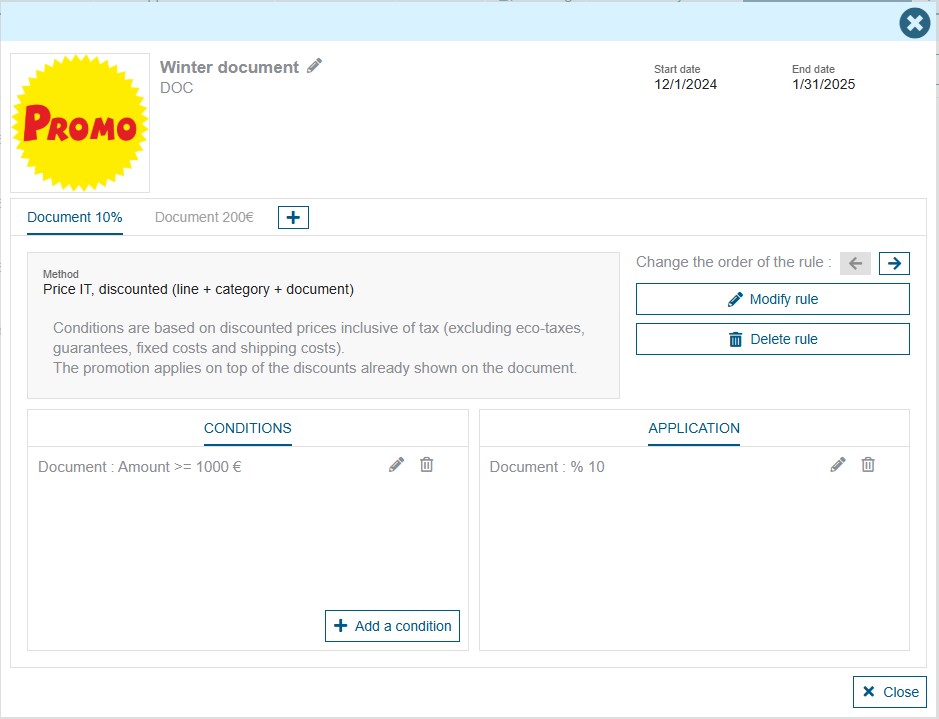
In case of a cumulative promotion the rules order is important, it can be changed with the left and right arrows.
To be applicable a rule need to have an application and at least one condition.
Non-cumulative rules
In the case where the rules are not cumulative, the application will test all the defined rules and will propose to the user to apply to his document one of the rules whose conditions are respected. The user will only be able to select one of these rules.
Cumulative rules
In case the rules are cumulative, the application will test all the defined rules and will propose to the user to apply to his document all the rules whose conditions are respected. The user will select the commercial condition which will apply all the applicable rules contained in it.
Conditions and application
Each rule is composed of one or more conditions and an application. The condition is used to test whether the rule will apply to the document. The application performs the action when the condition is met.
Conditions
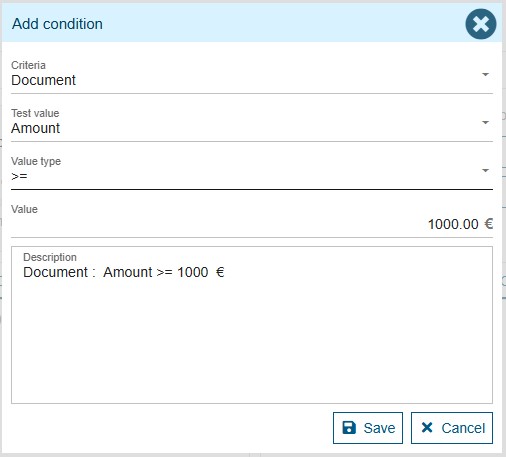
The conditions can apply to several criteria:
- The document
- A catalog
- A product grouping
- A supplier
- A model name
For each of these criteria, it will be possible to determine whether the condition concerns an amount or a quantity. A description can be entered at the condition level to indicate to the user the details of this condition. In the case where no description is entered, the application creates a default description based on the information entered.
Application
The application can be done in several ways:
- To the document
- By grouping
- A message to users
- To the catalog
- On a product reference
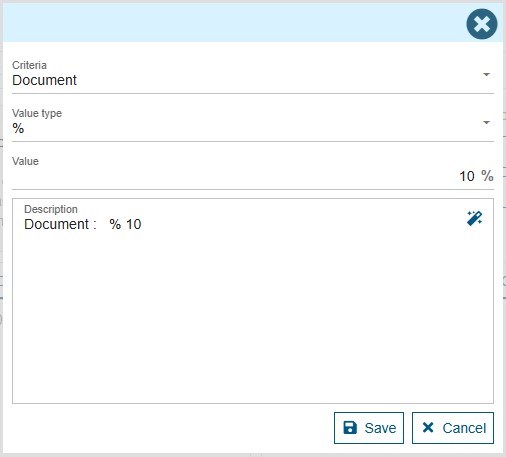
For each of these criteria, it will be possible to determine whether the application is a discount value, a discount percentage or a price forced to an entered value. A description can be entered at the condition level to indicate to the user the details of this condition. In the case where no description is entered, the application creates a default description based on the information entered.
Use in a sales document
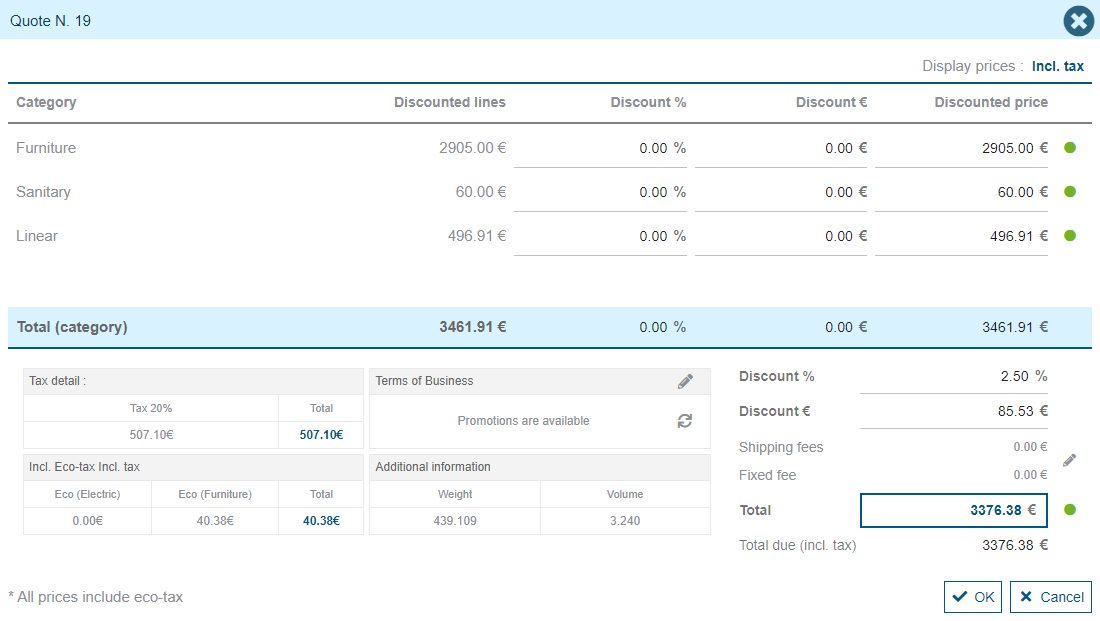
When commercial conditions are set, an area dedicated to promotions appears at the bottom of the documents (to the left of the price). On a new document, if promotions are applicable, the text "Promotions are available" appears. The user can then click on the area to see the promotions applicable to their document.
In the list of promotions, you can view the promotion logo, its name, the text corresponding to the application of the promotion, the amount granted by the promotion (with for information, the price of the document with and without the promotion).
Once the promotion is selected, the discounts are applied to the document and the information on the applied promotion remains visible at the bottom of the screen.
When editing the document for the client, the commercial conditions of the promotion will be added at the end of the document (under the final price of the project).
How a promotion is applied
There are 3 methods for the application of promotion (see the table below). The application depends on type of method selected for the promotion and on the entered discount in the document, if a discount is entered in the document. In the table below we can see the 3 methods (the 3 last columns) and the 3 differents applications of a promotion (the 3 bold titles in the first column). On each line we found the entered discount and how it's managed when the promotion is applied.
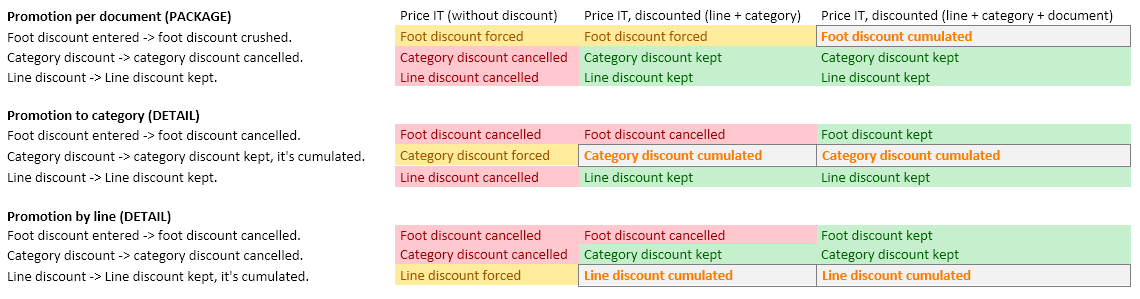
For the first line, when a foot discount is entered, if the method "Price IT (without discount)" is applied, the foot discount is forced. if the method "Price IT, discounted (line + category)" is applied the foot discount is also forced. And if the method "Price IT, discounted (line + category + document)" is applied the foot discount of the promotion is cumulated to the foot discount entered.
The basis for promotion is calculated according to the selected method :
- "Price IT (without discount)" : Total price IT without discount and without eco
- "Price IT, discounted (line + category)" : Discounted total price IT (line and category discount only) without eco
- "Price IT, discounted (line + category + document)" : Discounted total price IT (All discount : line, category and foot discount) without eco
Example 1
The applied promotion use the 3rd method, "Price IT, discounted (line + category + document)" and is set to apply a 10% foot discount.
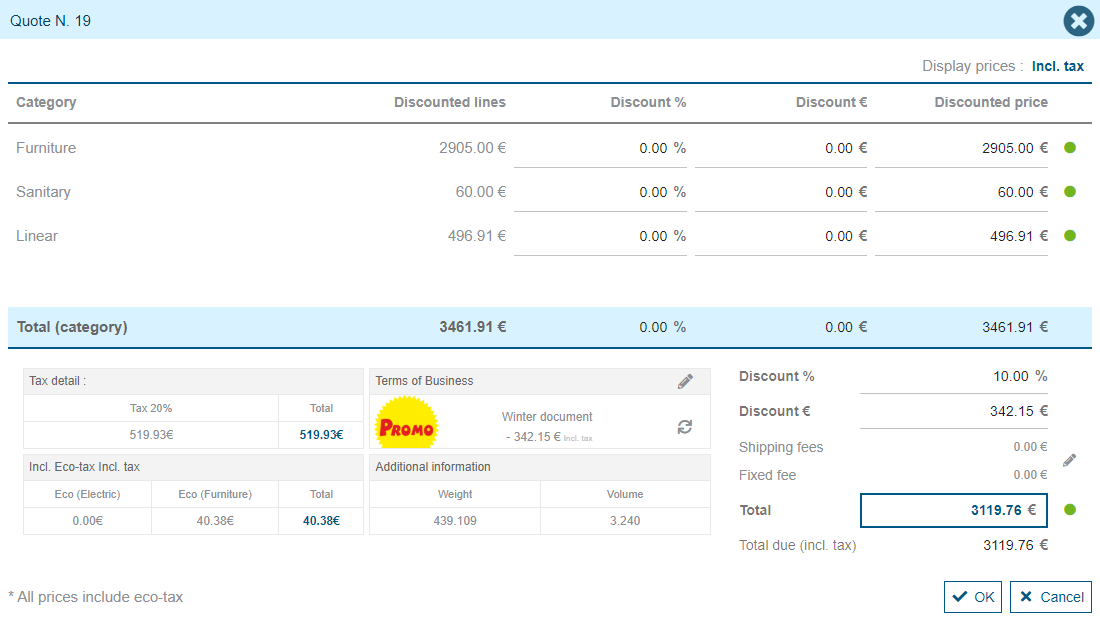
The user edit the foot promotion from 10% to 12%.
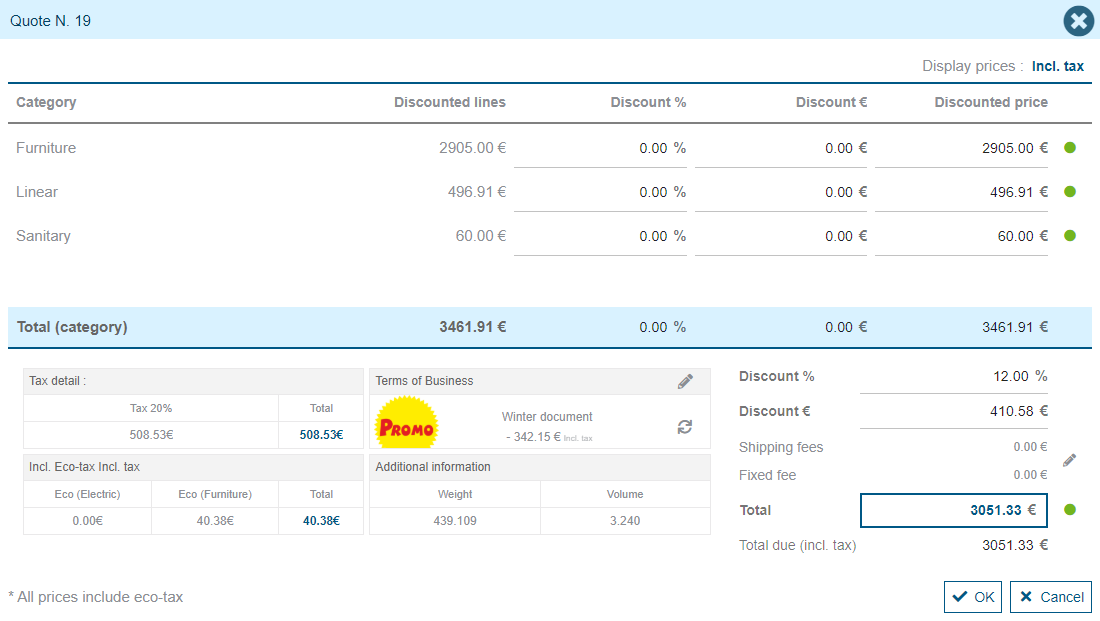
The user refresh the promotion, which is equivalent to cancelling and then reapplying the promotion. After cancelling the promotion the foot discount is left with 2% of manual discount (12% - 10%). When applying again, following the method "Price IT, discounted (line + category + document)" above, the 10% is applied after the 2% manual discount which gives a final total foot discount of 11.80% .
Total foot discount = 1 − (1 − 2/100) × (1 − 10/100) = 0,118
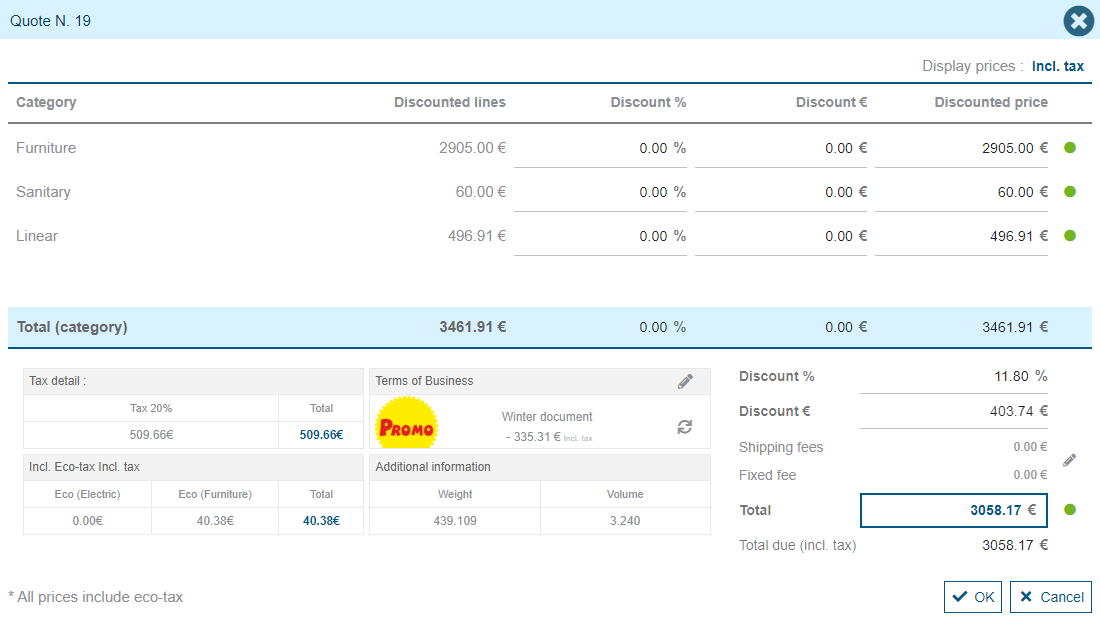
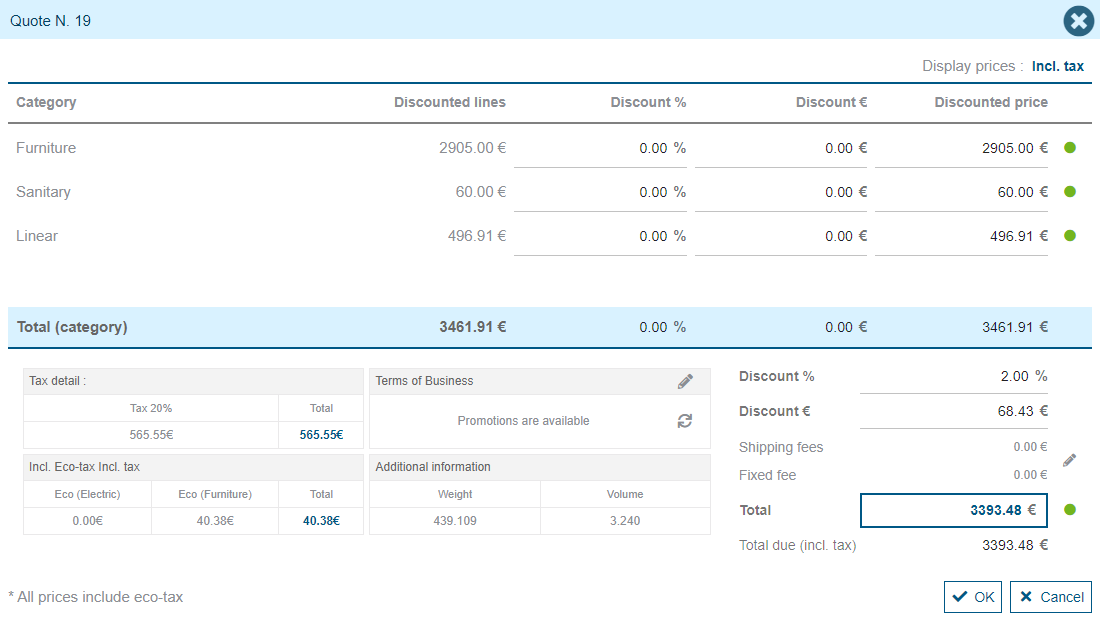
When cancelling the promotion, the foot discount will go back to 2% because it was 2% before the application of promotion.
Example 2
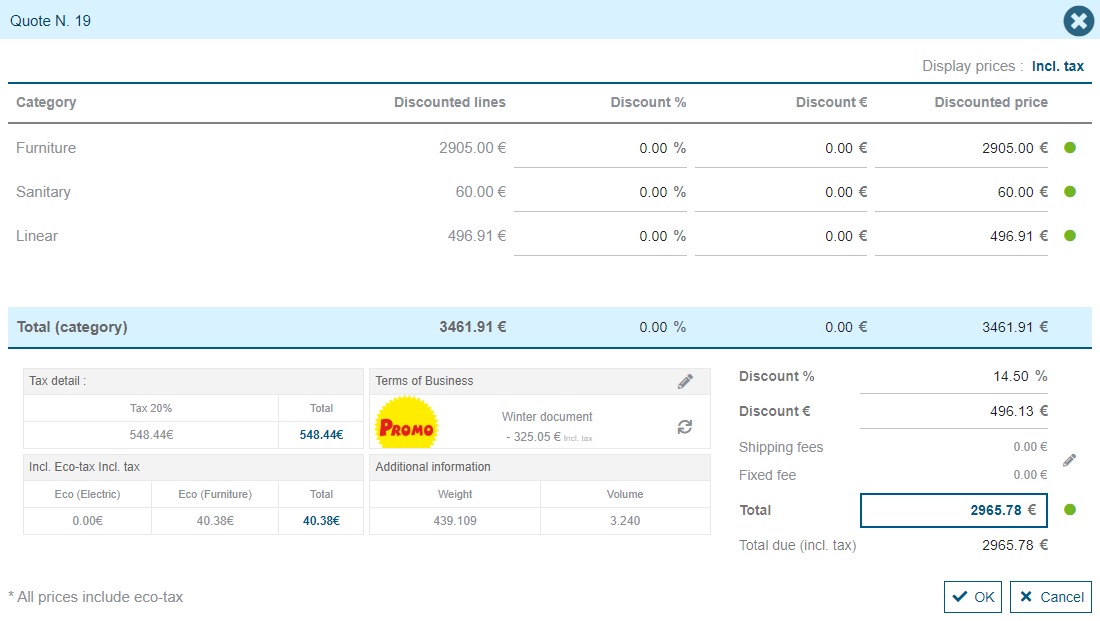
The user enters a foot discount of 5%.
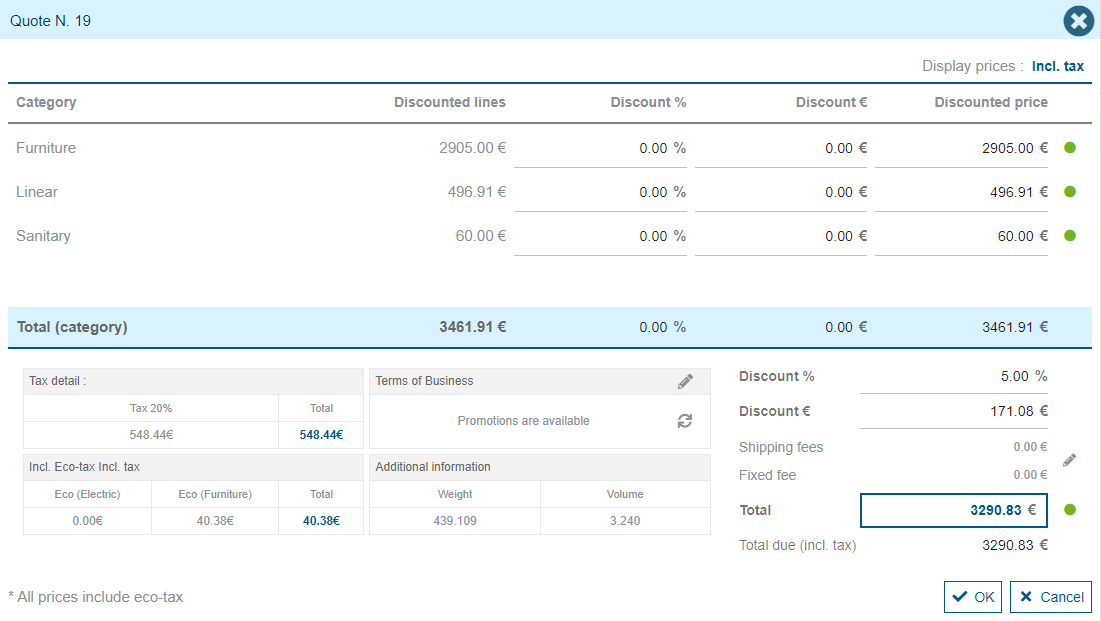
The user select a promotion with the 3rd method, "Price IT, discounted (line + category + document)", and apply it in the document. The method indicate that the promotion is cumulated to the foot discount entered, 5% then 10% which give 14.50%
Total foot discount = 1 − (1 − 5/100) × (1 − 10/100) = 0,145
The user modifies the foot promotion to 12%.
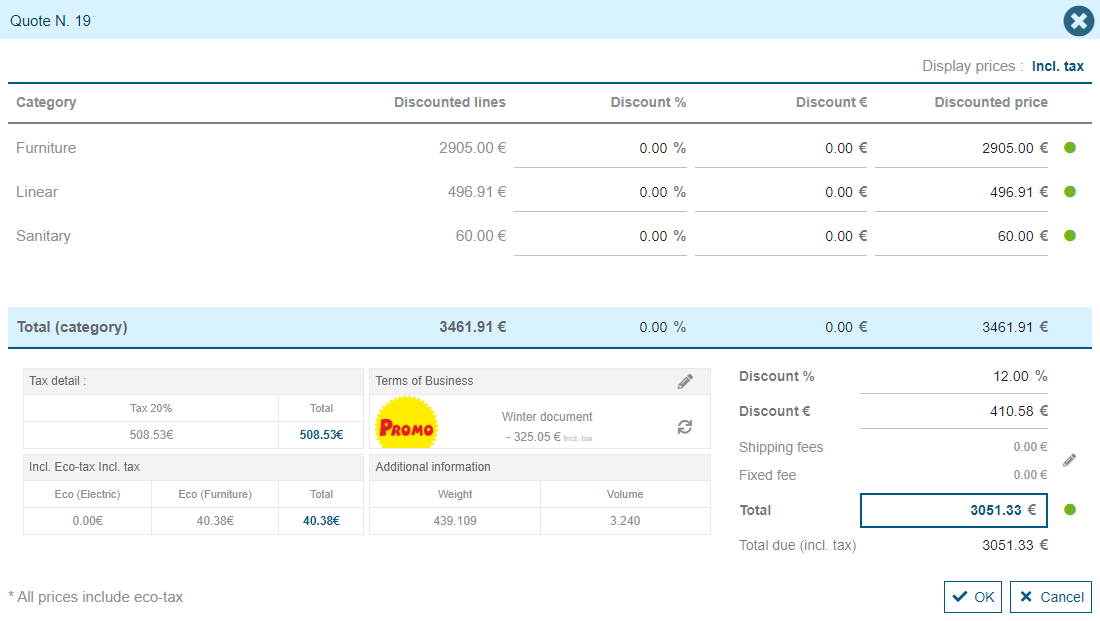
The user refresh the promotion. When the promotion is cancelled the foot discount left is 2.5%, the basis of the promotion is different between the first application (foot discount 5%) which get 14.5% and now (foot discount 2%) which get 12% and the difference between the two percentage is 2.5% (14.5% - 12%) and when the promotion is reapply is cumulated to the foot discount, 2.5% then 10%, which gives 12.25%.
Total foot discount = 1 − (1 − 2,5/100) × (1 − 10/100) = 0,1225
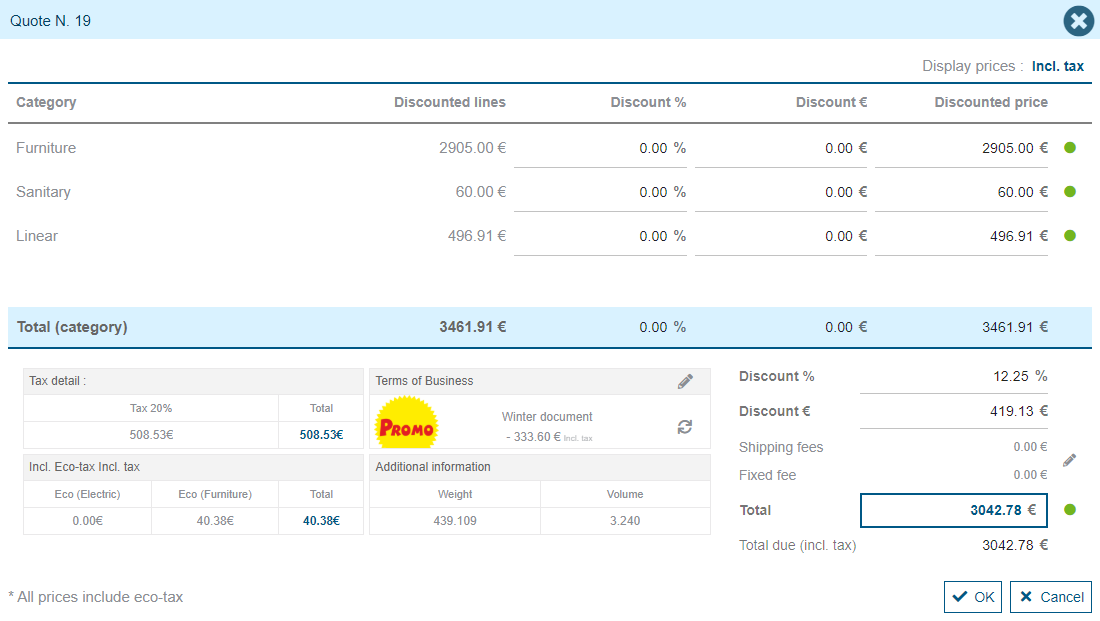
The user cancel the promotion. The foot pecentage equal 2.5% because it was 2.5% before the application of promotion.