EDI Exchange
Introduction
Retail operations supports the automatic generation of EDI files.
If your suppliers support this format, this allows you to transmit your purchase orders to them in a standard format, and possibly to be notified of their processing by the supplier concerned.
Supported message types:
- Generation of Purchase Orders in “ORDERS” format (EANCOM UN/EDIFACT Standard).
- Import of Acknowledgments of Receipt in “OSTRPT” format (EANCOM UN/EDIFACT Standard).
- Import of Order Confirmations in “ORDRSP” format (EANCOM UN/EDIFACT Standard).
- Generation of a Document for the logistics operator (Retail operations specific format).
EDI Exchange Setup
In order to enable the automatic generation of EDI and EDIGRAPH files for HBM import, you need to add some parameters to your catalogs and their linked suppliers.
Catalog
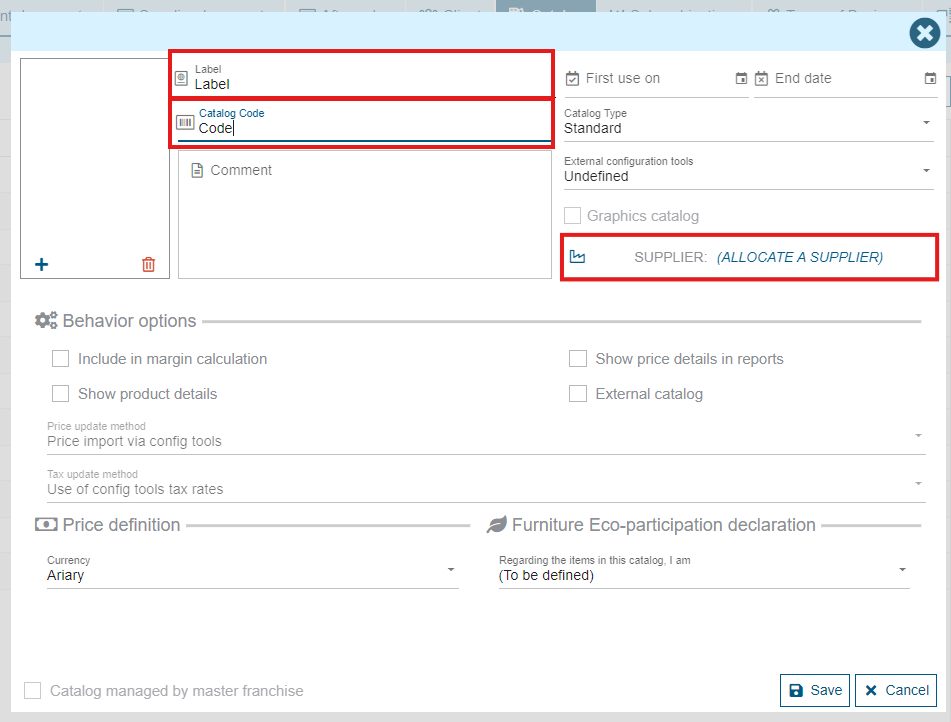
Your catalog list can directly be accessed from the ("Management / Catalogs") menu of Retail operations if you own the required authorizations. Each catalog that will be affected by the EDI exchange must contain the following specifications:
- The catalog code (provided by the supplier) must be filled in.
- The catalog must be assigned to a supplier, itself configured to use EDI.
Supplier
Your supplier list an directly be accessed from the ("Management / Contacts / Suppliers") menu of Retail operations if you own the required authorizations. All the relevant settings on the supplier for the EDI exchanges are located in the second setting page ("Next" button at the bottom left of your supplier detail form when in edit mode).
Main information
In the Shipping parameters section, you must fill the following fields:
- Supplier code: The supplier code for EDI exchanges
- GLN Code: The supplier GLN code for EDI exchanges
- Exchange format: EDI
- Exchange method: Email
Store setting for this supplier
Each store also has to be setup in order to be able to use the EDI exchanges with the selected supplier.
To do so, use the Store parameters button on the right of the Shipping parameters section. Available settings for each store:
- Format: EDI
- Method: Email
- Contact: (optional) The contact information of the store that will be exported in the EDI
- Account #: The store code
Purchase order generation ("ORDERS" message)
When generating a purchase order from a sales order, the window below appears. We can see right away that this will generate an "EDI" document:
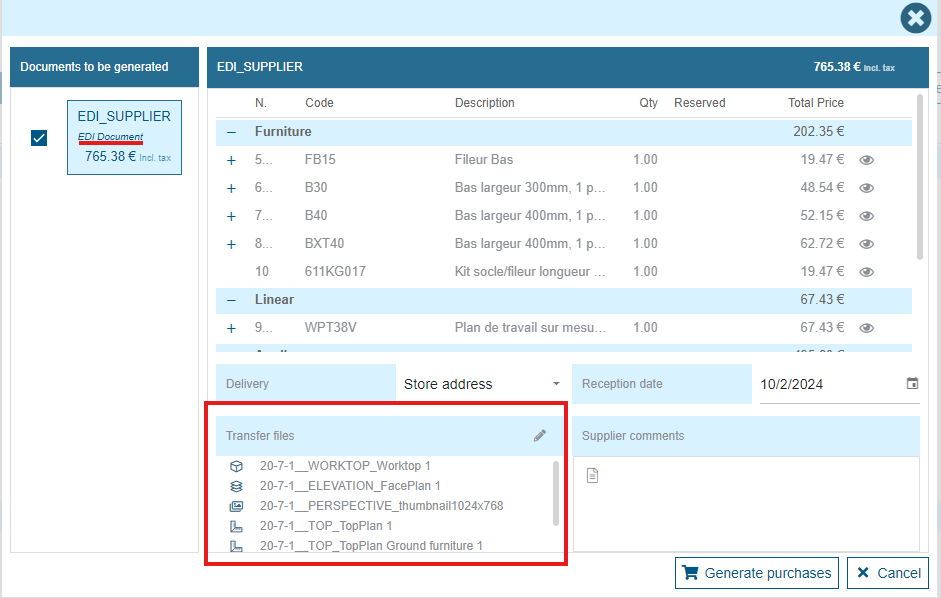
The "ORDER" file is a ZIP archive containing:
- an "ORDER.EDI" file, including all commercial data: your coordinates, your project information, the list of products to be ordered and their styling specifications
- an "ORDER.EGI" file, precising the position (coordinates) of all products in the project scene
- a set of pictures, corresponding to the different technical views: plan (top view), worktops only, elevation views and perspective
On the bottom left of the screen, you can see the list of files that will be included in your "ORDER" file. Clicking on the pen allows you to change the predefined selection and eventually correct each file category if the automatic selection does not suit you:
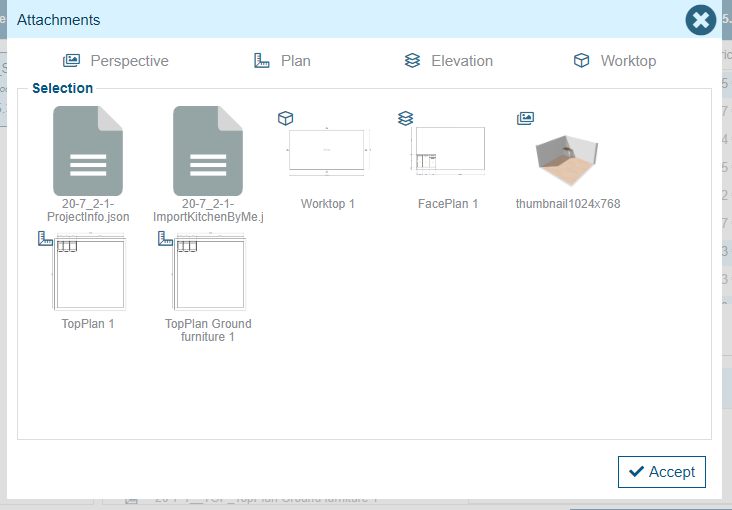
It is also possible to add a comment that will be transmitted with the ORDER archive, if you have specific recommandations or technical constraints that may be useful for the destination supplier.
To generate the EDI order, simply click on the "Generate purchases" button. A set of verifications is made by the system in order to ensure that the mandatory information is specified. If it is the case, Retail operations generates a "Purchase order" document for your project and attaches it the generated Archive. This purchase order is added to the list of documents that can be accessed from your project:

If you open this document, an "EDI Document" banner indicates that this order is an EDI document.
In case you chose the "Email" sending method, you need to print your order and use the "Send by email" function. Then come back to your purchase order and click on the button near the "EDI Document" banner in order to validate the sending. Your document will be locked and a new "Document sent" banner will appear, indicating that you your "ORDER" file was sent to the supplier. In case of an automatic sending, the document will be automatically locked and the "Document sent" banner will directly be displayed.

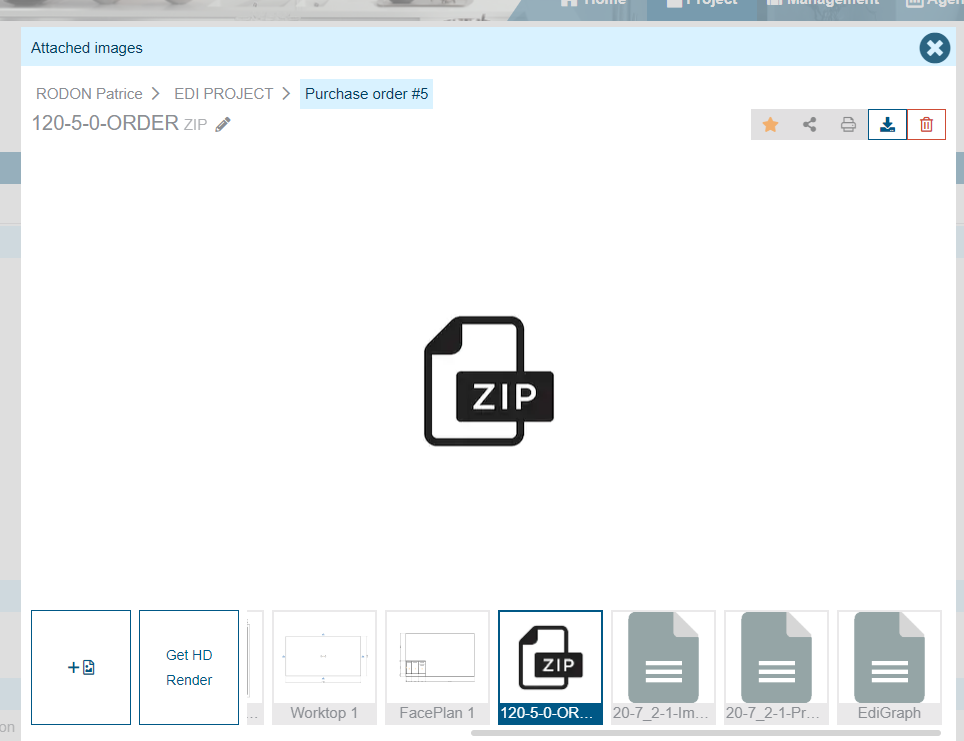
Please notice that your generated "ORDER" file can be found in the document attachments area:
Acknowledgments of Receipt ("OSTRPT" message)
You supplier has the ability to inform you that he received a new "ORDER" file, by contacting our EDI import API method. The "messageType" argument needs to be set to "OSTRPT" and the transmitted file must respect the EANCom "OSTRPT" standard format.
Once imported, the file is automatically attached to the related Purchase order.
A set of automatic processes can be initialized anytime this method is called:
- Advance the project workflow progress to a given stage
- Add a comment to the project, precising the Receipt number as identified in your supplier system
Please contact our Service team in order to define the process that will match your needs here.
Order Confirmations ("ORDRSP" message)
Similarly to the "OSTRPT" message, your supplier can wend you his Order confirmation by contacting our EDI import API method. This time, the "messageType" argument needs to be set to "ORDRSP" and the transmitted file must respect the EANCom "ORDRSP" standard format.
Retail operations will automatically transform your inital purchase order at the origin of this confirmation to a new Order acknowledgement and correct it with the real specifications sent by your supplier through the "ORDRSP" archive. Thus, you can control the eventual changes that your supplier may have applied to the initial order (Obsolete reference replacement, Automatic add-ons, Price changes, etc.).
The imported file is also added to the Purchase order acknowledgement attachments.
Open your Order acknowledgement, a new "Compare" button allows you to quickly display a new screen highlighting the differences between your initial purchase order and the imported Order acknowledgement:
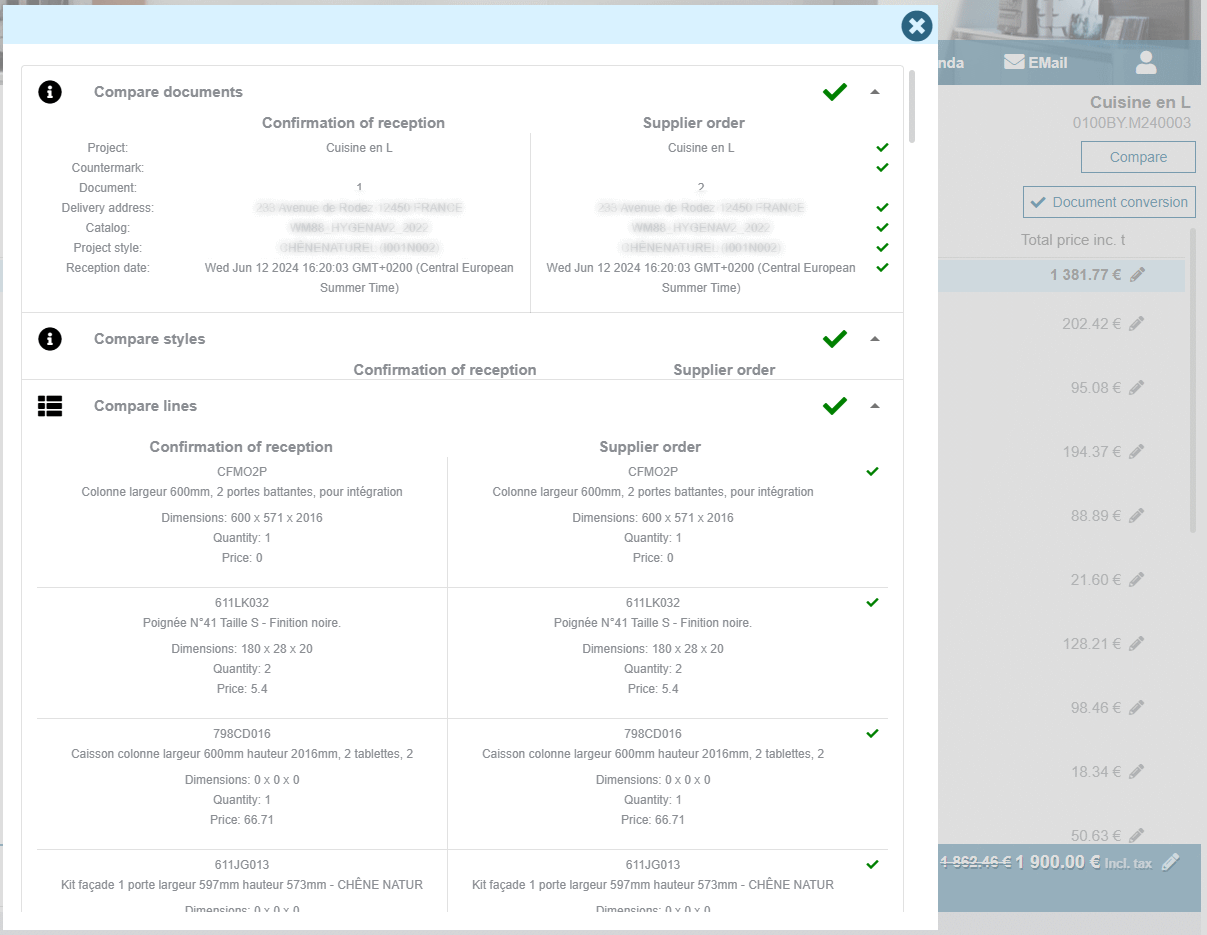
Please notice that for "ORDRSP" message import, you can also define a set of automations (you can contact our Service team in order to define the process that will match your needs here) that will be executed at the "ORDRSP" importation step.
Instructions for logistics
Retail operations offers the ability for you to warn your Logistics operators about some future Orders to be managed.
Directly from your project main screen, a "Platform EDI" button allows you to prepare and send a new EDI file summing up the important information extracted from your Purchase order acknowledgements:
- Project countermark
- Delivery coordinates and estimated date
- Number of items, total volume and weight
A dialog pops-up, asking the end-user to select a delivery condition (from a customizable list) and eventually add some notes for his file recipient, that will be included in the final file.

Once generated, the "INSDES" EDI file is automatically added to the project attachments.