EMails
First access
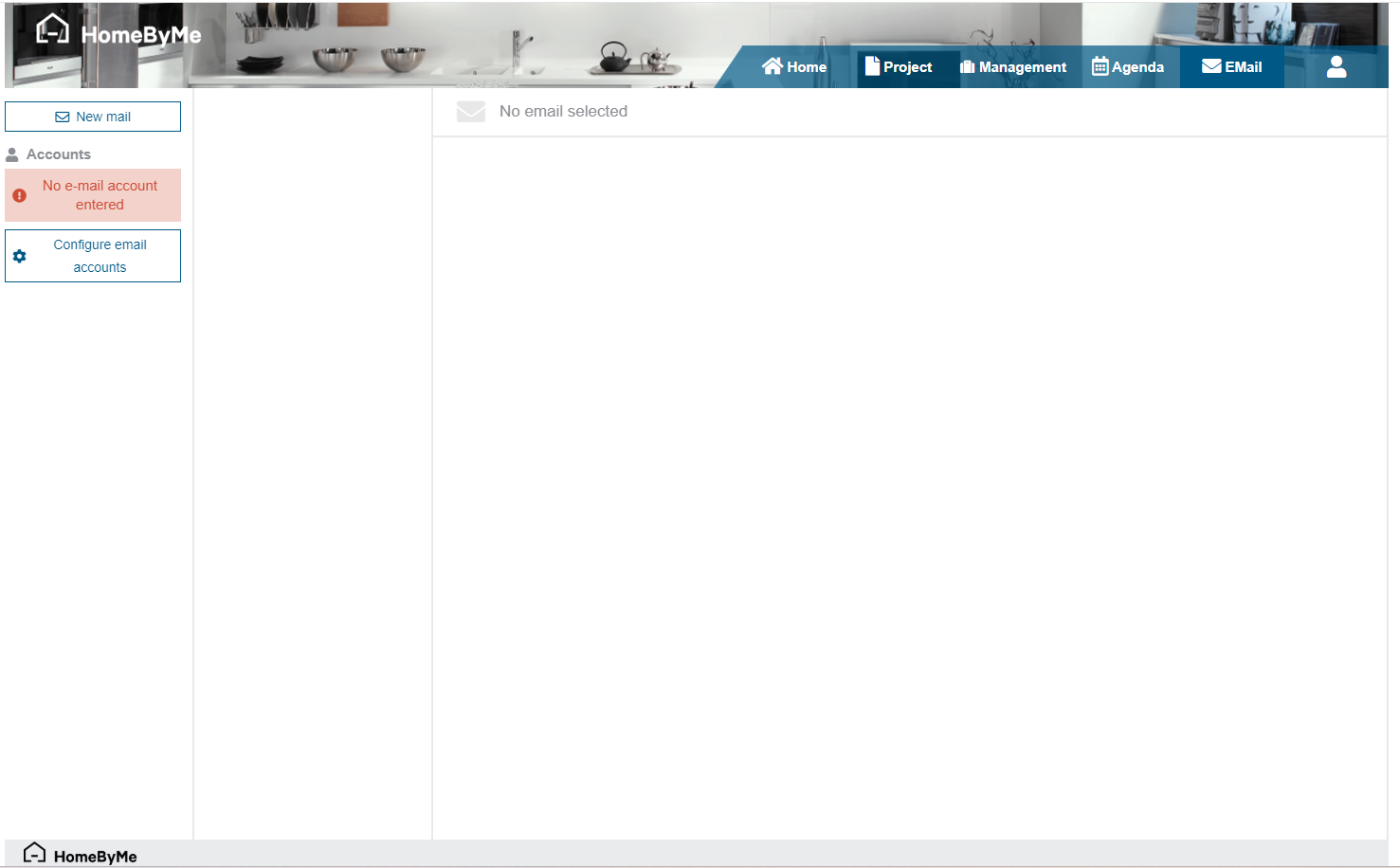
When you first access this tab, there is a button to "configure my email account". By clicking on it, you arrive at a wizard for entering your email account information in order to connect it to Retail operations.
Personal Gmail accounts are not compatible with Retail operations. You must have a business account.
User interface
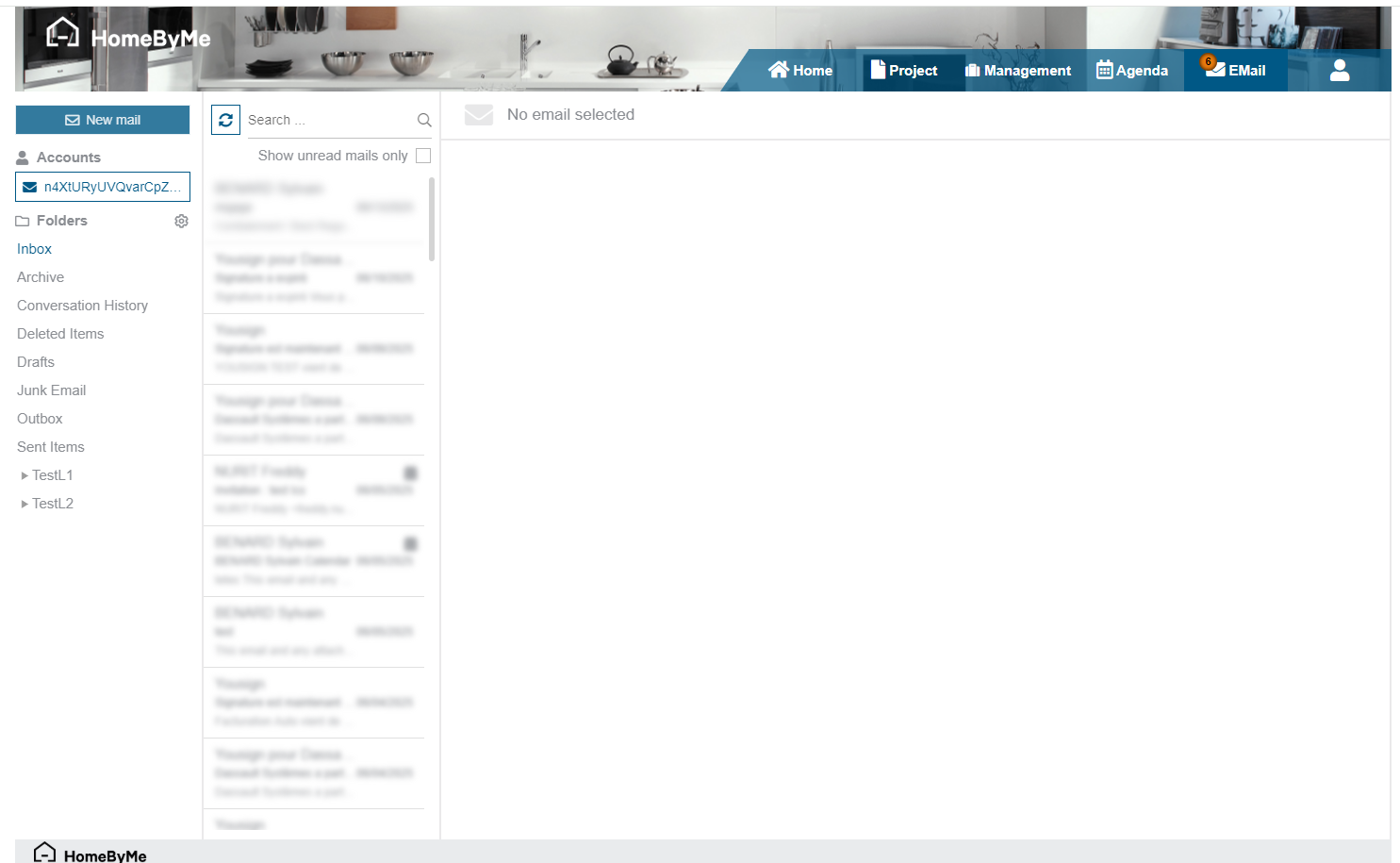
Once the email account is connected, we find on the left of the screen the list of folders. It is possible to choose to hide certain folders via the action provided for this purpose.
By selecting an email, its content is displayed on the screen. A search field and a filter allow you to easily find an email.
Actions
The possible actions at the email level are: Create a new email, reply, reply to all, forward, mark as read/unread. In the case where the email received is an appointment request, it is possible to add it to the calendar. In this case, the appointment will be added to the user's Retail operations calendar.
Finally, it is possible to "link" an email to a Retail operations project. By selecting this action, the application offers to search in the list of accessible projects the one to which to attach the email. Once the project is selected, two choices are offered to the user: validate their selection or create an after-sales service. If an after-sales service exists, a third choice will be to link this email to this after-sales service. The email will then be visible in the project or after-sales service project progress feed.
In the case of the creation of an after-sales service, the after-sales service declaration part is launched automatically to begin entering this after-sales service.