Link Accounting Information
In this part of Retail operations, we will talk about all the settings of the accounting family links
- Link between third-party accounting family and customer types
- Link between third-party accounting family and customers
- Link between third-party accounting family and suppliers
- Link between accounting family and product groups
All these settings can be done on the stores and/or on the company if you have the right activated. As explained on the previous page, the right to modify the parameters at the company is activated. If the right for the configuration on the company is not activated you will be able to see the settings made but not modify them.
Third party/type accounting family link
This screen allows you to associate a third-party accounting family with a third-party type. There are three main third-party types:
 Professionals
 Individuals
 Suppliers
The setting can be done by store or for the company (for all stores). The transition from entry by store (the first screen) to entry for the company is done by clicking on the button "See families for the company". Once on the entry by company you must click on the button "See families by store" to return to the entry by store.
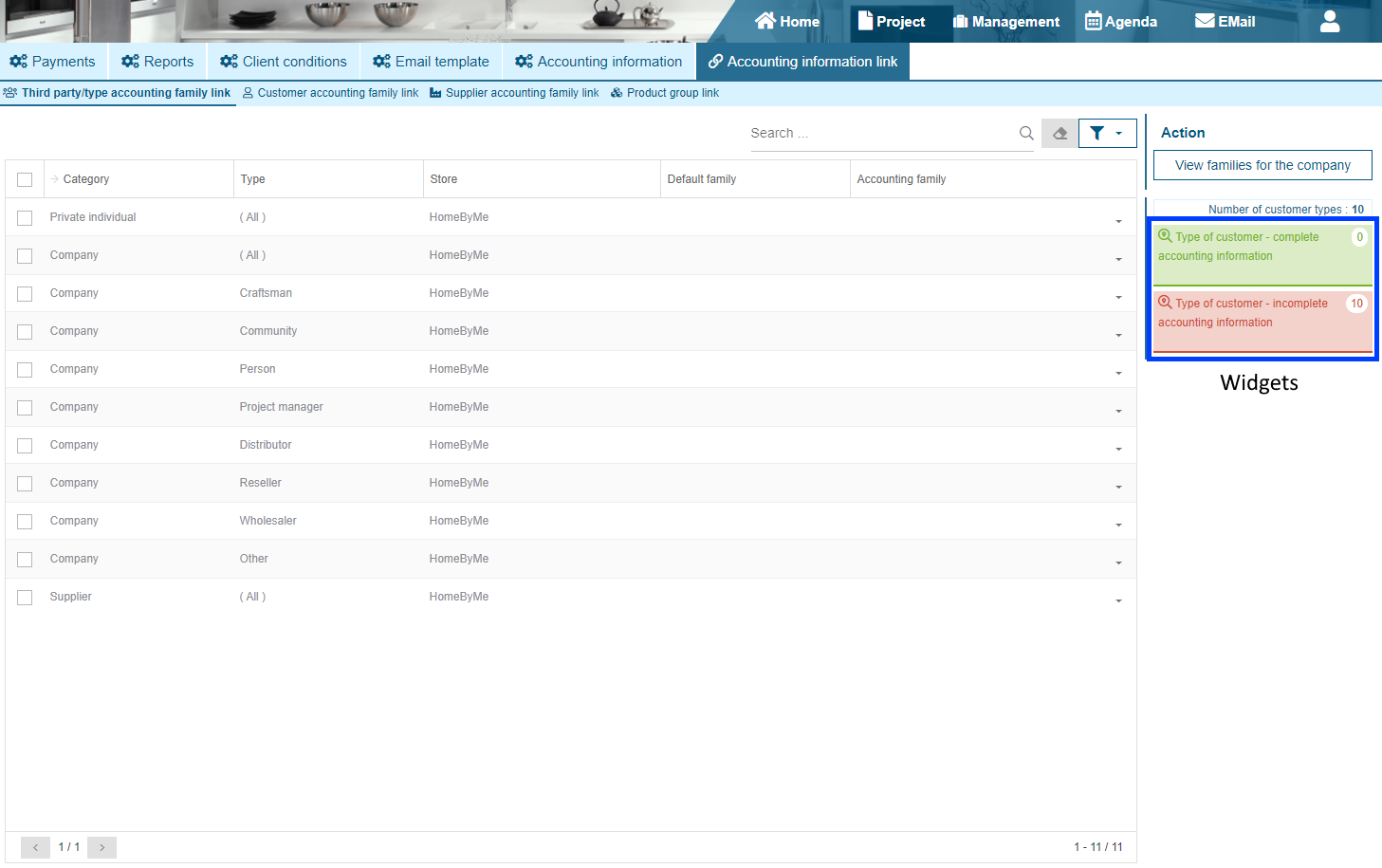
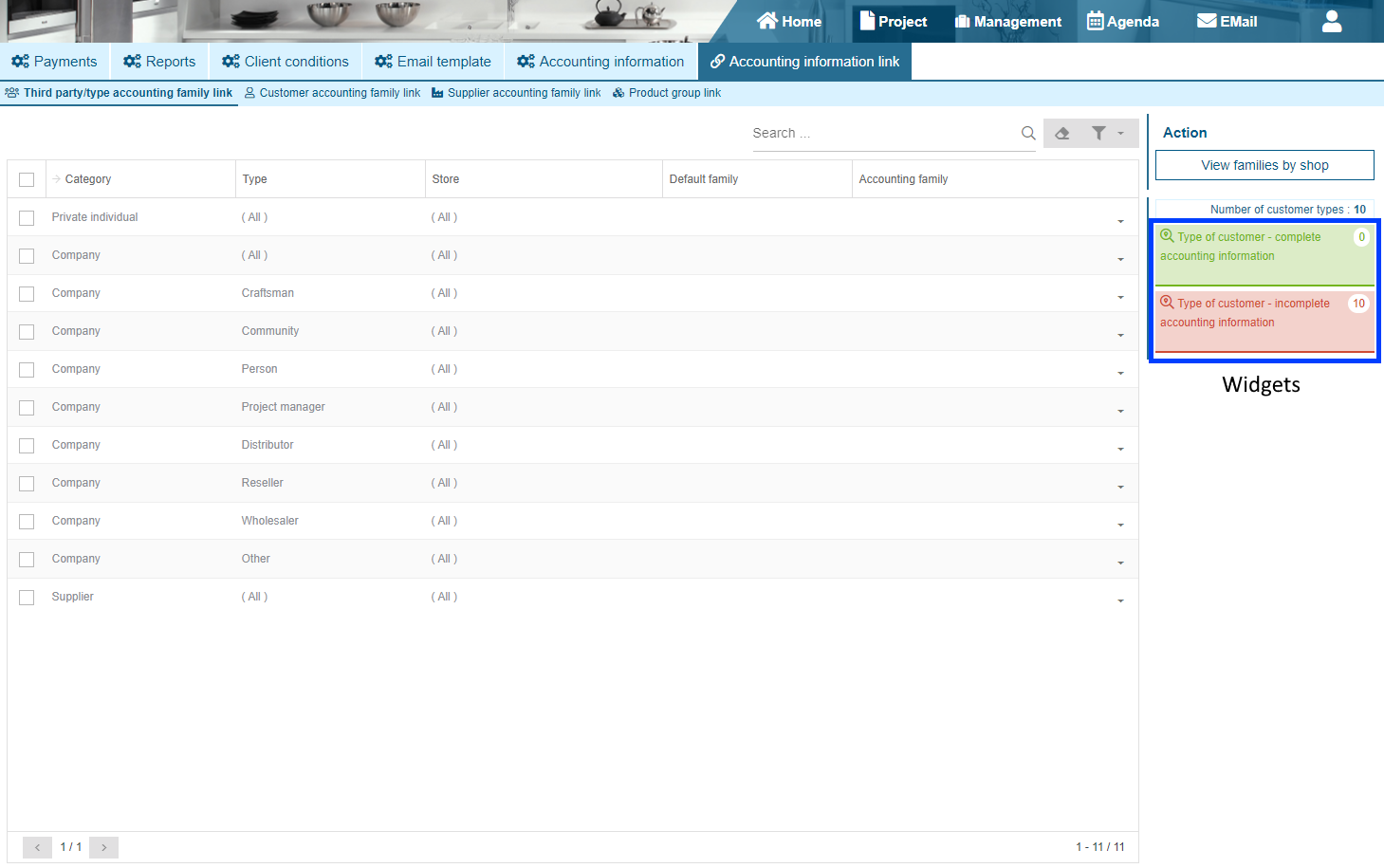
To link a third-party accounting family to a third-party type, you must select it from the "Accounting family" drop-down list. If no third-party accounting family is specified for the third-party type, the "Default family" is the third-party accounting family that will be used during the accounting export.
Widgets allow you to filter the types of third parties for which the third party accounting family is filled in, but especially the types of third parties for which it is not filled in. This allows for faster verification of missing information.
Customer Accounting Family Link
This screen allows you to associate a third-party accounting family with a customer, it also allows you to enter an accounting code for the customer.
The configuration can only be done by store.
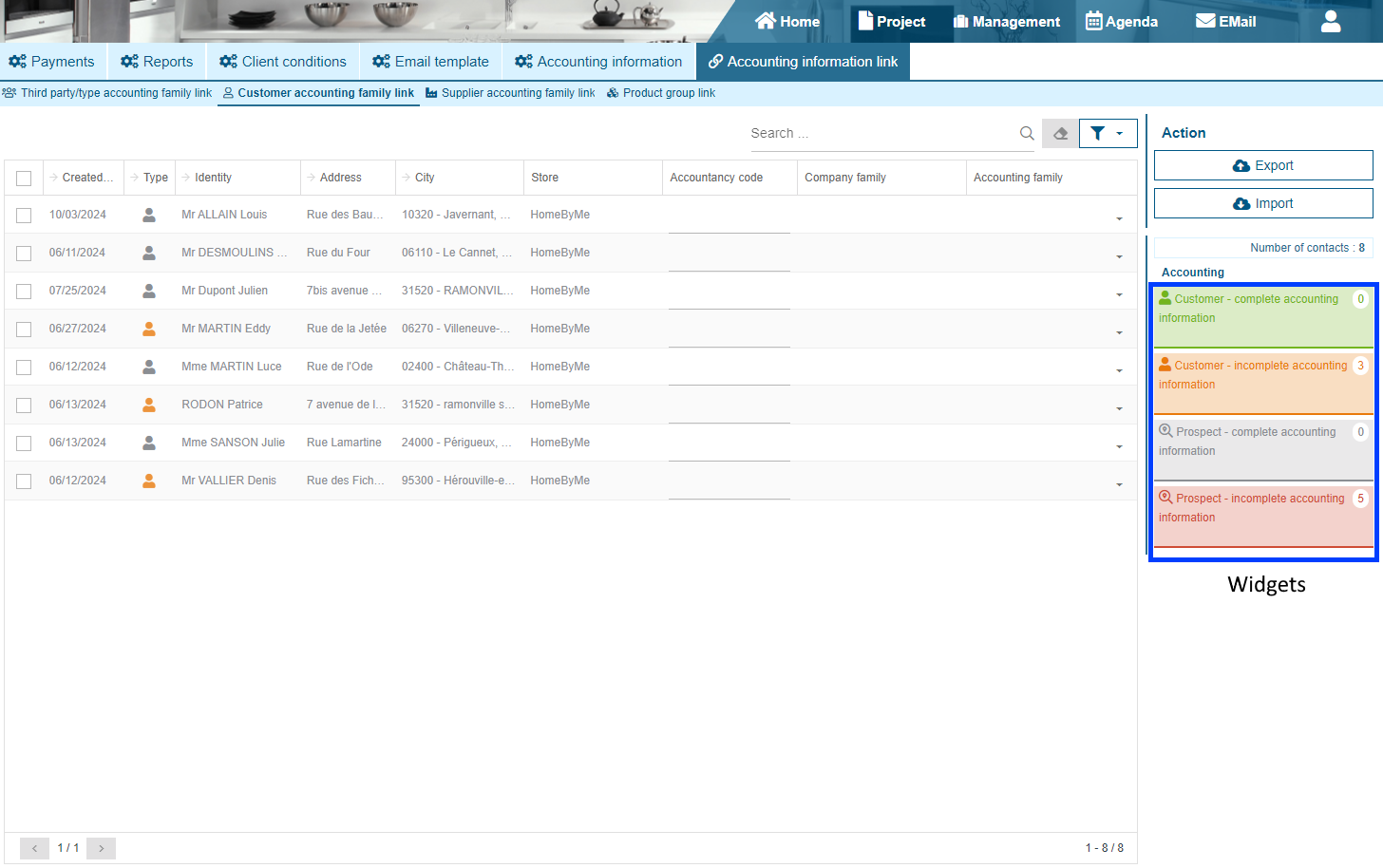
You can enter the accounting code directly in the "Accounting Code" column To link a third-party accounting family to a client, you must select it from the "Accounting family" drop-down list. If no third-party accounting family is entered for the client, the "Company family" is the third-party accounting family that will be used during the accounting export.
Widgets allow you to filter customers for which the accounting code and the third-party accounting family are filled in, but especially customers for which at least one of the two pieces of information is not filled in. This allows for faster verification of missing information.
You can select customers using the check boxes and by clicking on the "Export" button, you can export the list of customers into an Excel file. Then you can enter the accounting codes and accounting families in the Excel file and import them into the grid using the "Import" button
Supplier Accounting Family Link
This screen allows you to associate a third-party accounting family with a supplier, it also allows you to enter an accounting code for the supplier.
The configuration can be done by store or for the company (for all stores). The transition from entry by store (the first screen) to entry for the company is done by clicking on the "View families for the company" button. Once on the entry by company you must click on the "View families by store" button to return to the entry by store.
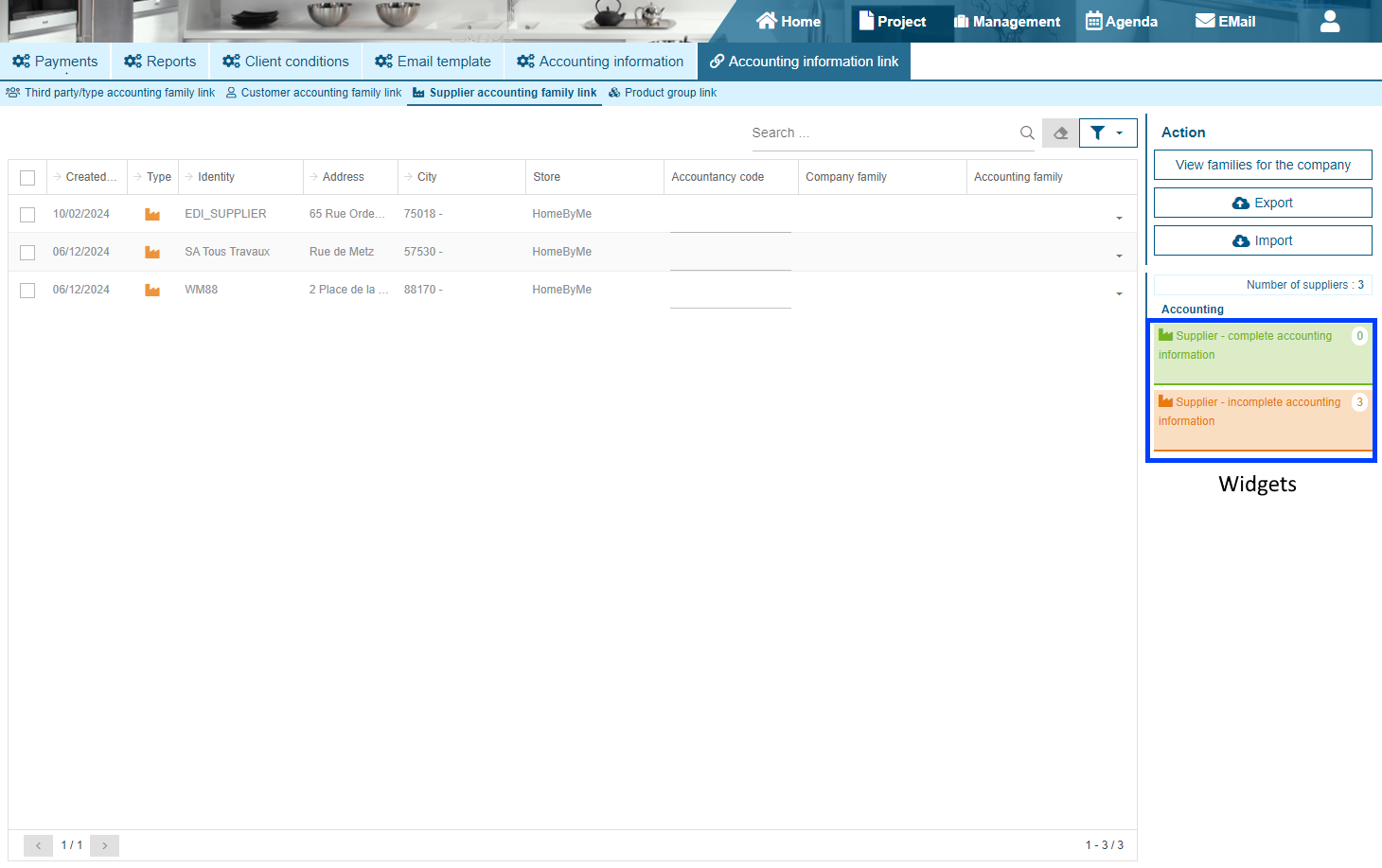
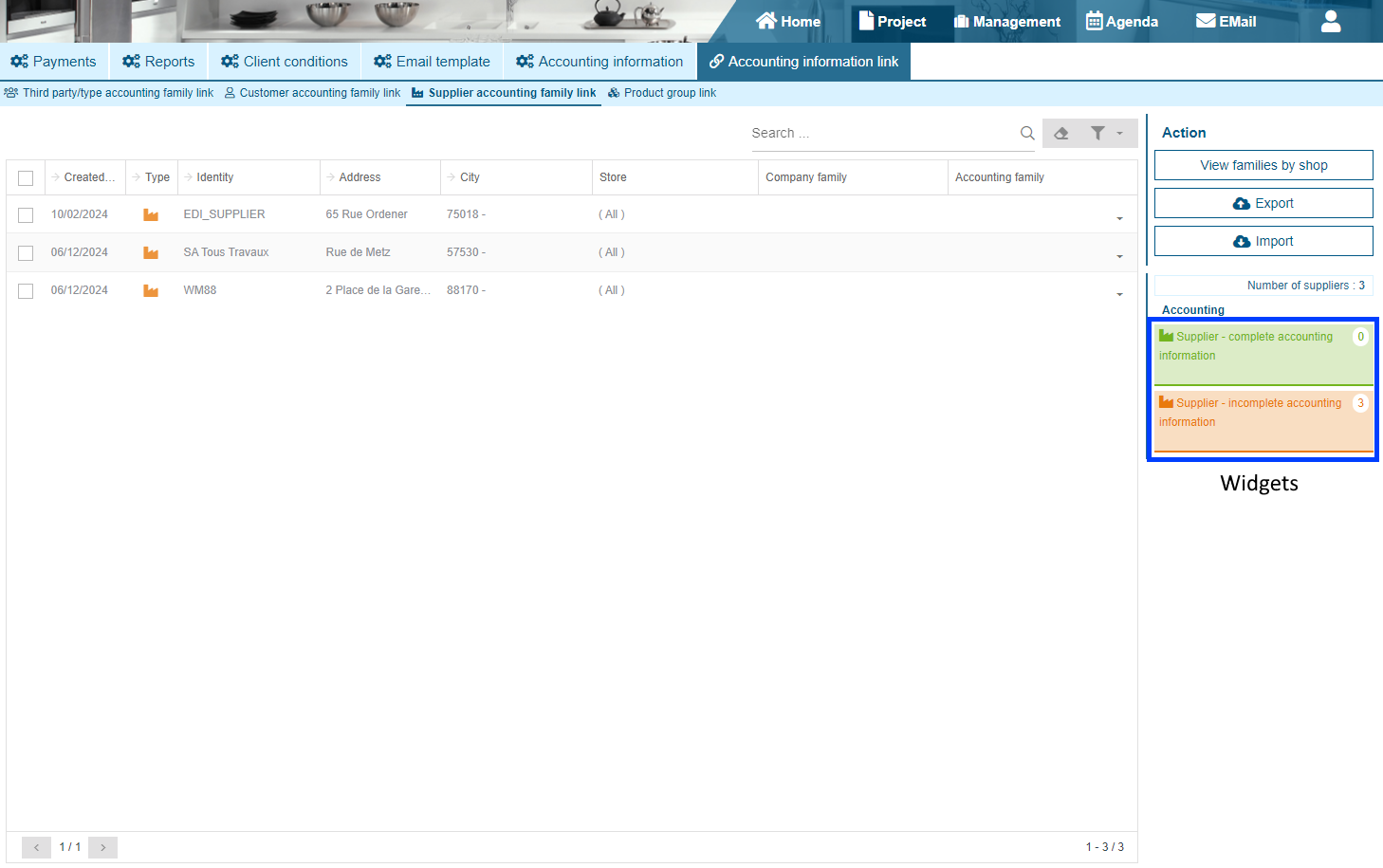
You can enter the accounting code directly in the "Accounting Code" column To link a third-party accounting family to a supplier, you must select it in the "Accounting family" drop-down list. If no third-party accounting family is entered for the supplier, the "Company family" is the third-party accounting family that will be used during the accounting export.
The widgets allow you to filter suppliers for which the accounting code and the third-party accounting family are entered, but especially suppliers for which at least one of the two pieces of information is not entered. This allows for faster verification of missing information.
You can select suppliers using the checkboxes and by clicking on the "Export" button, you can export the list of suppliers into an Excel file. Then you can enter the accounting codes and accounting families in the Excel file and import them into the grid using the "Import" button
Product Accounting Family Link
This screen allows you to associate a product accounting family with a product.
The configuration can be done by store or for the company (for all stores). The transition from entry by store (the first screen) to entry for the company is done by clicking on the "View families for the company" button. Once on entry by company, you must click on the "View families by store" button to return to entry by store.
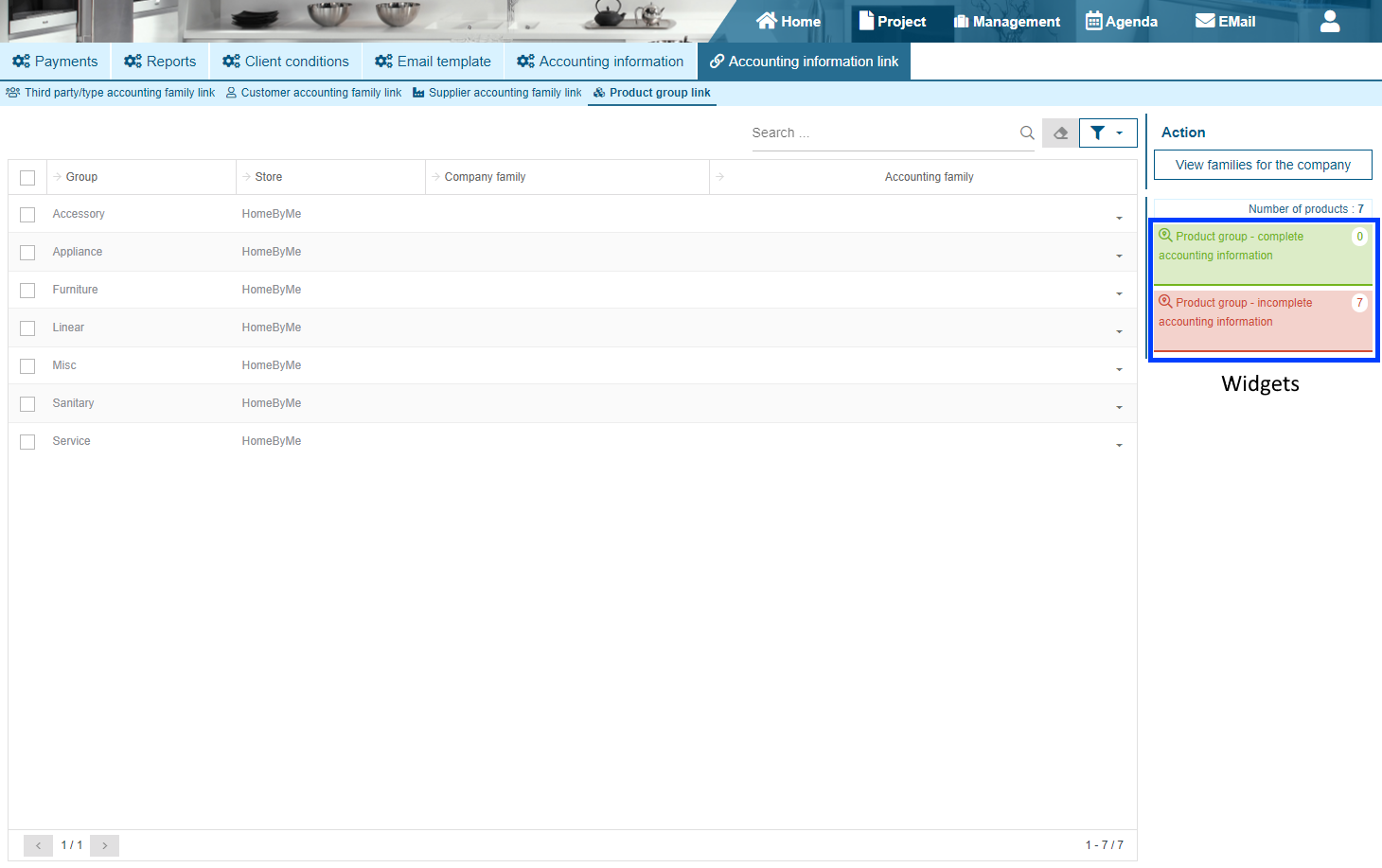
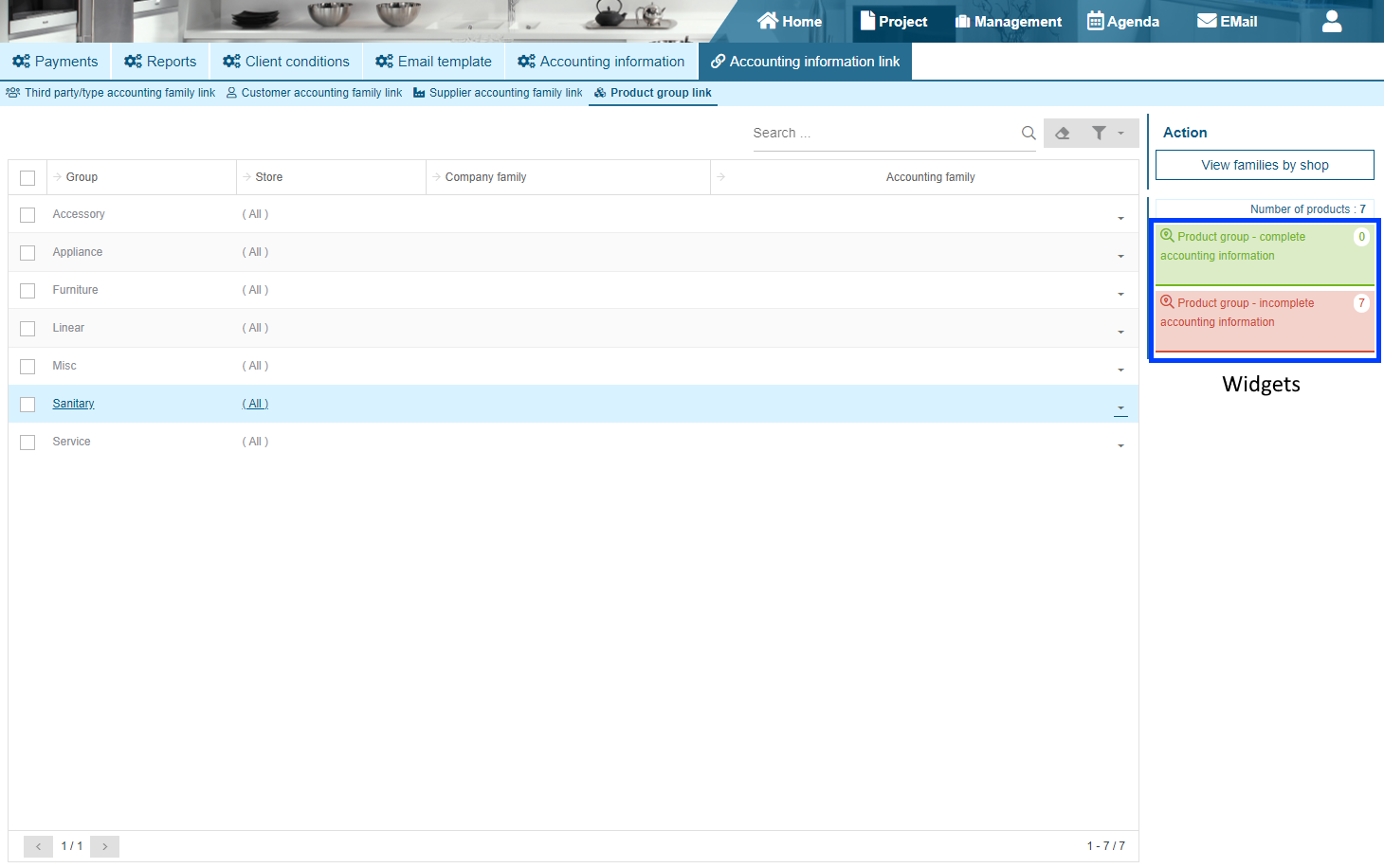
To link a product accounting family to a product, you must select it from the "Accounting family" drop-down list. If no product accounting family is specified for the product, the "Company family" is the product accounting family that will be used during the accounting export.
The widgets allow you to filter the products for which the accounting code and the third-party accounting family are specified, but especially the products for which at least one of the two pieces of information is not specified. This allows for faster verification of missing information.