Customer documents
Besides the ability to list/filter/view/sort Customer Documents according their type, several additional features are available on this screen.
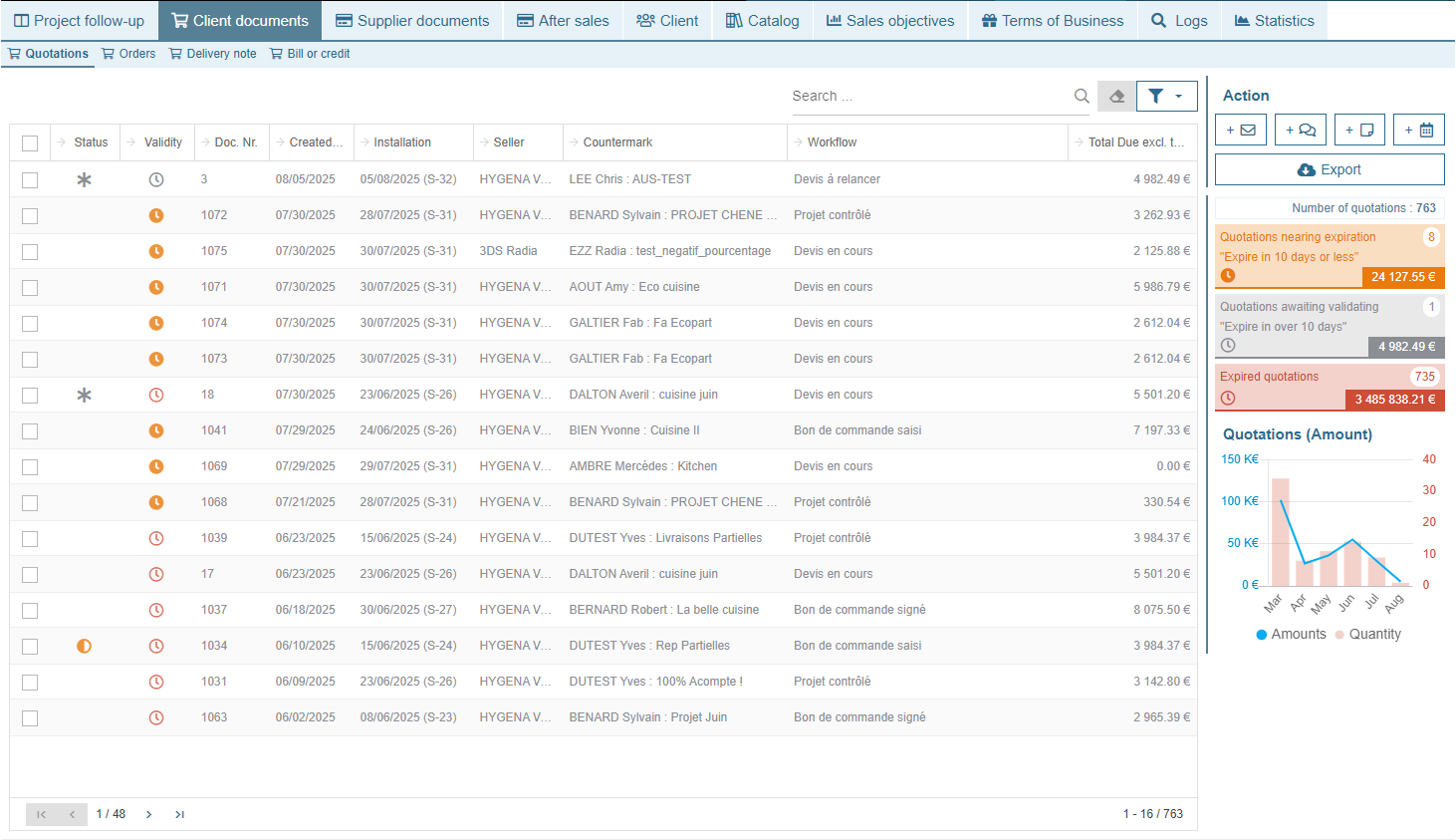
Sending Grouped emails
It is possible to select multiple documents via the check boxes provided for this purpose. By clicking on the “New Email” action button, we will be able to send an email to all selected contacts.
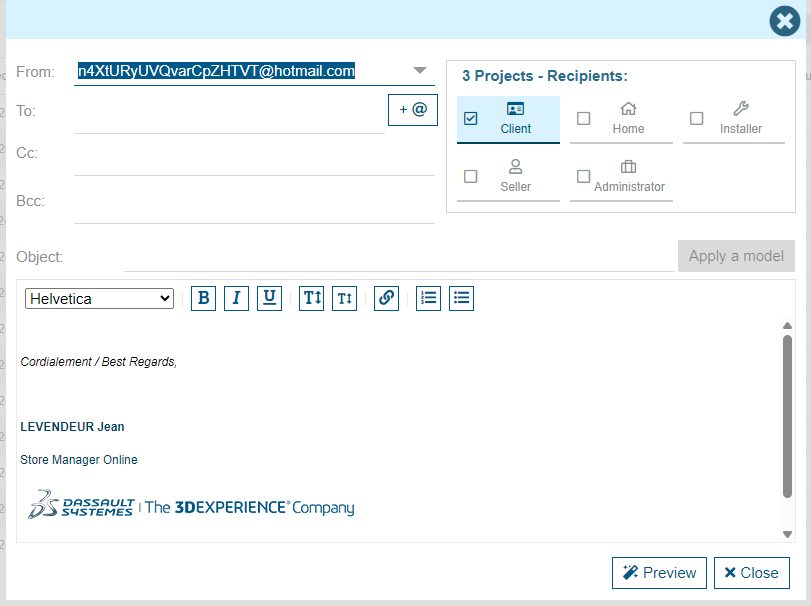
In the first screen displayed, we choose the sender, the email template to apply and we have the choice of the recipient among the proposed profiles: customer, reception, seller, manager, installer. The recipient's email address will be automatically replaced according to the project concerned.
By clicking on "Preview", you can see the list of emails ready to be sent. Each of the emails can be customized at this stage before being sent. It is possible to uncheck an email if you decide not to send it.
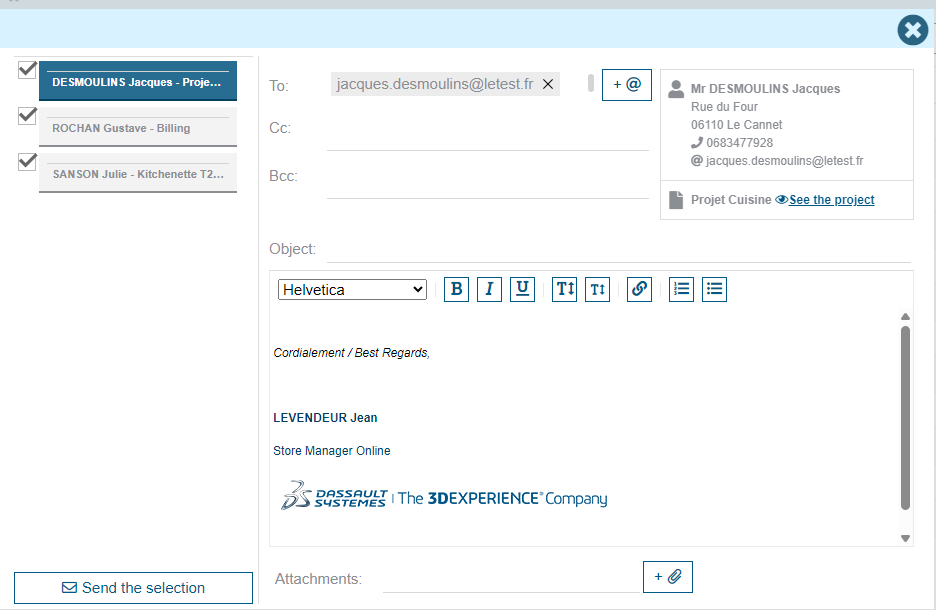
Click on “Send selection” to send all selected emails.
Exporting data
Exporting documents
Depending on the user's rights, it is possible to export documents in Microsoft Excel format. If no selection is made, all documents are exported. If documents are selected, only these documents are exported. The list of exportable information is detailed in the chapter "Export settings".
Accounting export
For documents of the "Invoice and Credit" type, another available export is "Accounting Export". This export allows you to retrieve the accounting entry lines corresponding to the selected documents in Microsoft Excel format.
A color indicator appears in the "Accounting Export" column when a document has already been exported.
Ecofee export
Available at the "Invoice" level, the Ecofee export allows you to retrieve the information required to declare the furniture eco-participation to the dedicated organization. The downloaded file is compatible with the online declaration tool.
It is not necessary to select documents, a date range must be selected to perform the export.
Document type widgets & specificities
Quotations
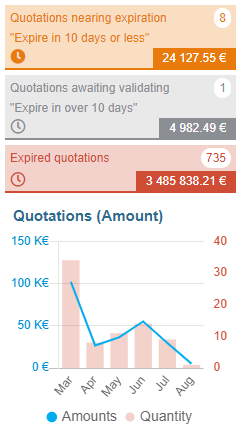
For quotations only, the validity status is displayed, and the list can be filtered according to this status by clicking on the widgets on the right of the screen.The icons on the widget corresponding to the validity icon in the grid.
A graph shows the number and sum of quotation amounts over the last six months.
Orders
For sales orders only, the purchase status is displayed, showing whether the order can generate purchase documents. The list can be filtered according to this status by clicking on the widgets on the right of the screen. When you click on a widget, it is moved above the others and an explanation appears above it.
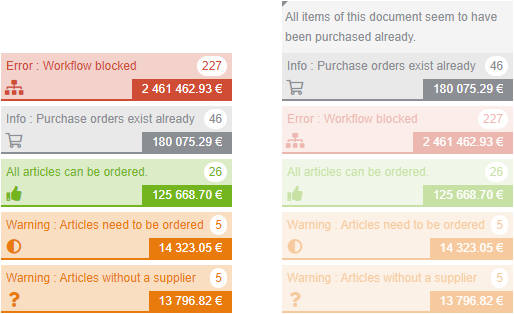
If you are a "central" user, or if your role does not allow you to enter orders, the analysis to determine whether purchases can be generated will not be performed on this screen (due to potential performance issues). You will therefore not be able to transform your customer orders into purchases.
Delivery notes
For delivery notes, the status showing if the delivery notes is billed or partialy delivered. The list of delivery notes can be filtered according to this status by clicking on the widgets on the right of the screen.

Invoices and Credits
In the first "Status" column, several icons may appear in this column. The validation logo indicates that this document has been transformed (invoice transformed into a credit note). The printer icon may appear, it will mean that this document has been printed and certainly sent to customers. There will also be the lock icon, to say that this document is locked and no more modifications will be available on it. The lock is set on an accounting document after printing it and also after exporting it accountably.
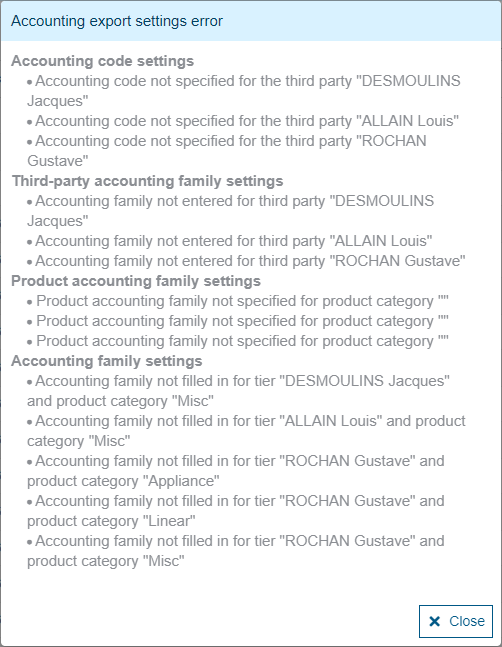
A button "Check accounting data" may be visible depending on the configuration. This button allow you to check the accounting configuration of the selected documents or of all documents if no documents are selected. And in the event of an error, a list of errors is displayed.
Widgets are displayed for amounts of accountancy export, bills and credits to filter (by bill or by credit) or to display the total balance (bill - credit).
