Stock management
Definition
The stock management included in Retail operations allows you to manage products in stock, their storage location, reservations and supplies. This feature is currently being improved to provide more comfort in its use and product tracking.
Creation of warehouses
To start using inventory management, you must first create a storage warehouse via the “Management/Inventory management/Warehouses” menu.
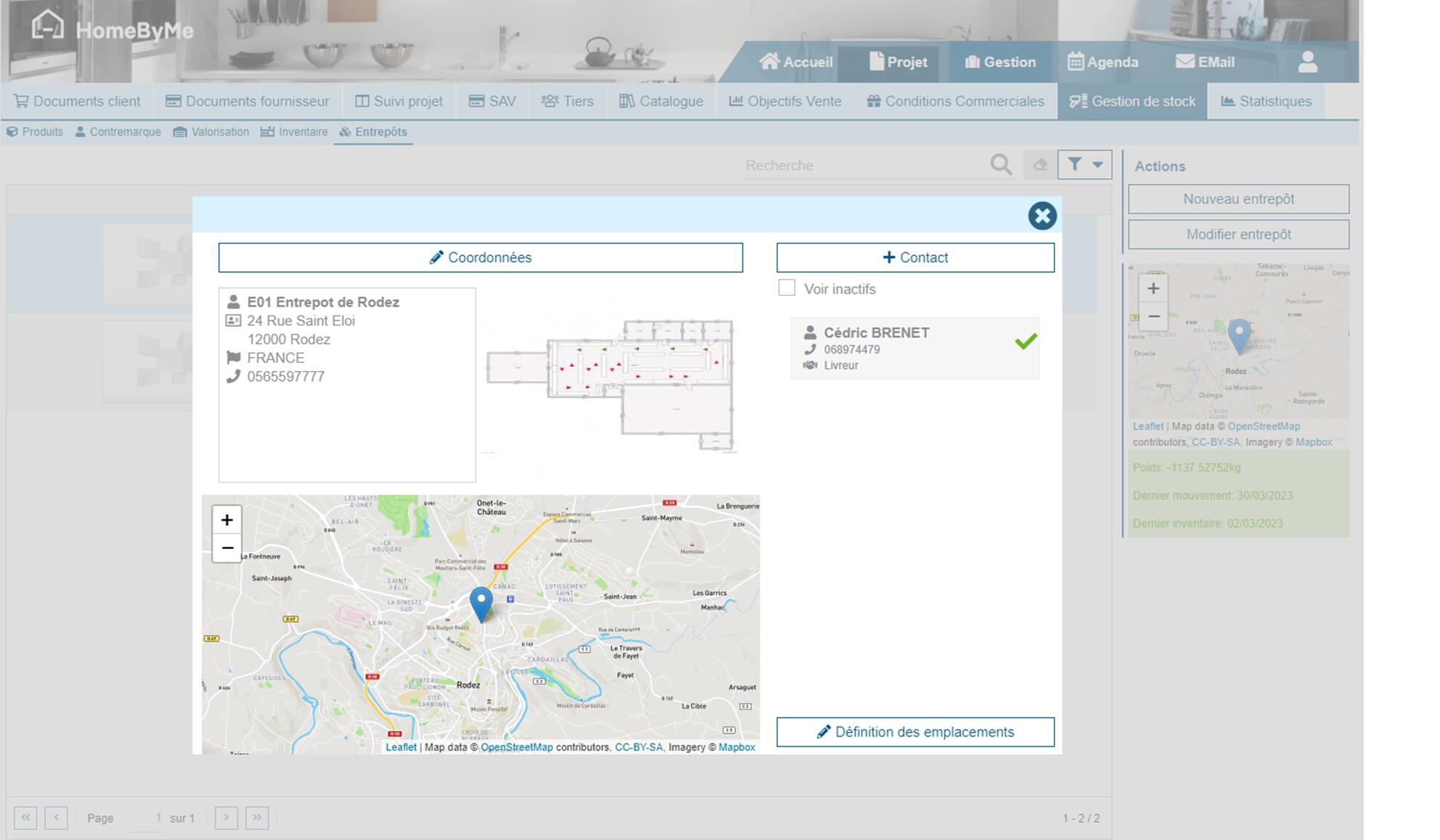
We enter the warehouse's contact details, we can specify a contact dedicated to this warehouse and finally define if the warehouse has storage locations These locations will be used in the entry into stock of goods to define where the product is stored.
Inventories
Once the warehouse has been created, you must first carry out an inventory of the products. This first inventory will allow you to initialize the various quantities available in stock.
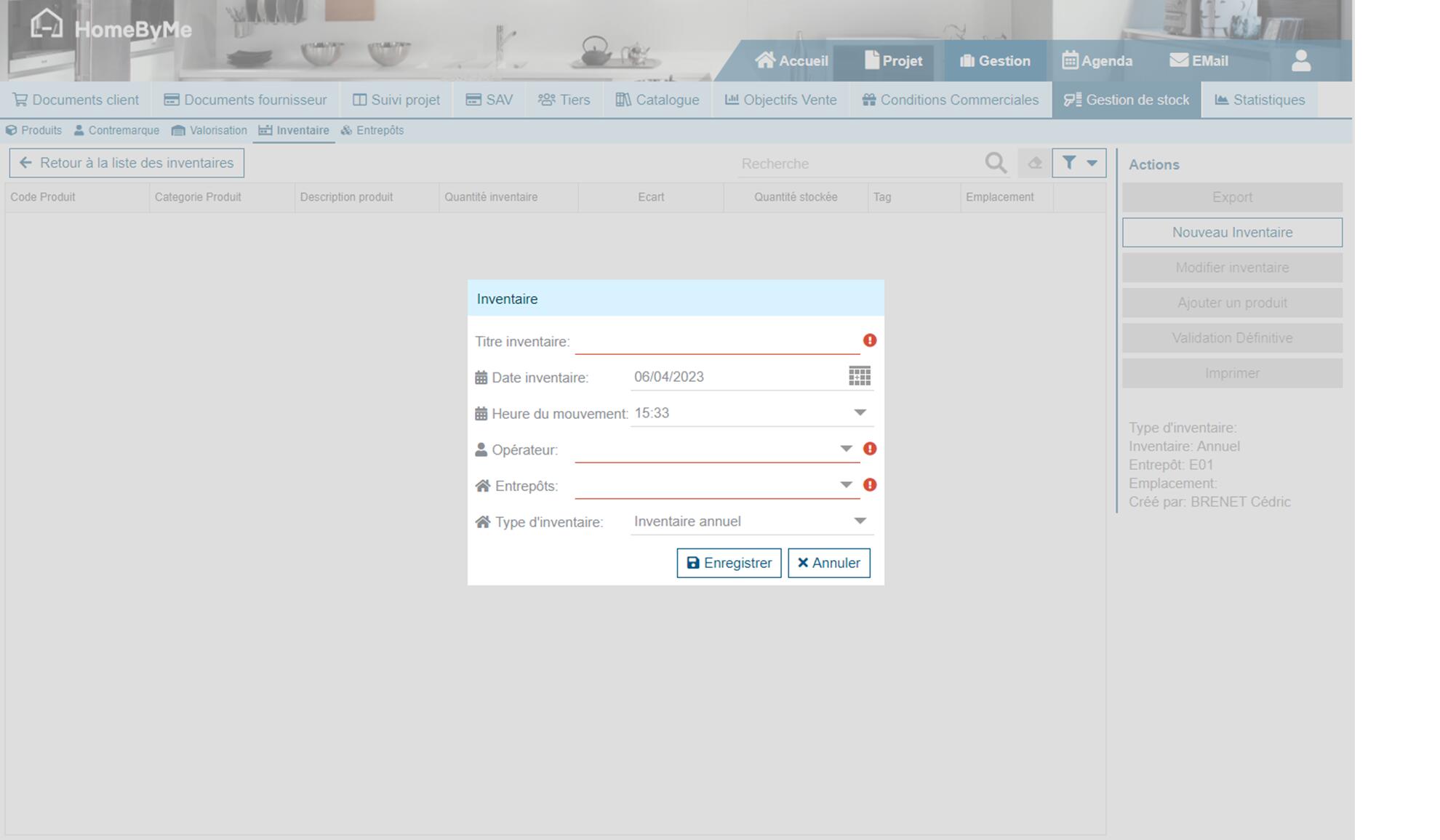
To create an inventory, you must specify:
- The title of the inventory
- The inventory date which by default is the current date
- The time of the inventory which by default is the time the inventory was created
- The operator who is the person who took the inventory
- The warehouse in the case where several warehouses have been created
- The type of inventory between "annual inventory" or "rotating inventory"
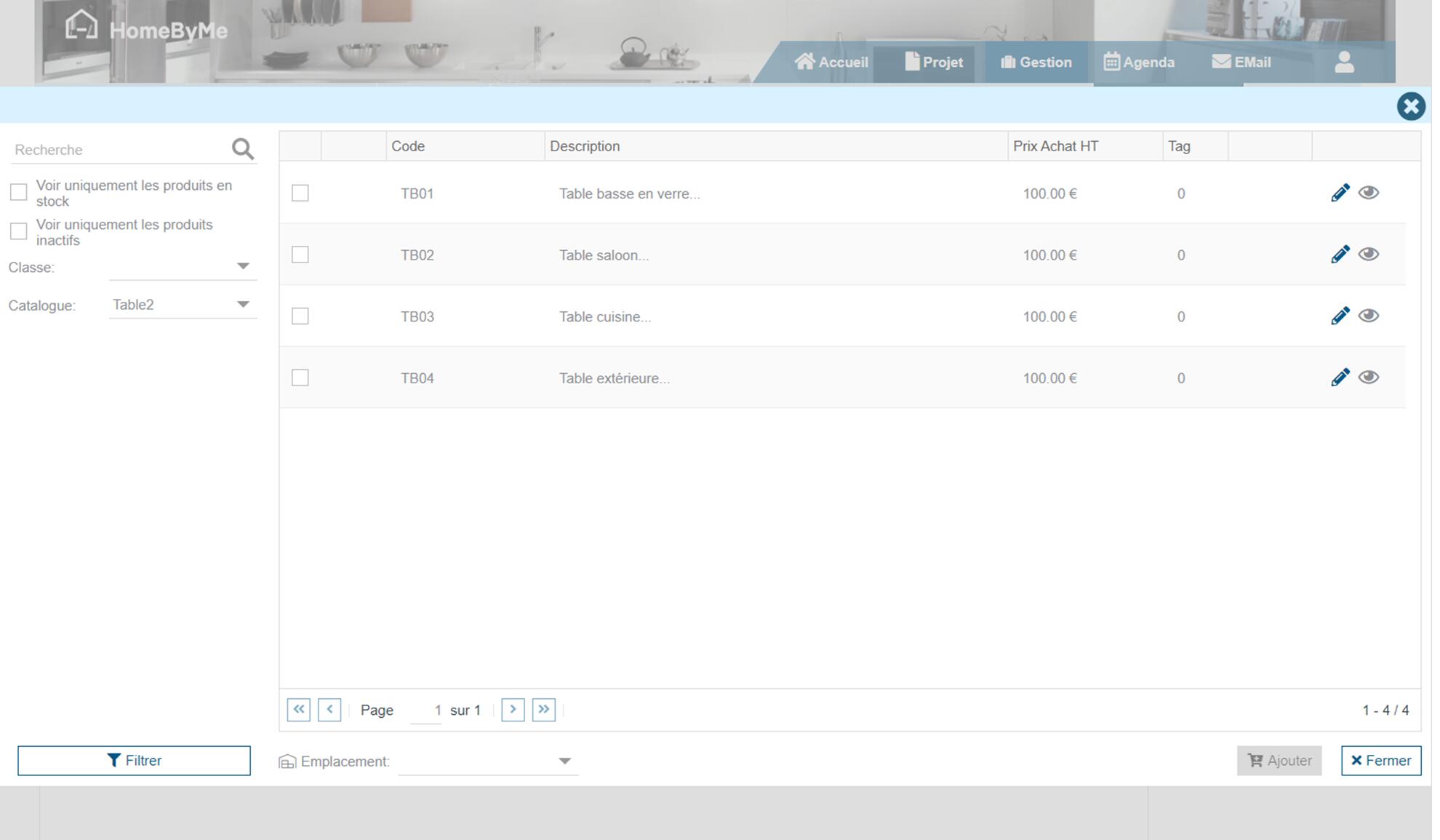
Once the inventory is started, the products are added via the “Add a product” action. This opens a product search screen where it is possible to filter the information according to different criteria.
It is not possible to create products when entering an inventory. All products must be created in their catalogs before they can be added.
Once the products have been entered into the inventory, the quantities are entered and the location is specified if necessary.
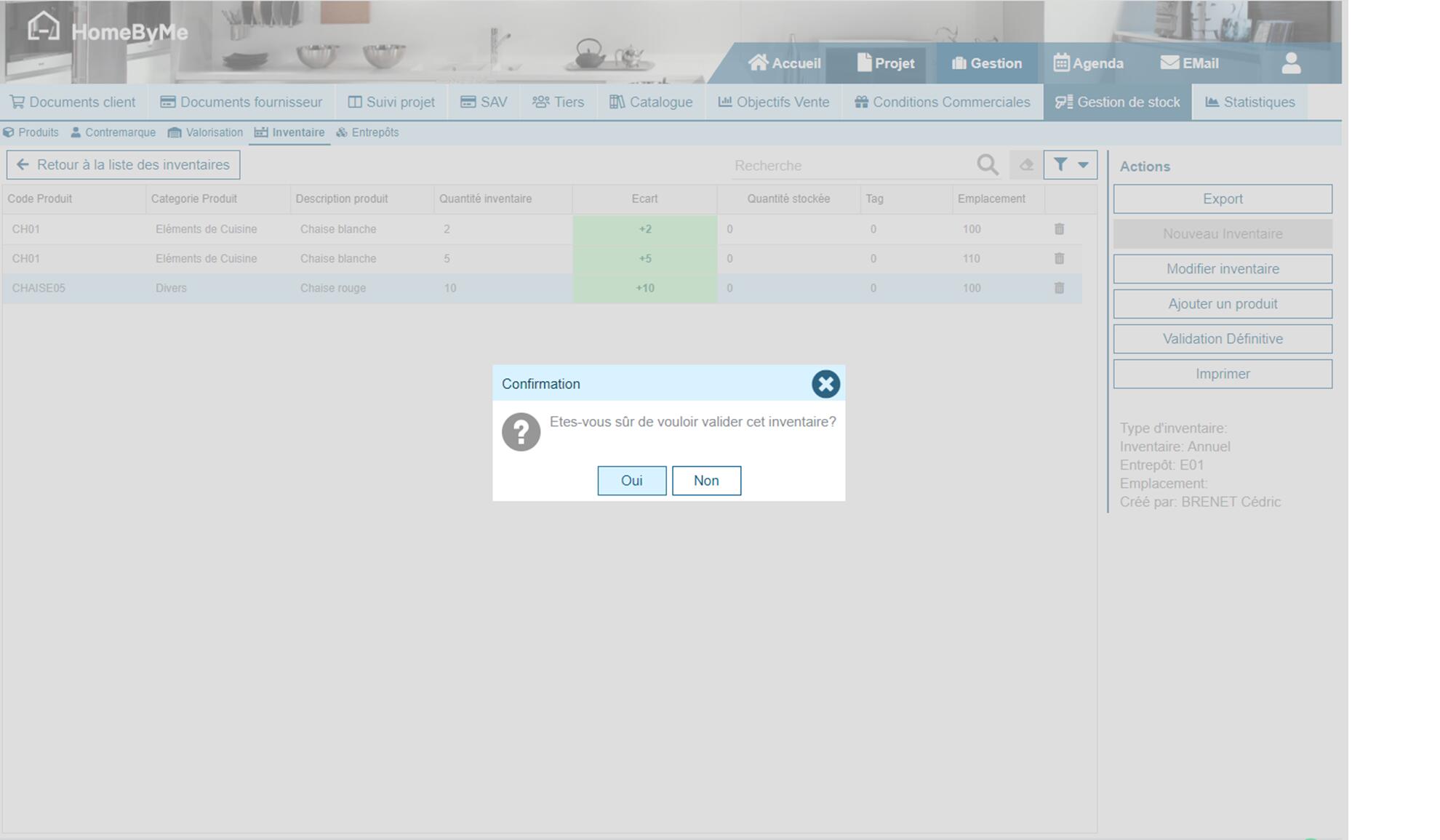
The “gap” information allows you to visualize the difference between the quantity entered and the quantity identified in stock of the products. This functionality will be used during annual inventories in order to highlight anomalies.
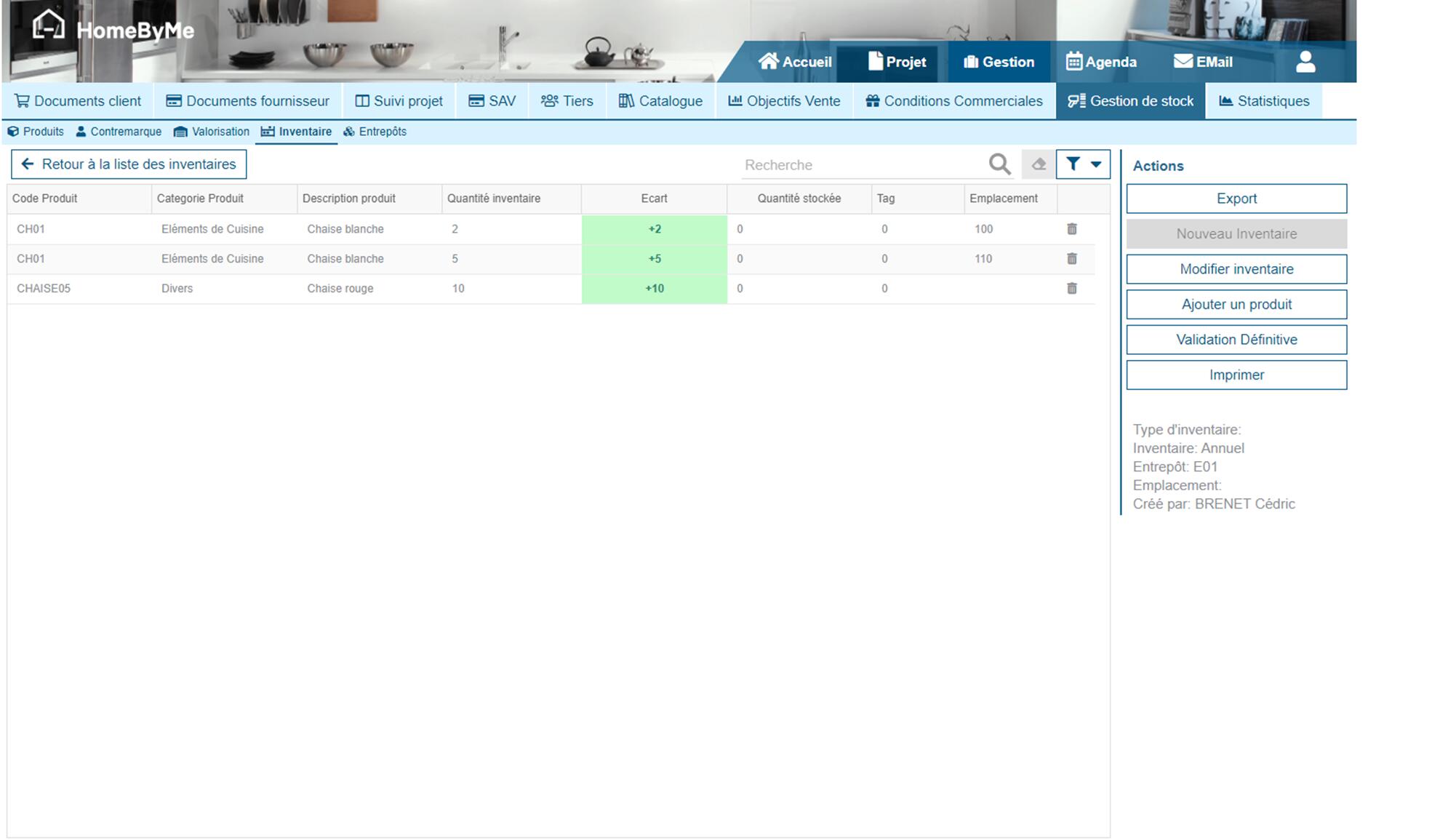
Once the entry is complete, you can validate the inventory by selecting “Final validation”. Until this action is done, the inventory information is not taken into account and you can navigate in the application and return to this screen.
Upon final validation, a confirmation message is displayed:
It is only possible to manage inventory of the default warehouse of the store to which the user is assigned.
Reservations
Once the products are in stock, an indication of the available stock appears on the sales documents.
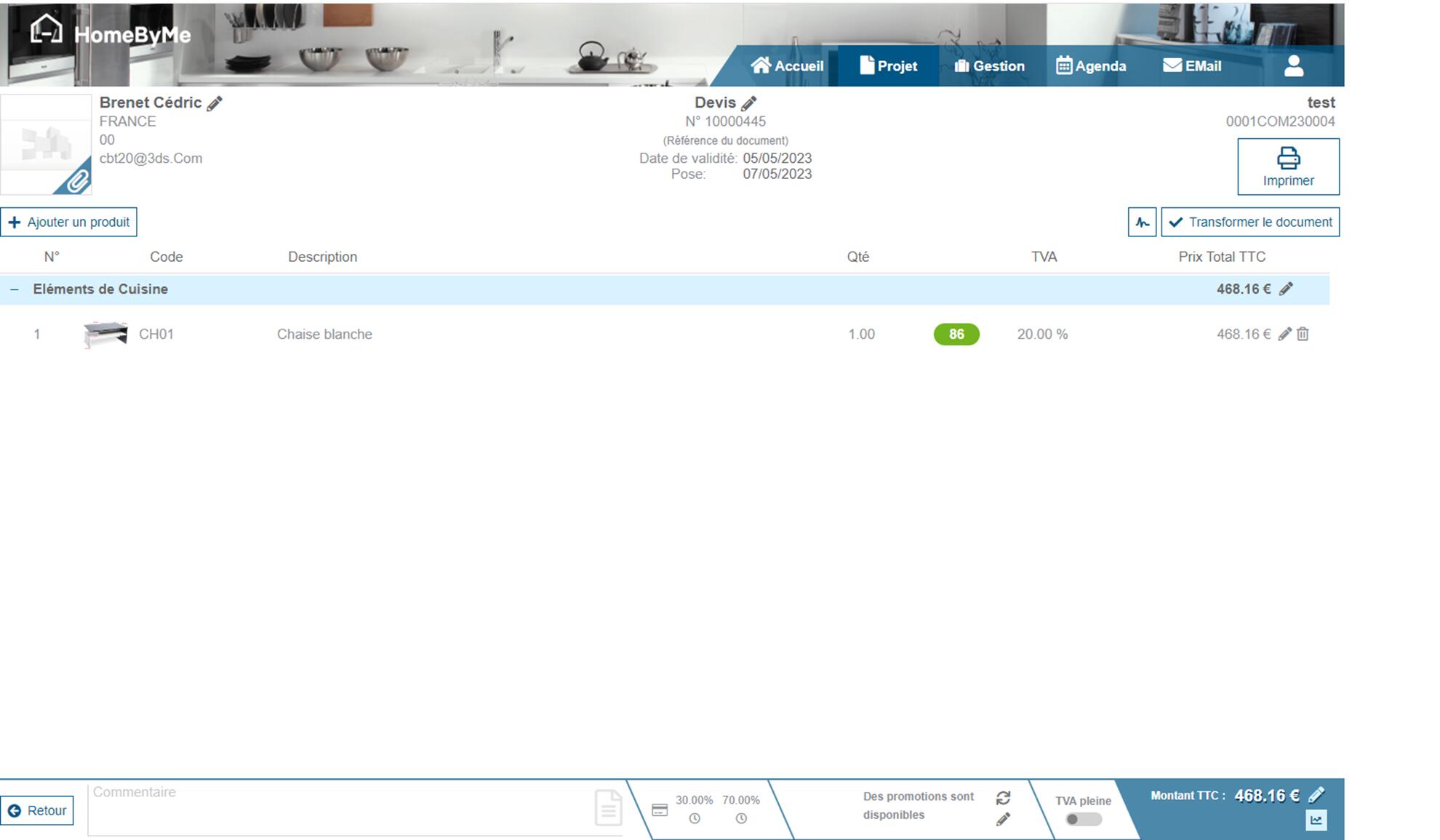
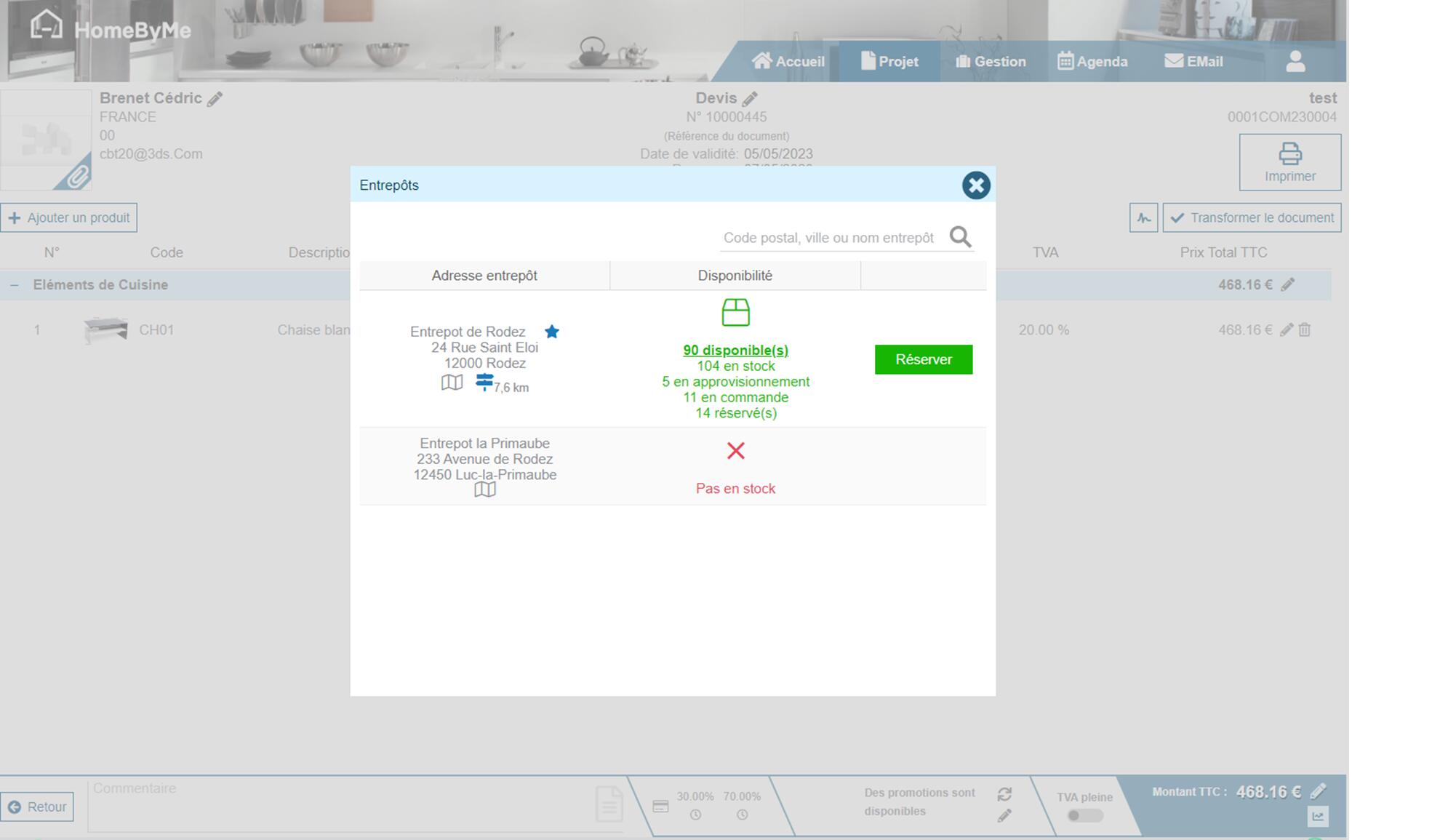
By clicking on the quantity indicated, a reservation screen opens:
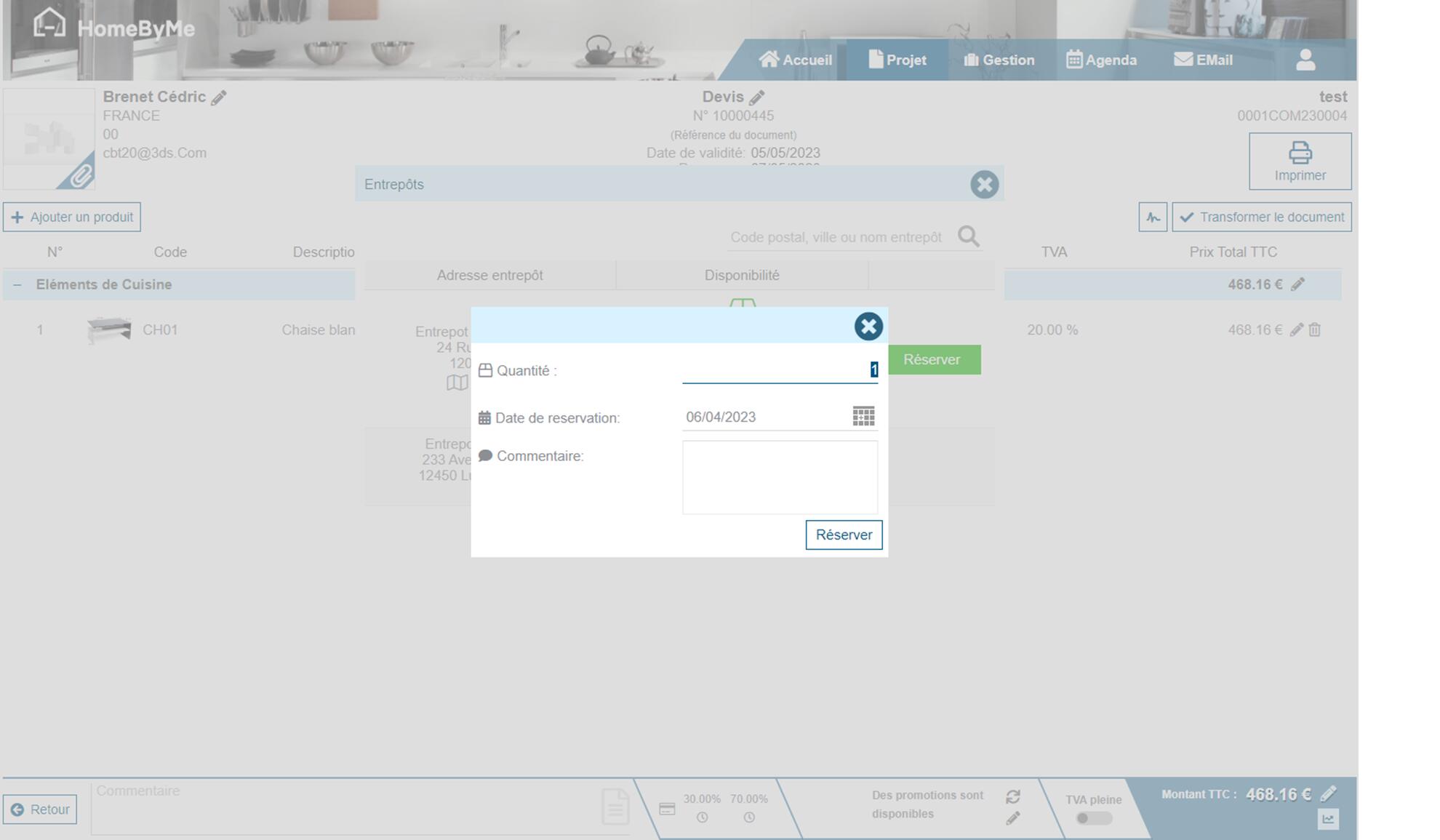
By selecting "Reserve", a confirmation of the quantity to be reserved is displayed. The default quantity indicated corresponds to the quantity of the product but it is possible to modify it.
Once the product is reserved, the quantity available in stock disappears and is replaced by a reservation flag:
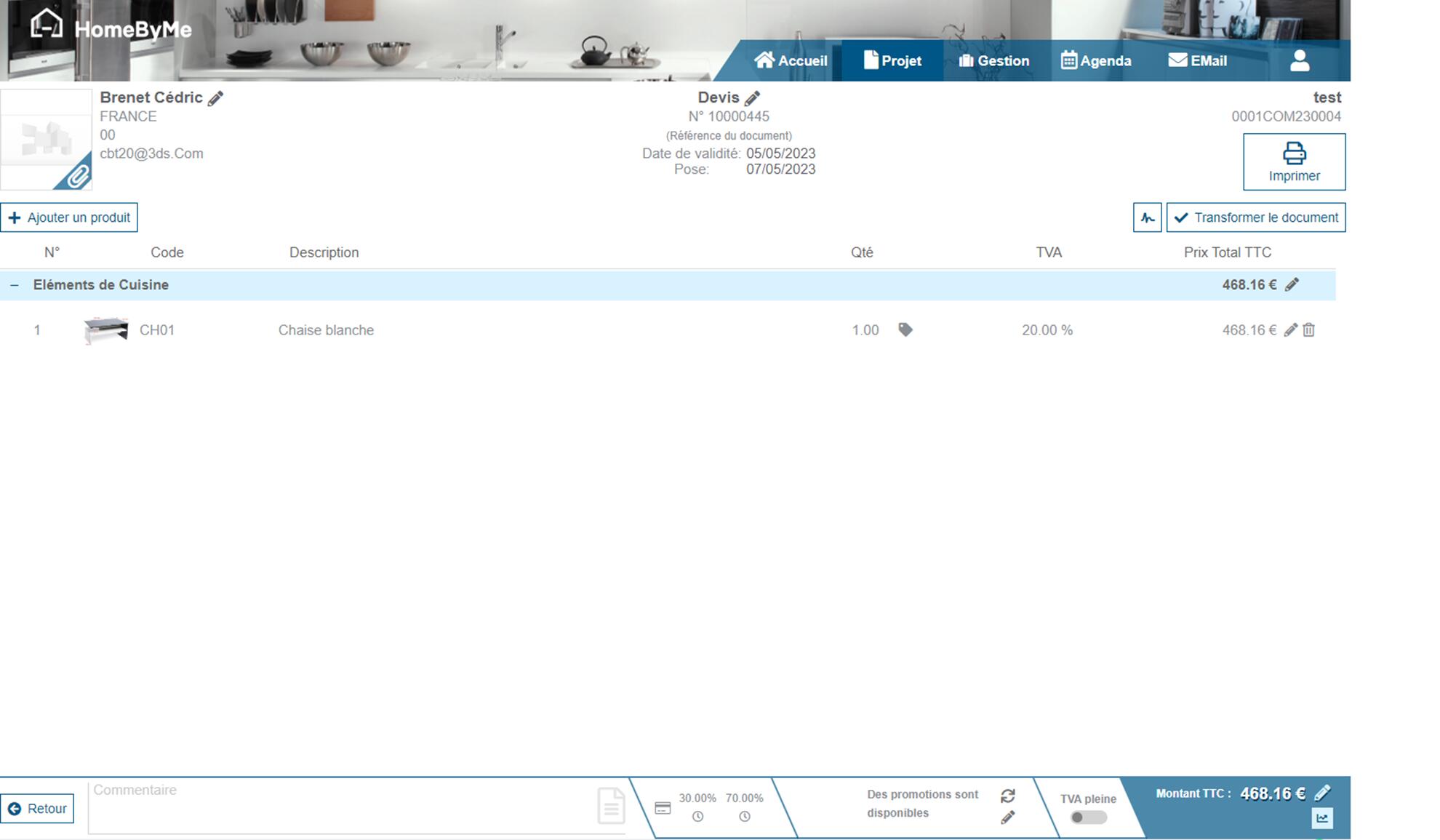
It is possible to cancel the reservation via the corresponding action in the product:
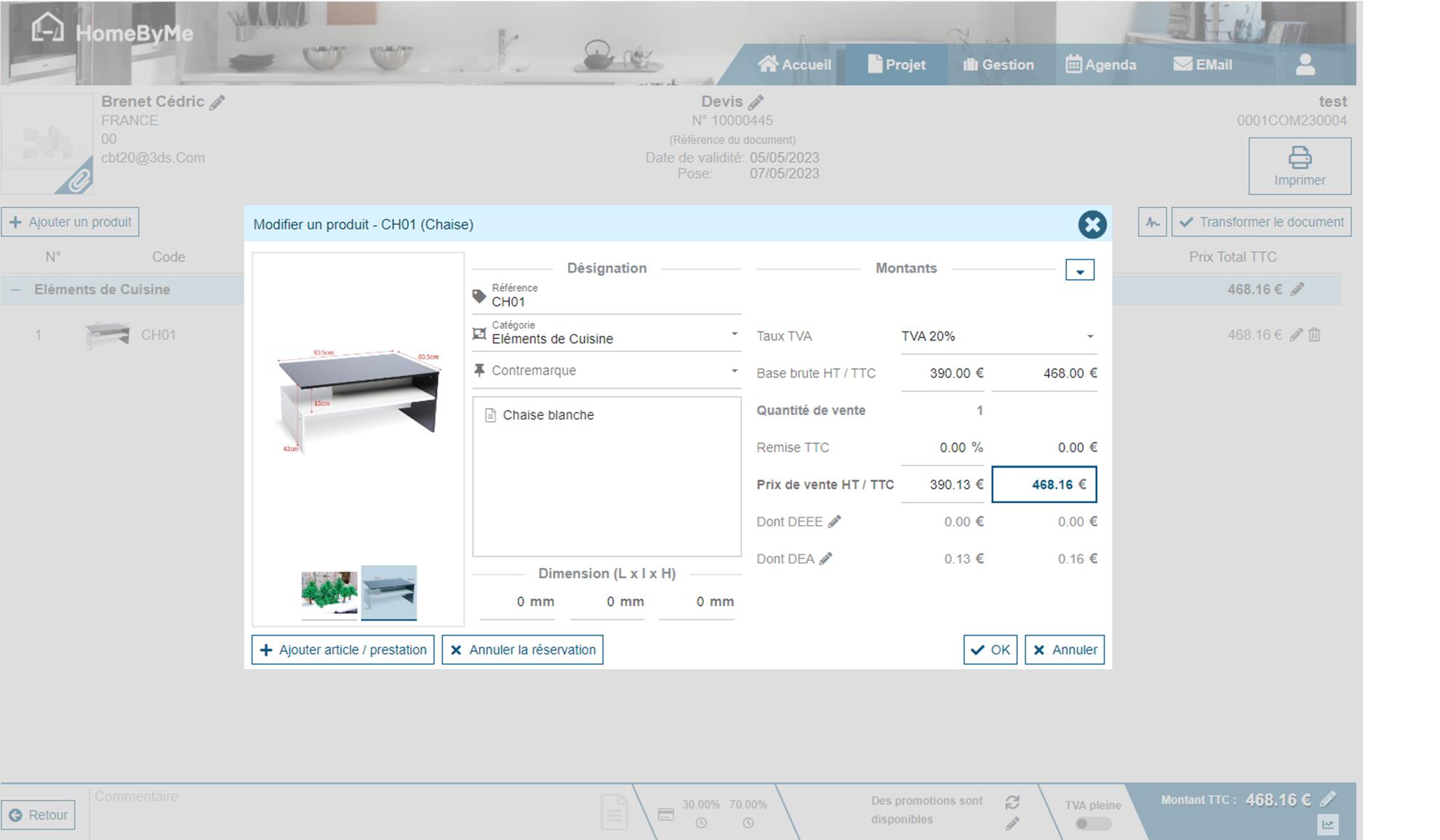
This reservation principle is called "manual reservation". It is possible to configure Retail operations so that reservations are made automatically. By default, reservations are manual on customer quotes and automatic on customer purchase orders.
Product tracking
In stock management, the product list allows you to have a stock status by product.
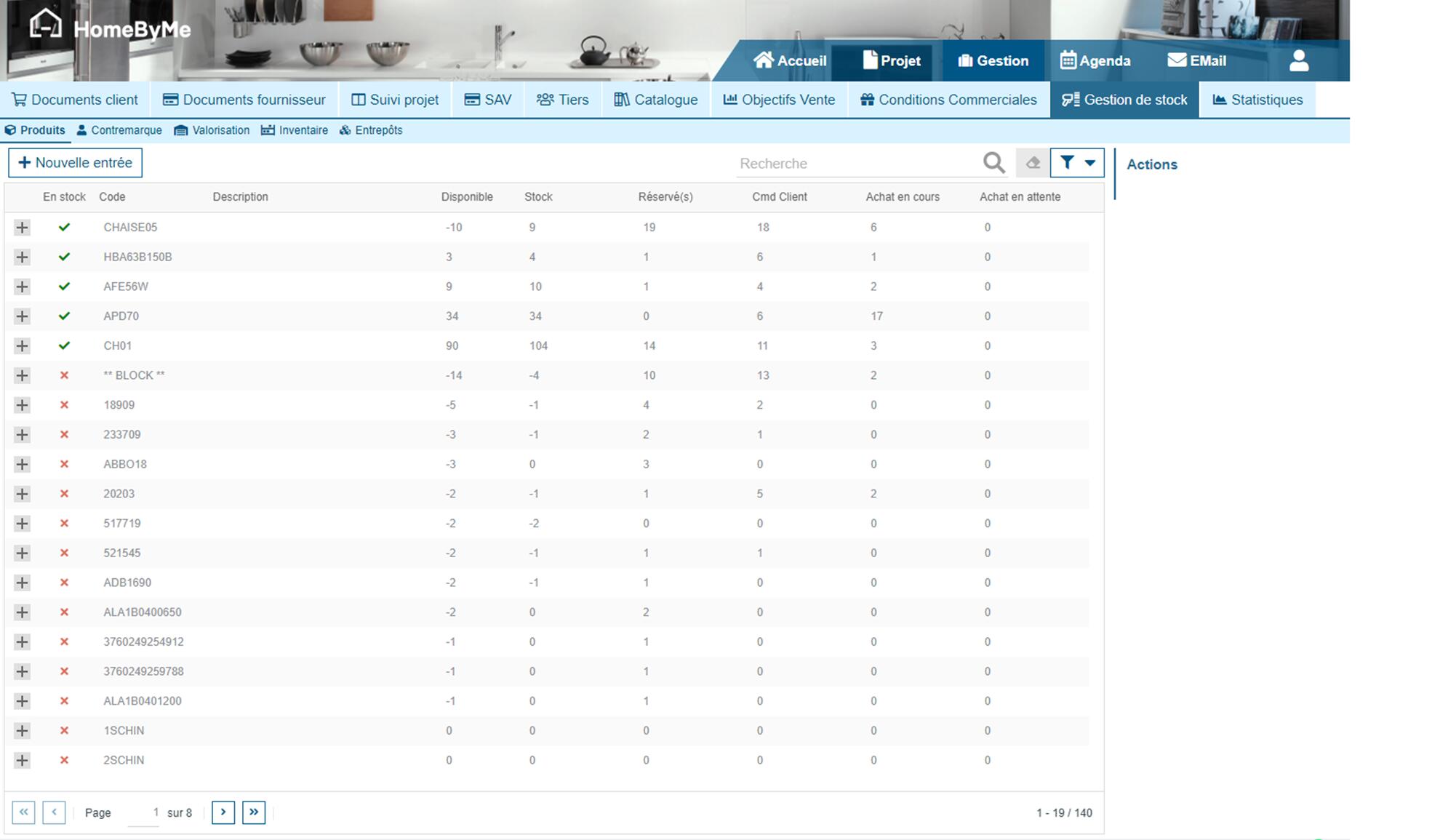
We can see:
- The reference
- The description
- The available quantity which corresponds to the quantity in stock minus the reserved quantities
- The quantity in stock
- The reserved quantity which corresponds to manual reservations as well as automatic reservations
- The quantity in customer order
- The current purchases which corresponds to the quantities present on supplier orders
- The pending purchases which corresponds to the quantities present on supplier requests not placed on order.
By selecting the "+" next to the product reference, we access actions and additional detail.
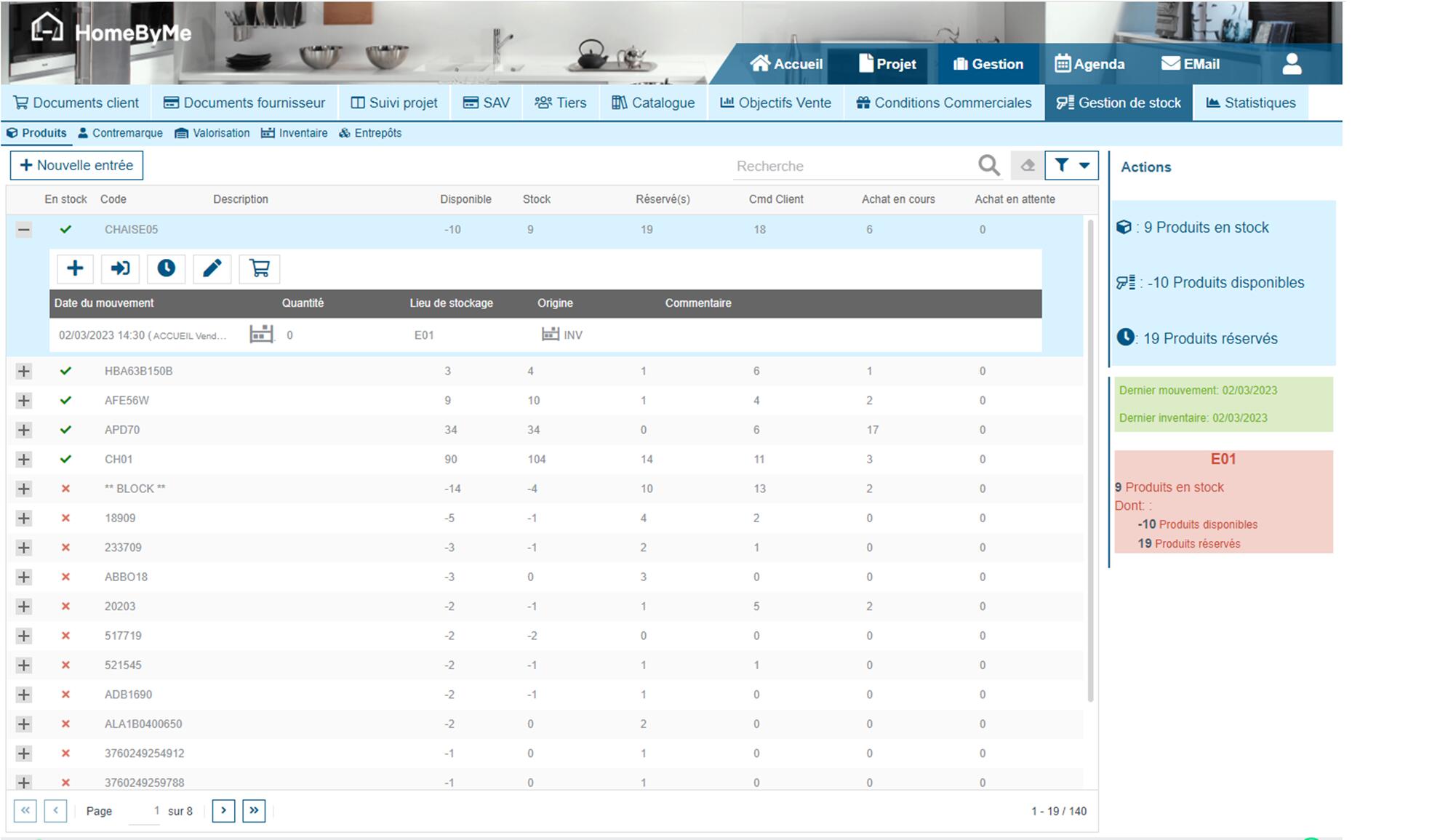
In terms of actions, it is possible to:
- Make a stock entry: That is, add a quantity in stock for this product without having to perform an inventory.
- Make a stock exit:
That is, remove a quantity in stock for this product without having to perform an inventory.
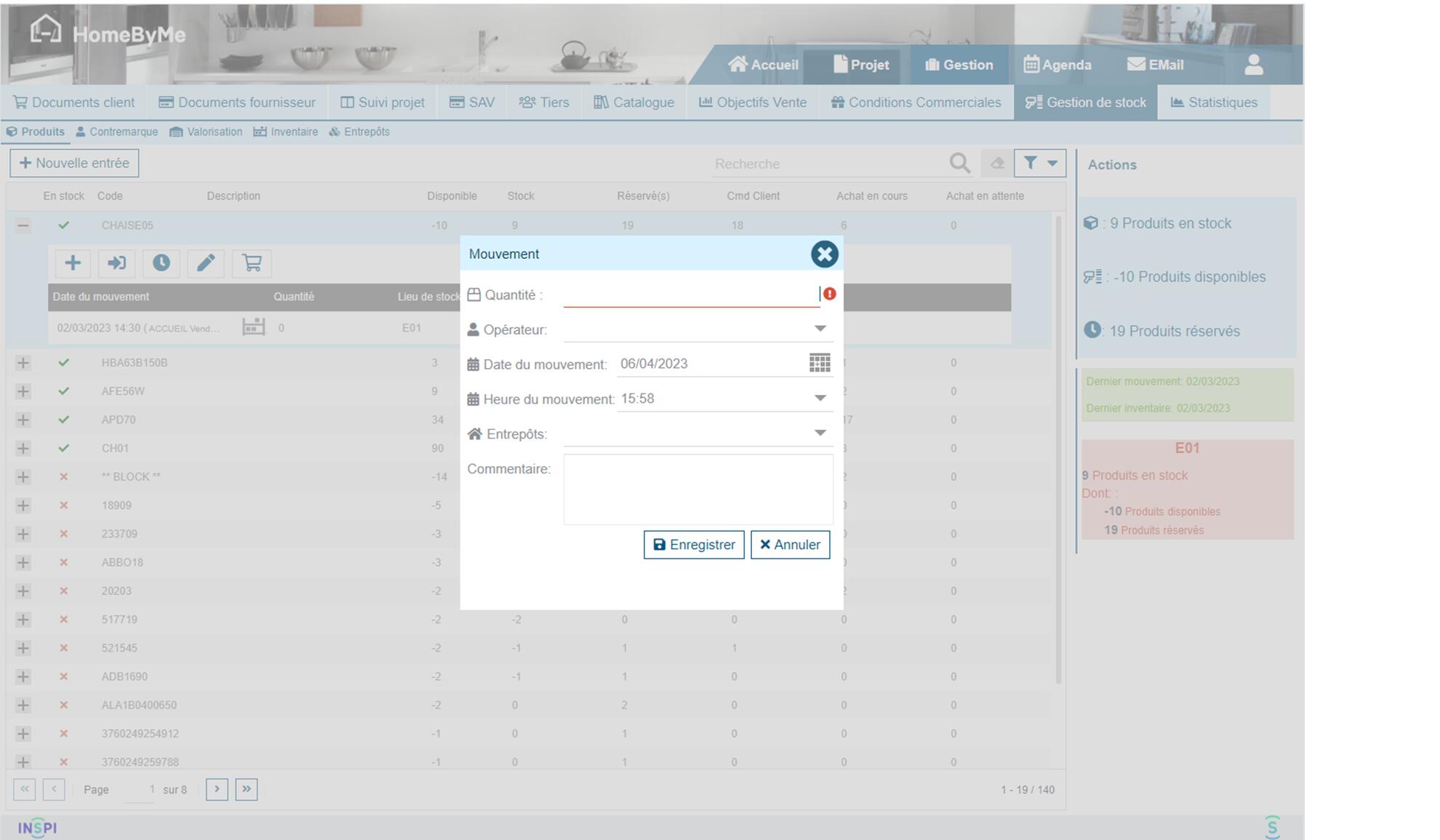
- Make a reservation: It is possible to reserve this product from this screen and link it to a customer.
- Modify the product: You can access the product sheet without going through the catalog to make changes.
- Make a supply request: That is, prepare an order from the supplier for this product.
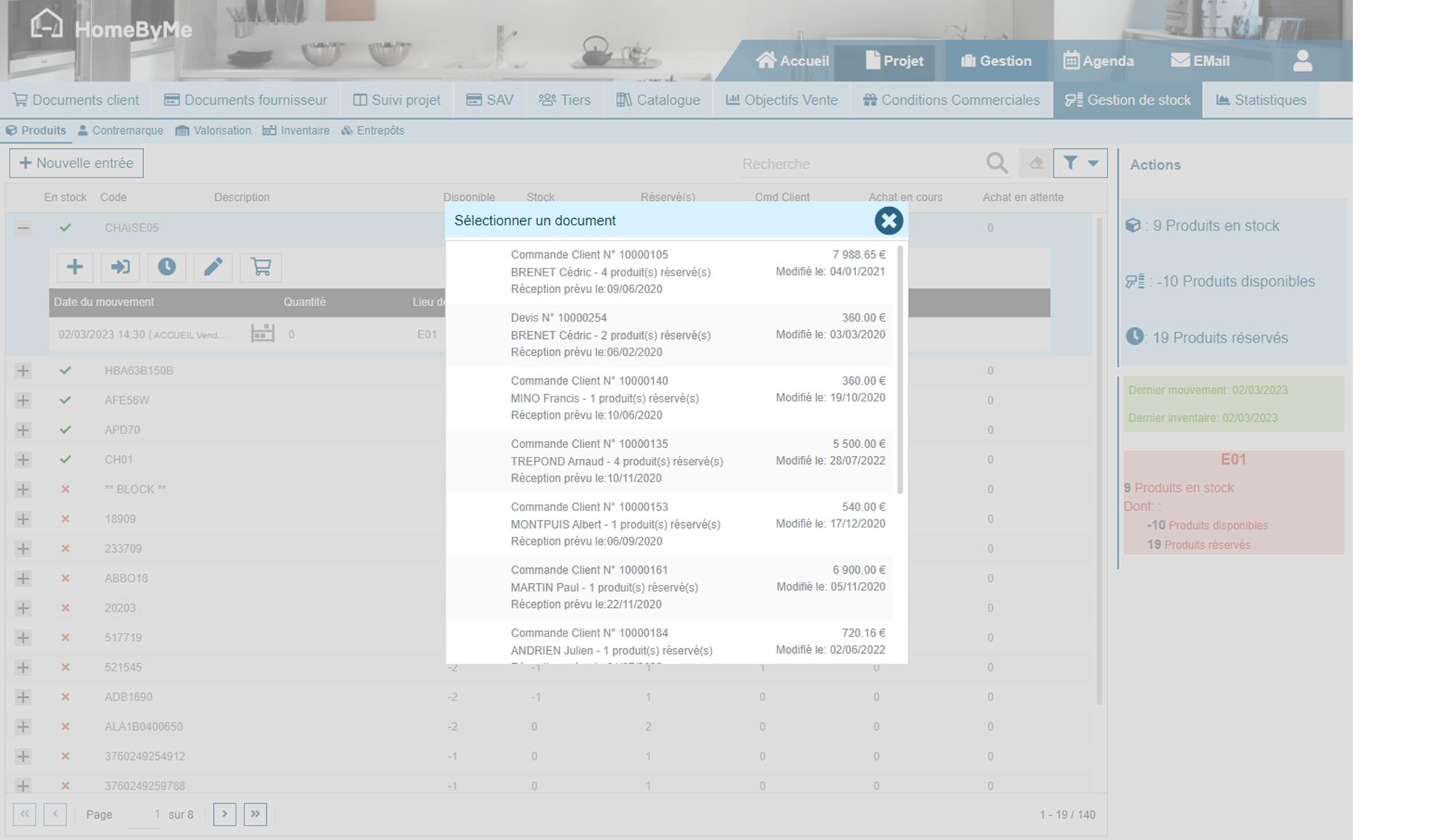
By clicking on the quantity reserved at the product level, it is also possible to have the list of reservations linked to this product
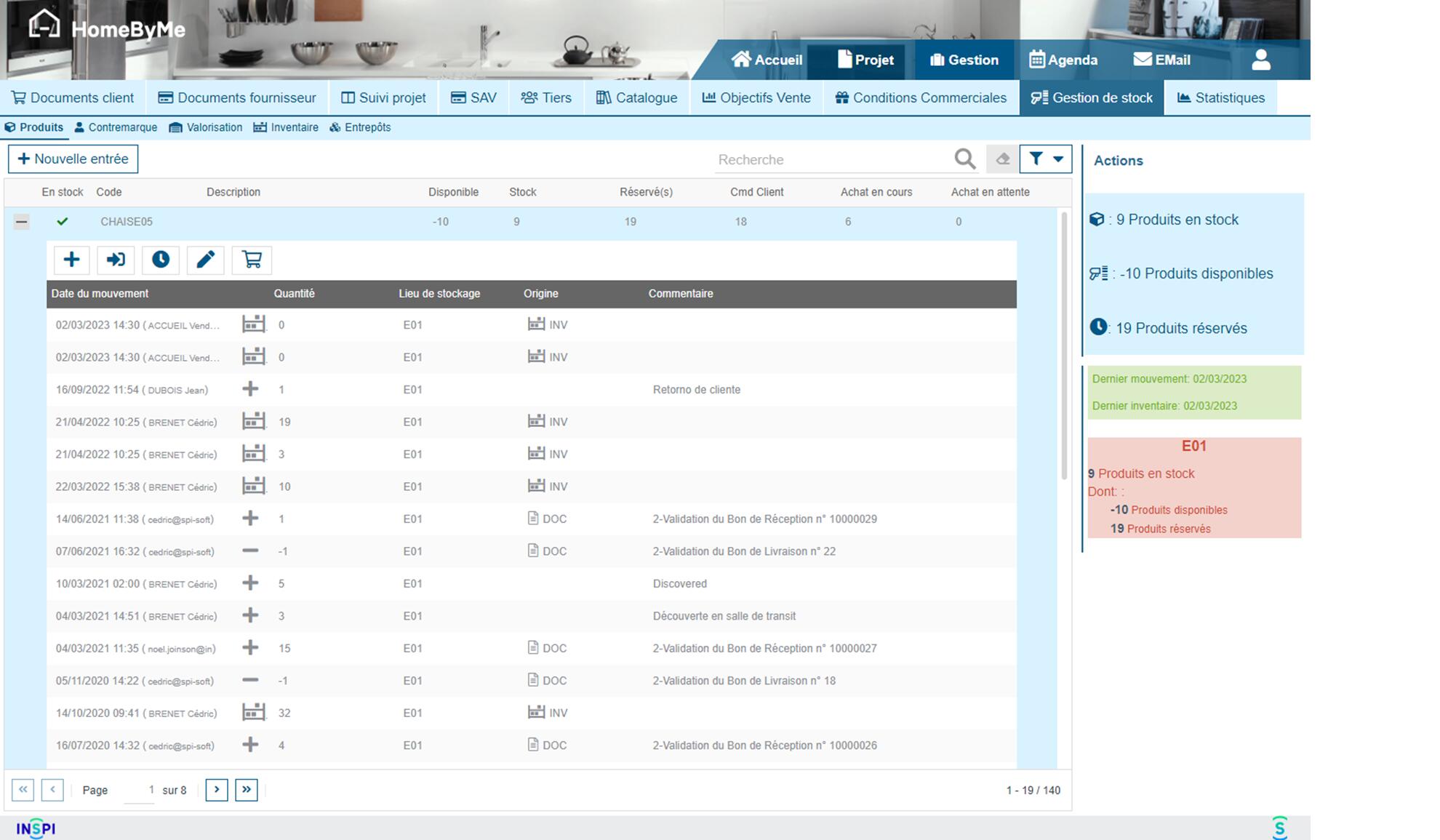
Finally, we visualize under the product, all the movements made:
Purchases
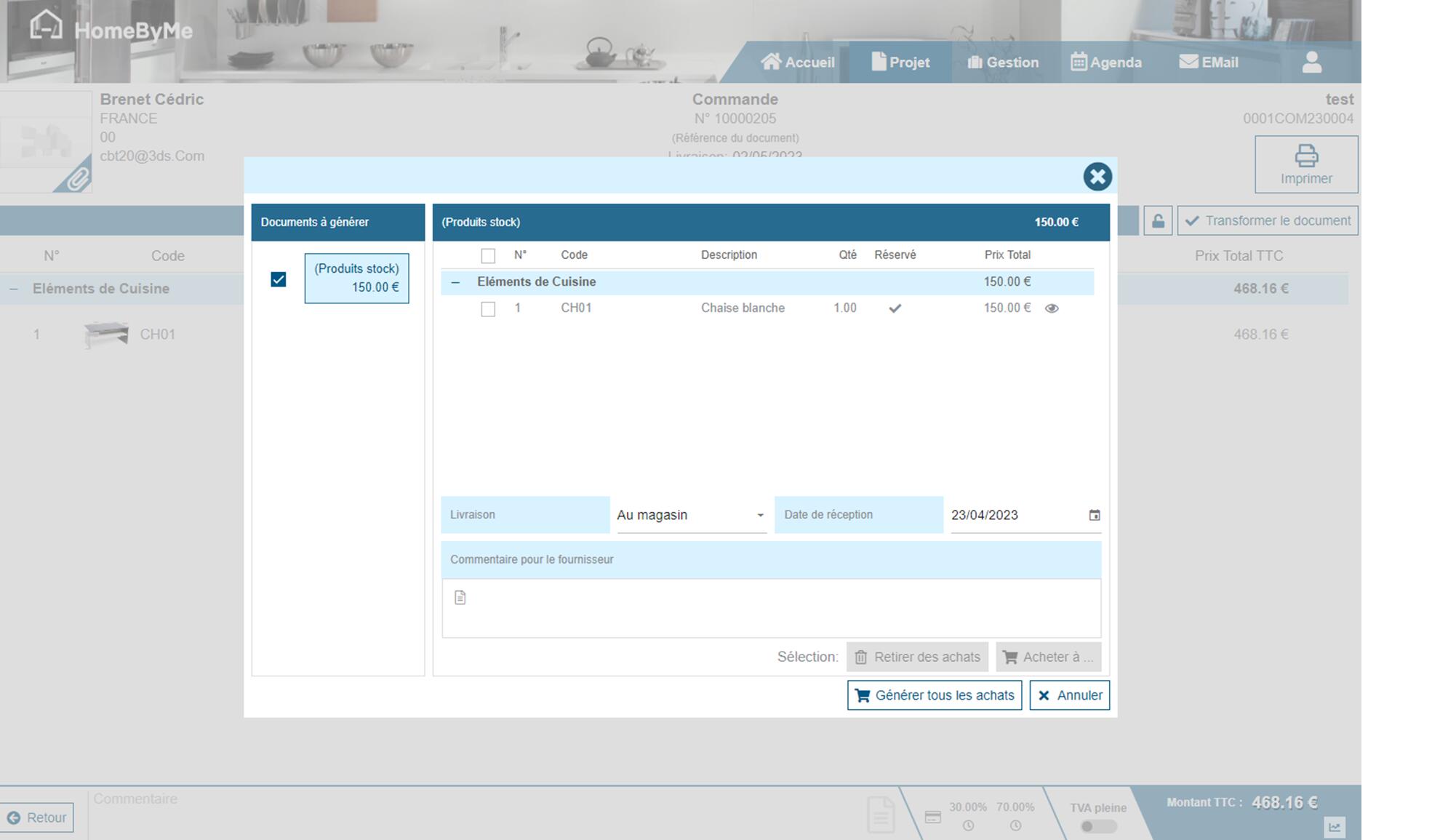
When creating supplier orders, if the product has been indicated as reserved, it will be automatically taken from stock. In this case, the supplier name will be replaced by "Stock product" and its price will be calculated according to the weighted average cost of the product (WAC).
Receipt of goods
When creating a receipt (transforming a supplier document into a receipt), you will be asked to specify the recipient warehouse if the user has access to several warehouses:
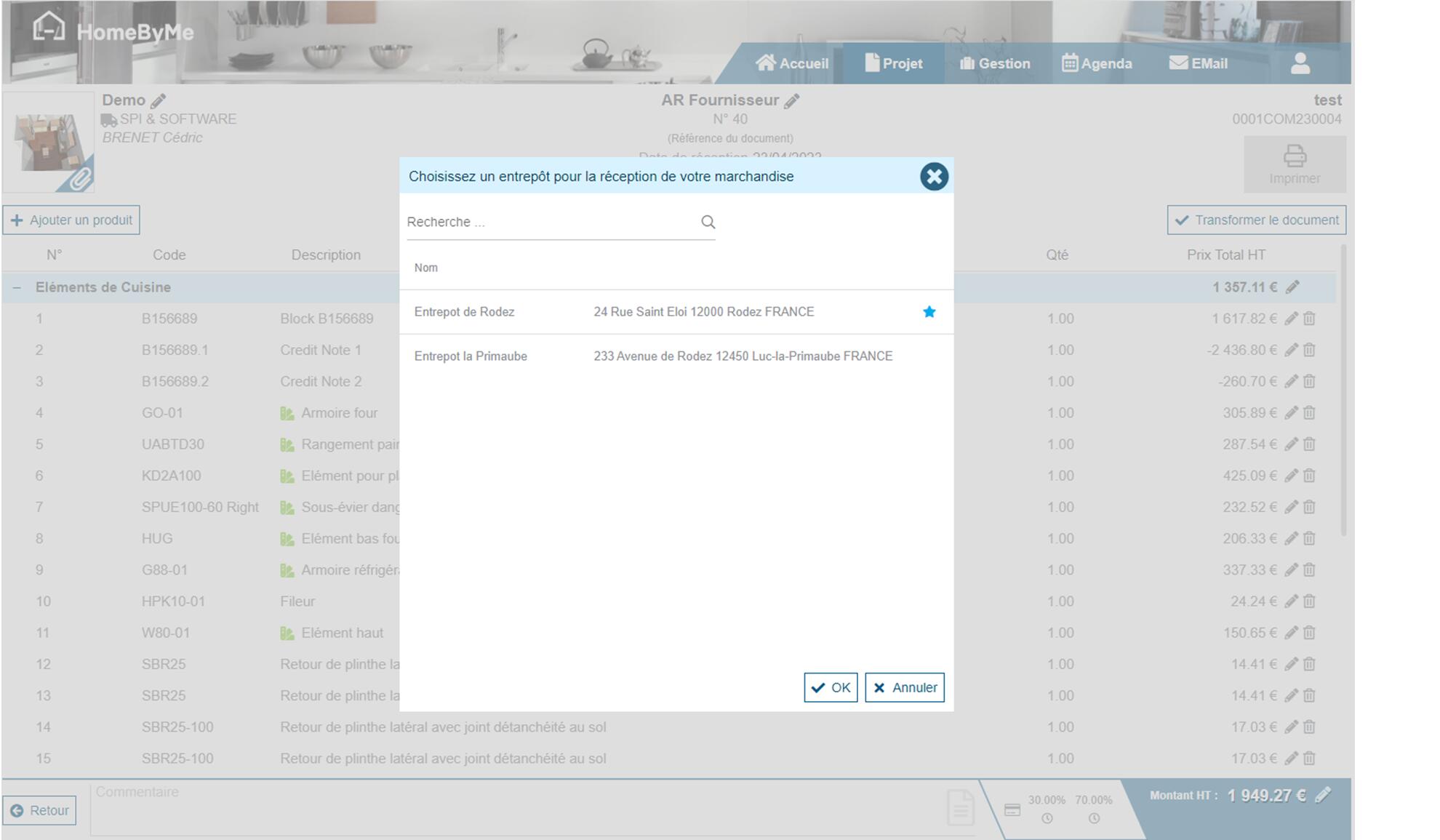
The action of creating a receipt results in the entry into stock of the products concerned.
Customer delivery
The creation of a customer delivery note (accessible by transforming the customer order into a delivery note) allows the products to be removed from stock.
Countermarks tracking
In management, a countermark tracking menu has been created in order to be able to track the receipt and delivery of goods to customers.
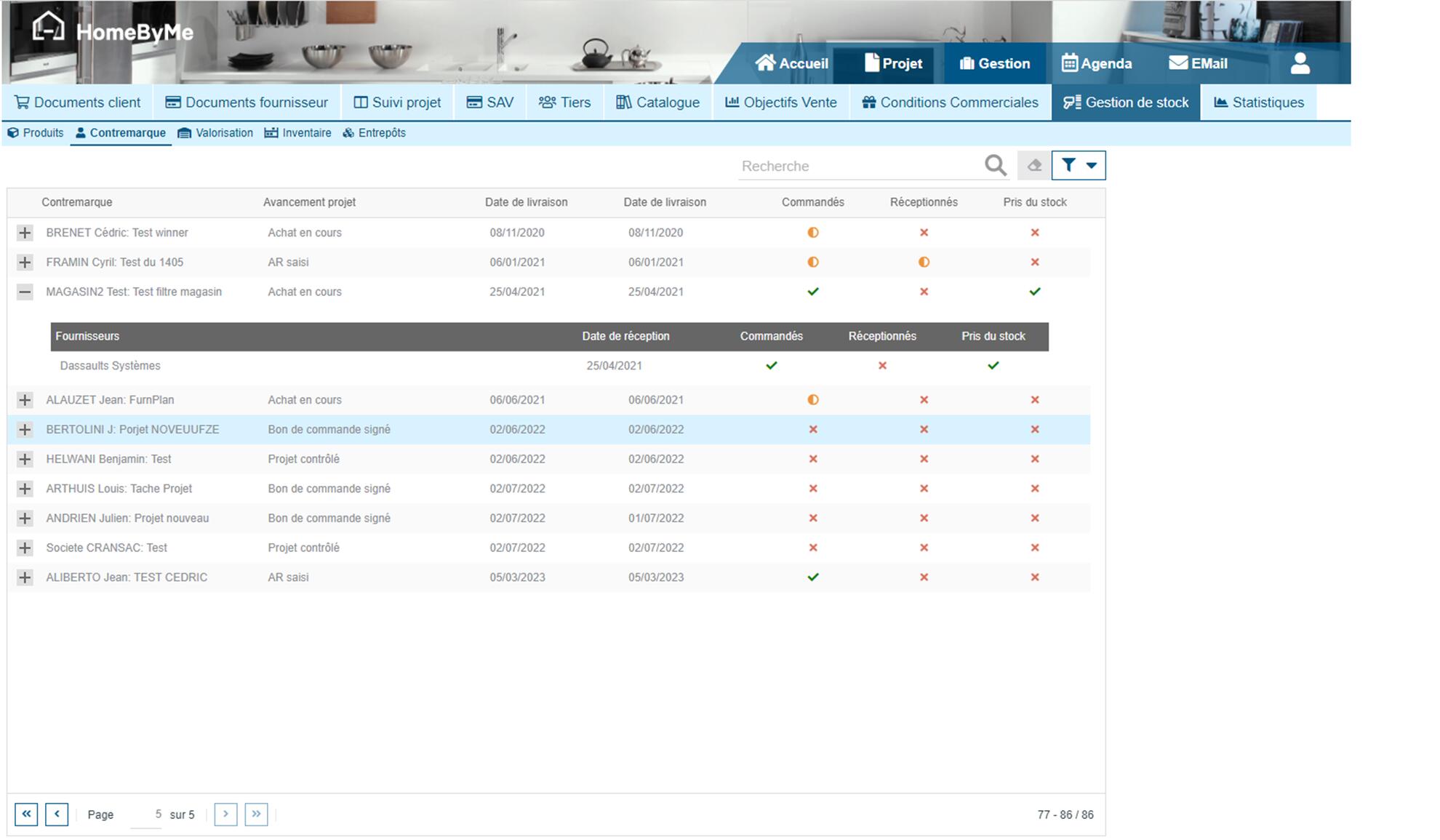
In this screen, we find all the projects with a customer purchase order. We can see if the supplier orders have been completed, if the orders have priced products on the stock and if the receipt of the goods has been completed. The visual indicators allow us to know if the action has been completed, not completed or partially completed.
The countermarks disappear from this screen as soon as the goods have been delivered to the customer.