Project
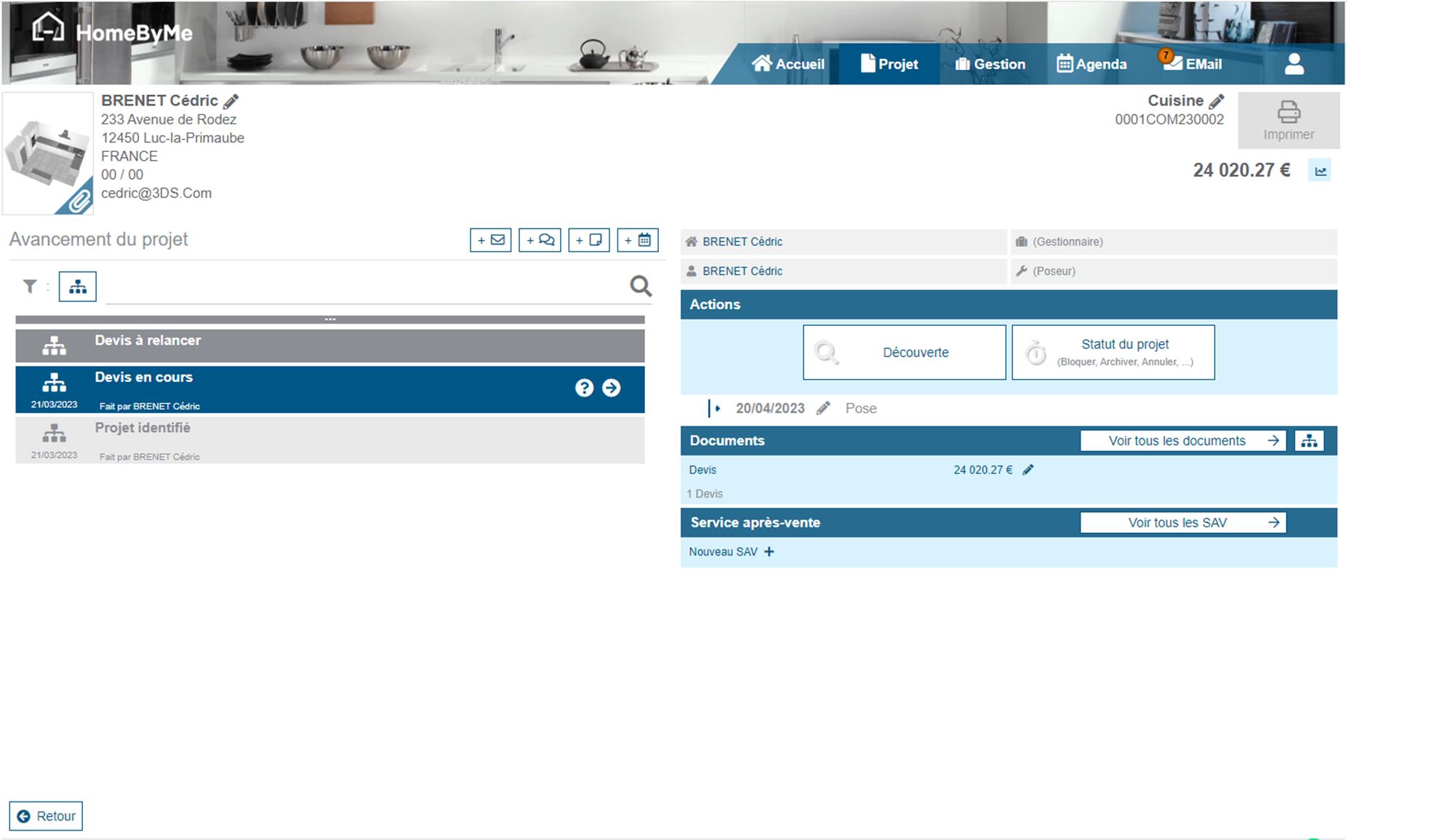
In the Retail Ops environment, a Project is the entity that will allow you to manage the entire process of a Sales, from the definition of the Customer needs to its final delivery (and eventually after-sales service procedure). It can be assigned an Identity, several key persons, and in the Retail Ops context, one Customer, one Workflow, some Documents, After-sales service Projects, Tasks or EMails.
Project types
There are several potential types of projects in Retail operations, which are activatable per store:
- Customer projects: These are the “standard” projects carried out in the application for monitoring commercial activity.
- Test projects: These are “customer projects” but flagged as "test" in order to be excluded from the statistics. They allow the end-users to test the functioning of the solution.
- Exhibition projects: These are projects that allow stores to order their display products. Thus, they are clearly identified for better monitoring and this allows them to be excluded from sales statistics.
Global information
Customer details & Attachments
The Customer related with the current Project can be accessed on the top-left of the project detail page: name, address, phone numbers & email. You can edit this information if nedded.
The list of files related with the project is also accessible from this section.
Codes & name
On the top-right of the screen, the end-user can access the main information about the project itself: mainly a code & a name. It is also possible to access an "external code", which corresponds to the Retail operations project ID in the context of an optional linked External software.
Amount & Margins
The Project amount is accessible on the top-right of the screen. It corresponds to the sum of all active Sales document amounts of the most relevant type:
- In priority the Sales order after measurement documents,
- if missing, the Sales order documents,
- else the quotations,
- and eventualy the direct invoices.
Depending on the user's access rights, an additional button may be displayed, allowing to display the project margins:
- the Actual margin: it corresponds to the sum of sold amounts minus the sum of purchased amounts. For example, if the purchase prices are modified on the supplier's acknowledgement of receipt, these amounts will be taken into account in the Actual margin computation. If the product is not yet purchased (in a purchase document), then we take its theoretical price (in the sales document).
- the Theoretical margin: it corresponds to the margin calculated at the time of sale. Only sales documents are taken into account in this calculation, for both sale and purchase amounts.
The payment amounts are also displayed:
- the Paid amount, with a button allowing to display the history of received payments
- the Remaining balance, which is mainly the difference between the Project amount and the Paid amount.
Progress flow
The Progress flow lists all important events/actions related to the project, sorted chronologically. They can be workflow steps, emails, tasks, appointments, notes, etc.
Workflow
The Project Workflow is a picture of actions carried out on the project and its current status in its lifecycle. When some manual steps can be processed on the project, an arrow icon is displayed on the current step in order for the end-usr to choose which step to be the next one.
Tasks & EMails
All Tasks and EMails related to the current project can be retrieved in this list. Some buttons on top of the Progress flow allow you to create new ones.
Key persons
Several key persons can be referred in the context of a project:
- A Creator: the person who started the project.
- A Salesman: the seller in charge of the project.
- A Manager: an optionnal manager/administrator, when used.
- An Installer: the default person in charge of the installation of the project.
Actions
Discovery
The end-user can access or modify the information stored during his Discovery process thanks to a dedicated button.
Project Status
The default status of a project is In progress. You can change this status by clicking on the "Project status" button, and select the action to process:
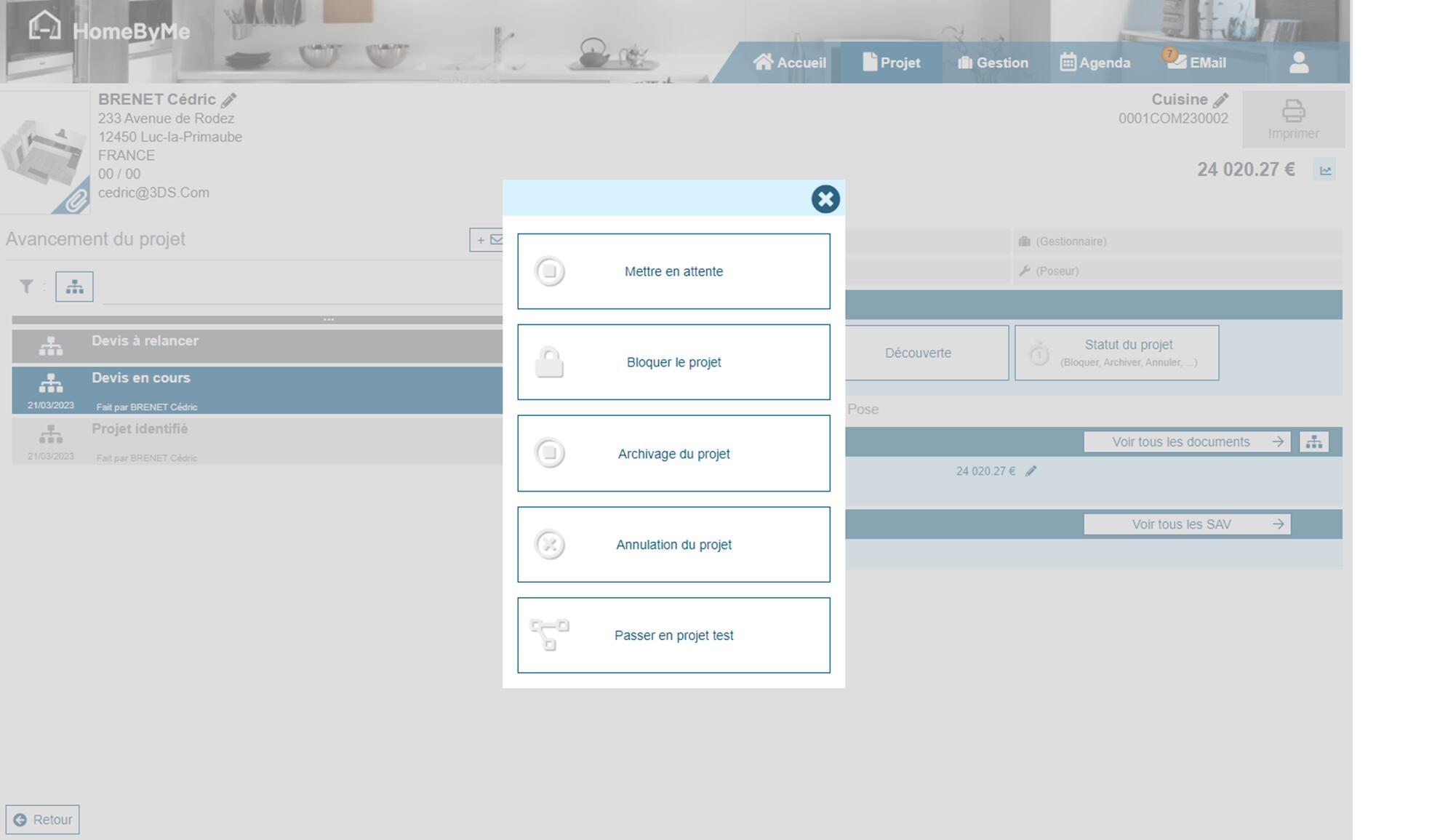
The list of available project stauses is detailed here.
Please notice that this same button may allow you (when possible) to change your project type from Standard to Test or Exhibition (cf. Project types above).
EDI Platform document
Depending on the user access rights and specific settings, an additional button allows you to prepare and send the Instructions for logistics document via EDI.
Key dates
The important dates/appointments can be accessed here, such as the Selling date or the Installation date.
Documents
The "Documents" section allows you to quickly access the last active sales document of your project, or to choose between two screens:
- The "Show all documents" button displays a list of all documents of the project, split in two (Sales vs Purchase):
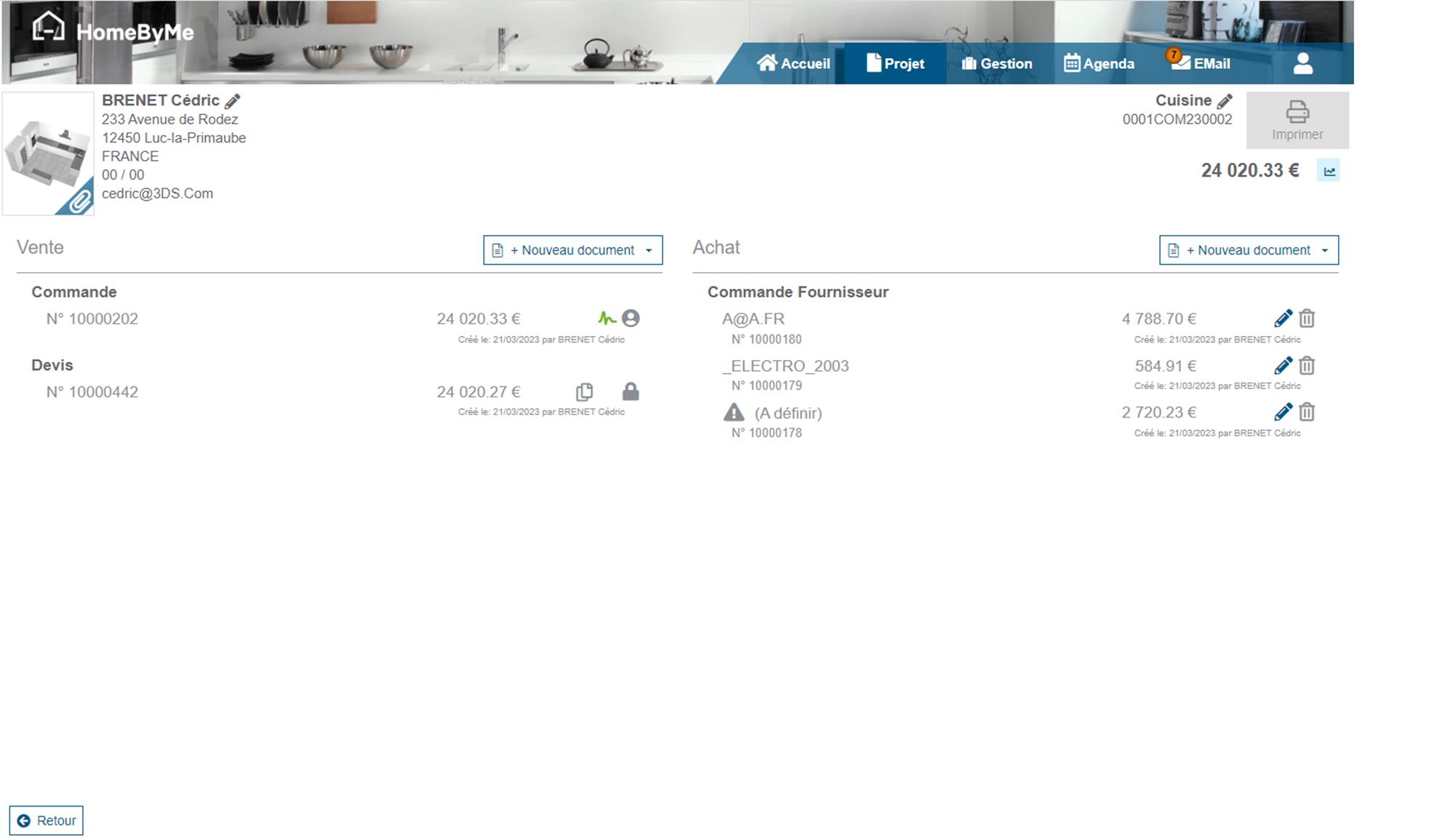
Some buttons allow the end-user (when possible) to open/edit/cancel/clone a given Document. A "New Document" button allows him to create a new document.
- The "Flowchart" button graphically displays all the documents of the project, with their dependencies:
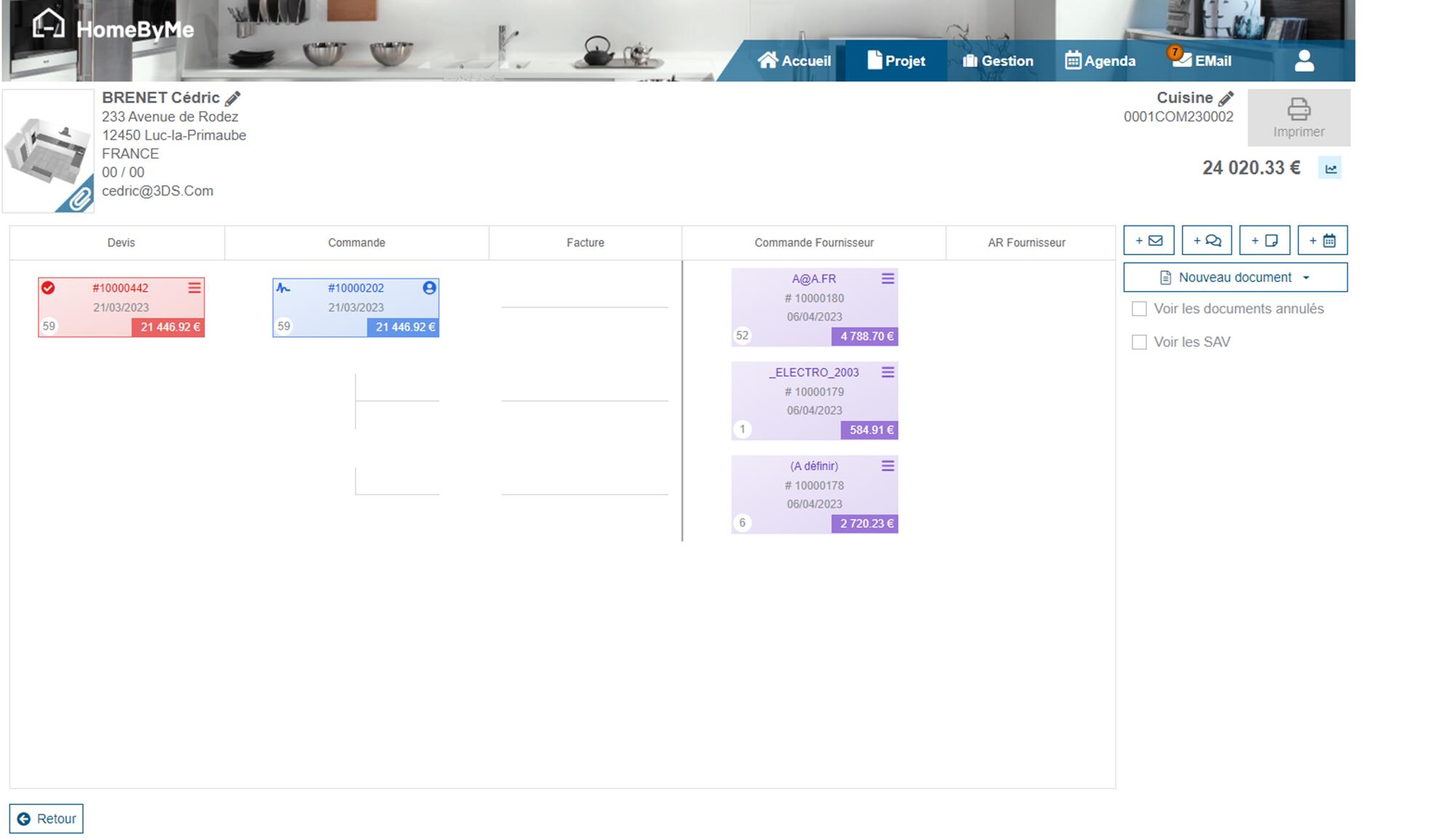
Clicking on the rectangle representing a given document will bring the end-user to this document detail form.
After-sales service
This section allows the end-user to create a new After-sales service procedure or access the existing ones.