Workflow
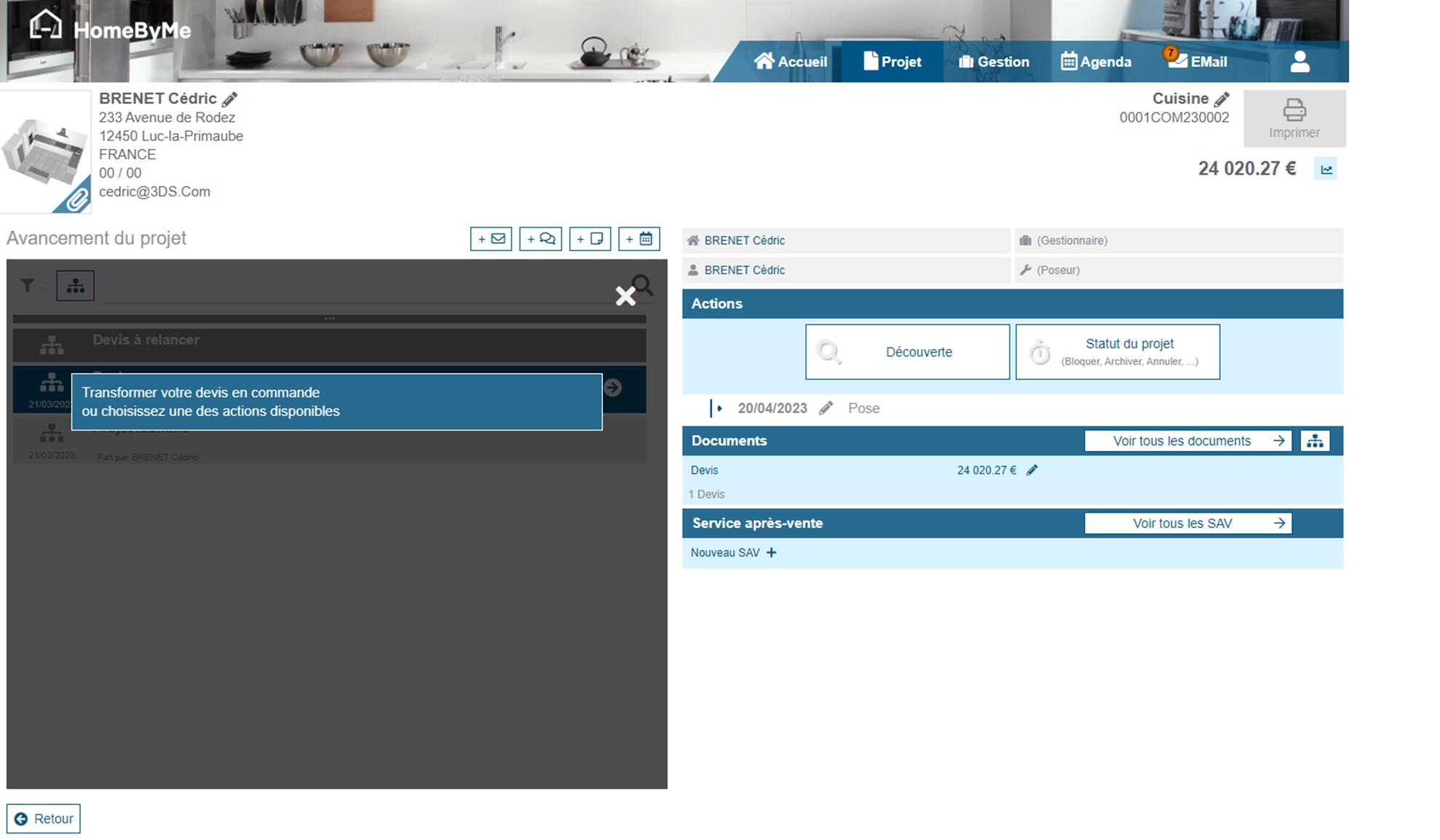
In Retail operations, the progress flow is at the heart of the project and allows you to track past and future actions. A Default workflow may be installed in Retail operations, but it can be customized on quote.
Workflow usage
When reading it from the bottom to the top, the progress flow displays:
- the past steps
- the current step
- the next step to come
But you may also find tasks which were assigned to the project (cf.Task), sorted in chronological order from bottom to top.
The workflow progress can be done manually or automatically depending on the current step:
- Automatic progresses are done by dedicated automations (e.g. when signing a Quotation, when closing a Task, etc.).
- When a manual progress is possible, an arrow icon appears on the current step.
By clicking on this arrow, the application offers the user to choose the next progress step (there may be several possible target step(s)). Potential automations may be processed during this process execution.
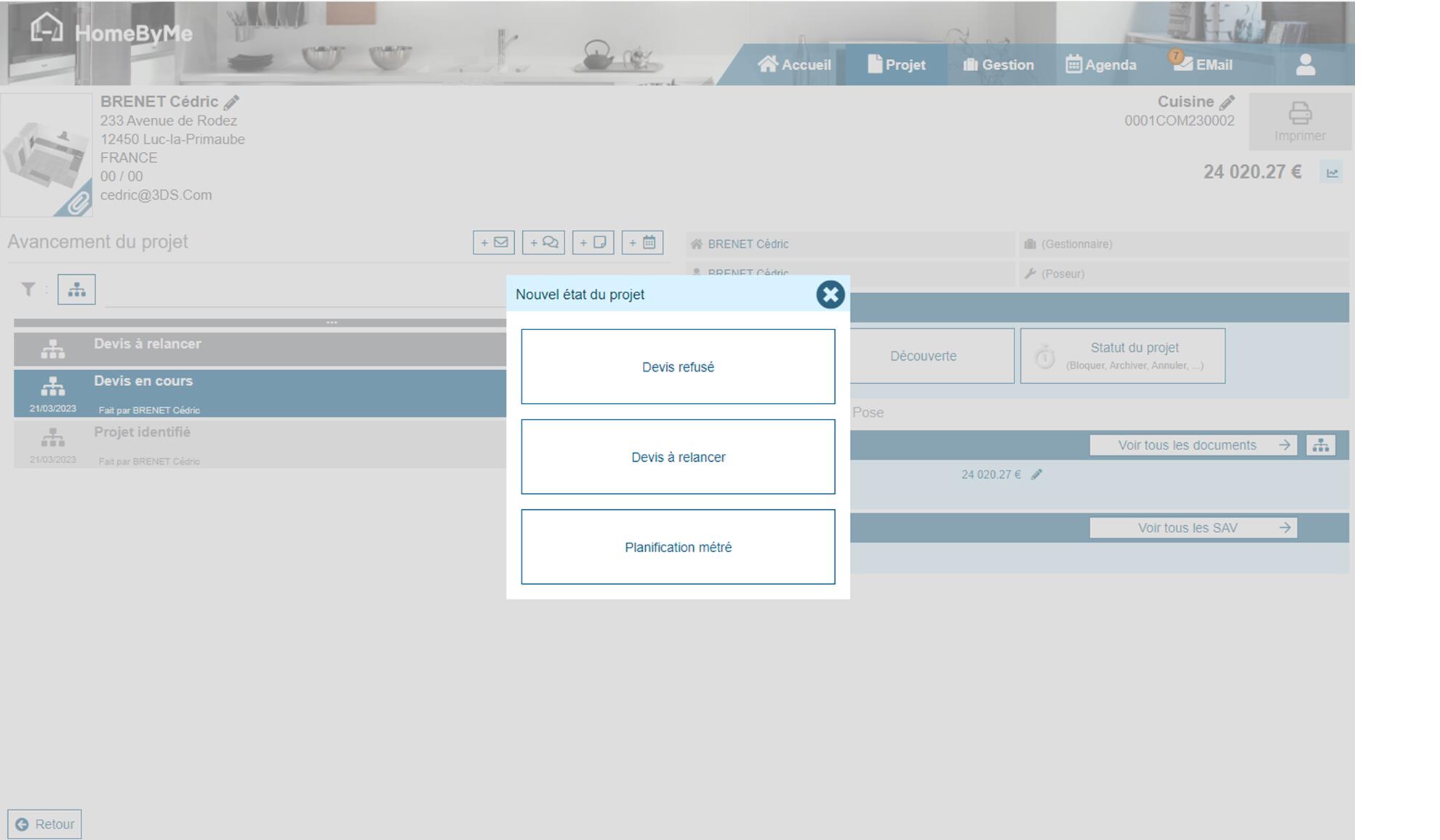
Once a step has been completed, it becomes the current step. The name of the person who completed the step and the action date are displayed. The next step to come is updated.
Help on steps
On the currently active step, you may see a question mark "?" icon on the right. By clicking on this icon, the application displays a description of the action(s) to be performed by the end user in order to be able to move on to the next step.