Task
In the Retail Ops environment, a Task is a global entity which brings together the notions of to-do, appointment and comment. It can be assigned a Type, a Description, some assignees and sometimes dates, and in the Retail Ops context, is linked to one one Project and/or one Customer and can be assigned to several Users.
Tasks can be created or accessed from many parts of the application:
- Directly from the Home page.
- From a given Project or After-sales service Project.
- From most of the pages of the Management menu.
- From the Agenda
- ...
Task types
The Retail Ops environment can manage 3 distinct types of tasks:
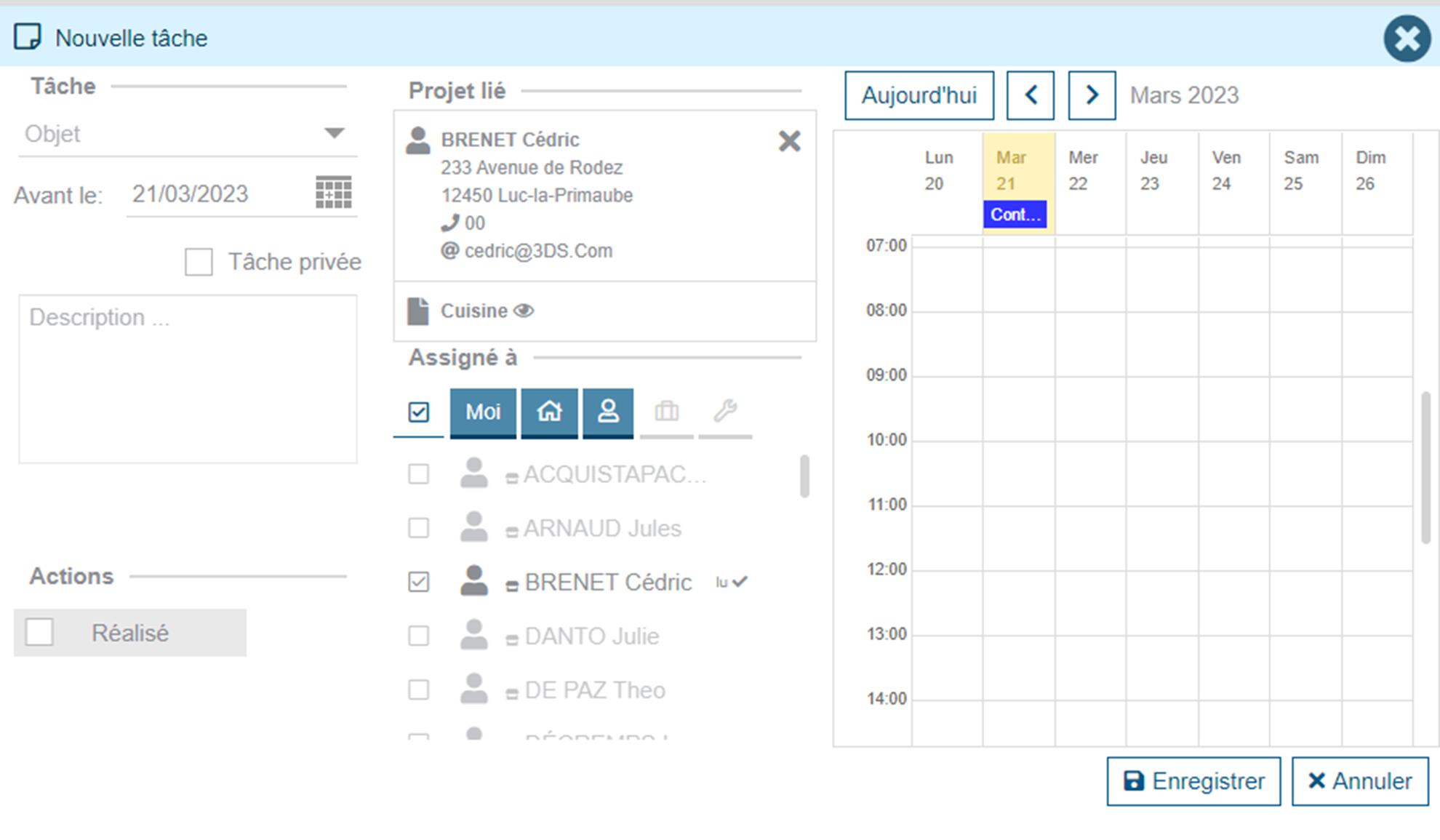
- To-do (aka "Task"): A reminder of an action to be carried out, with a type, a deadline and one or more assignees.
- Appointment: Can be for any kind of meetings, with a type, starting and ending dates, one or more assignees and a potential location.
- Comment (aka "Note"): A simple note related with a given project and that can be assigned to one or more persons.
To-dos
Tasks are reminders of actions to be carried out. A deadline is set for carrying out the action and it is assigned to the desired person(s). Created in a project, it is automatically linked to it. Created from another screen, it is not linked to a project but it is possible to assign it manually. To indicate that a task has been carried out, you must indicate "Completed" in the task screen or simply click on the checkbox. If a task is assigned to several people, it is considered completed as soon as at least one person has indicated "completed" on it.
Appointments
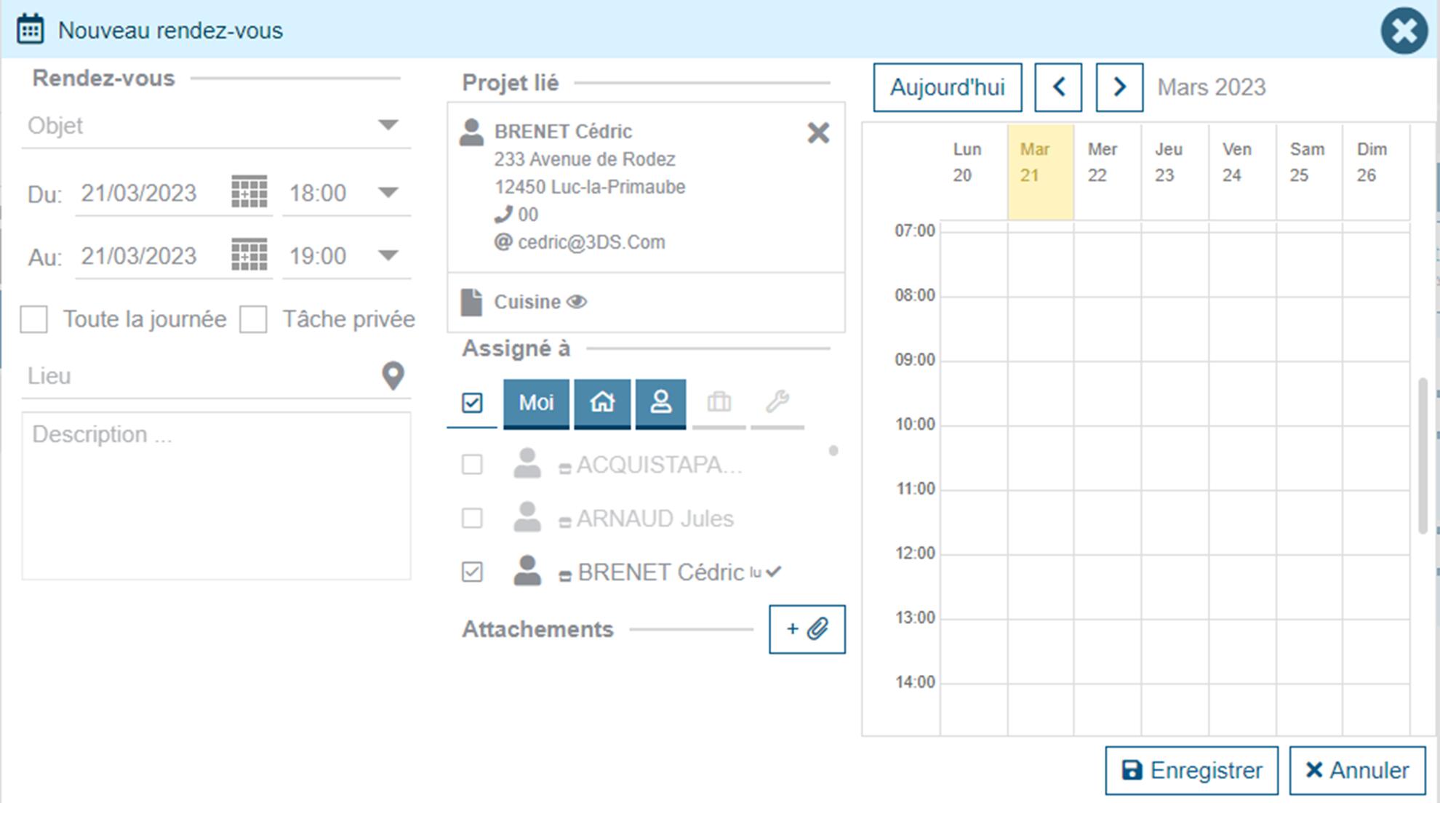
Appointments allow you to create an appointment in the selected user's calendar. You can select several for the same appointment. You define a start date and time and an end date and time. A location and notes can be added to an appointment. Created in a project, it is automatically linked to it. Created from another screen, it is not linked to a project but it is possible to assign it manually. An appointment can be indicated as
- "Confirmed": this allows you to lock the dates and times entered on the appointment.
- "Completed": this indicates that the appointment has been completed, it can no longer be modified.
A canceled appointment remains visible in the progress feed of the project to which it is linked. It appears crossed out to clearly visualize its cancellation. It is possible to indicate that an appointment is “private”. Thus the content of this appointment will only be visible to the person who created the appointment.
Comments
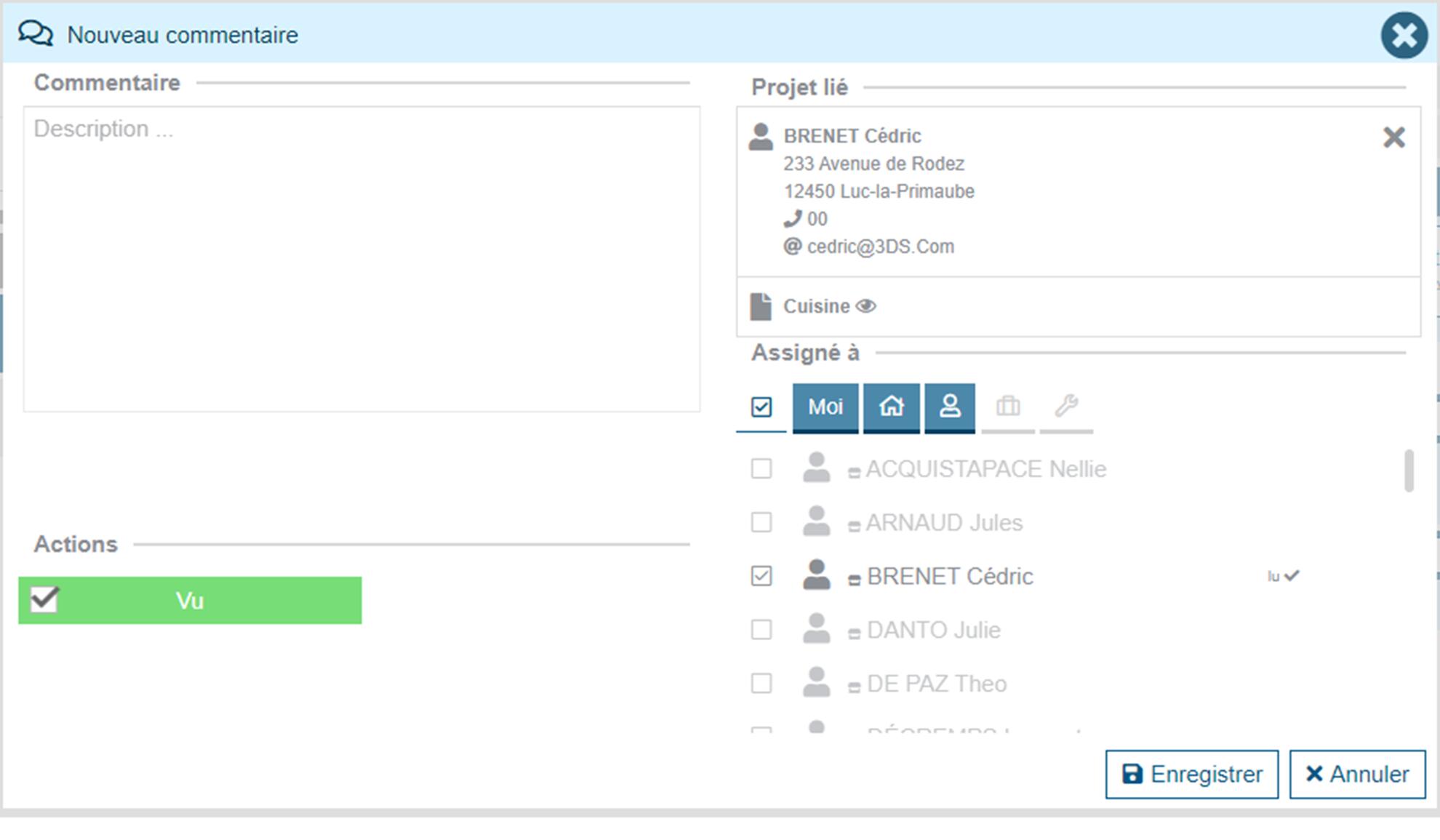
Comments are notes that a user can add in the application for themselves or for a colleague. A comment can be assigned to one or more people. As with other actions, it appears in the project to which it is linked as well as on the home page of the assigned person. A comment can be marked as "read" by users. The information will be visible to everyone in the comment.