Catalog
In the Retail Ops environment, a Catalog is a list of Products purchased to a same Supplier. It can be assigned an Identity, several products, coefficients and/or validity dates, and in the Retail Ops context, is linked to one Supplier and can be assigned some Products and Styles/Programs.
Catalog detail
Main information
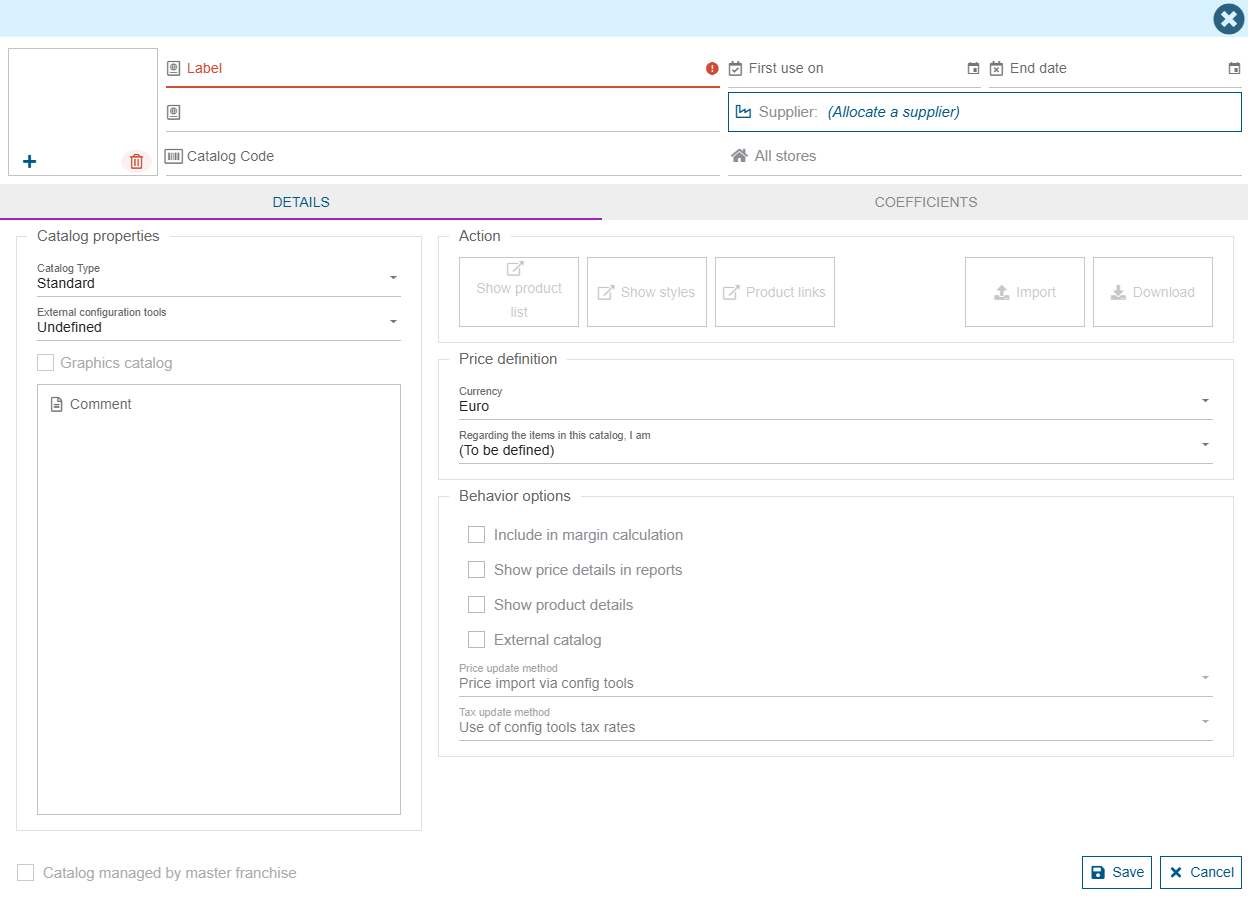
A Catalog must own a name/label to be created, this is the only mandatory information. This data corresponds with a technical name, generally used as a common identifier with an eventually related drawing engine.
It is also possible to add a commercial name, which will appear on the document, on the document reports and on differents catalog lists (management catalog, promotions configuration, ...). This allows you for example to hide the technical name from your customers and replace it with your own commercial label.
A third identifier, the Catalog code, can be used as a key for any eventual link with your own system.
You can also define a period of availability, which will prevent your sellers from adding products from an obsolete Catalog.
If you plan to purchase Products from this Catalog, you also need to select a default Supplier, which will be the one selected by default when creating supplier purchases.
Stores availability
A Catalog can be created for a whole Company of simply for a list of Stores. Creating it at a Company level will prevent any Store managers to be able to modify its settings; only a Company administrator will have this ability. This "membership" also has a second effect, if you want to limit the usage of a Catalog to a set of Stores only:
- A "Master Franchise" Catalog is available by default to all Stores of the Master Franchise. Selecting a subset of Stores in this case will only "forbid" a selection of Stores of using it (and new Stores eventually created after doing this selection will be authorized by default).
- A "Store" Catalog is available by default to the Stores the Catalog creator can access. Other Stores cannot access it. And new Stores eventually created after doing this selection will be forbidden by default.
Catalog properties
Catalog type
It is possible to "categorize" the Catalogs created in Retail operations. Each catalog can only have one type between: Accessory, Decoration, Household appliances, Furniture, Options, Installation and Service. These typologies are used for the application filters but also to control certain behaviors.
The "Service" category is used to identify the services provided by an installer. Thus, if a service catalog does not have a predefined supplier, the products will automatically be offered for purchase from the "installer" supplier assigned to the project.
Catalog origin
It is also possible to indicate the origin of the Catalog: for example when it was automatically created via a drawing importation, the external drawing engine can be indicated here.
Main actions
Import a Catalog
Export a Catalog
Additional data
Additional data may be completed here, such as the Catalog currency and your positioning type concerning the ecofee declaration (when applicable).
In addition to this information, there are behavior options:
- "Include in margin calculation" means that the products in the catalog will be included in the calculation of the margin of customer documents and projects. If the option is not checked, these products will be excluded/ignored from the calculation.
- "Show price details in reports" means that the product prices will not be displayed individually in the reportings. Only the total amount of the products will be visible. You must check the box to have the product details on the reportings.
- "Show product details" allows you to choose to display the products in this catalog in a detailed way or grouped in a single line.
- "Catalog accessible by WebService" allows the Catalog to be accessible by an external API. Example: retrieve its products for a use on a website.
Product list
Catalog Products are accessed via the "View Products" button (depending on your access rights). The full list of Products linked to this Catalog is displayed:
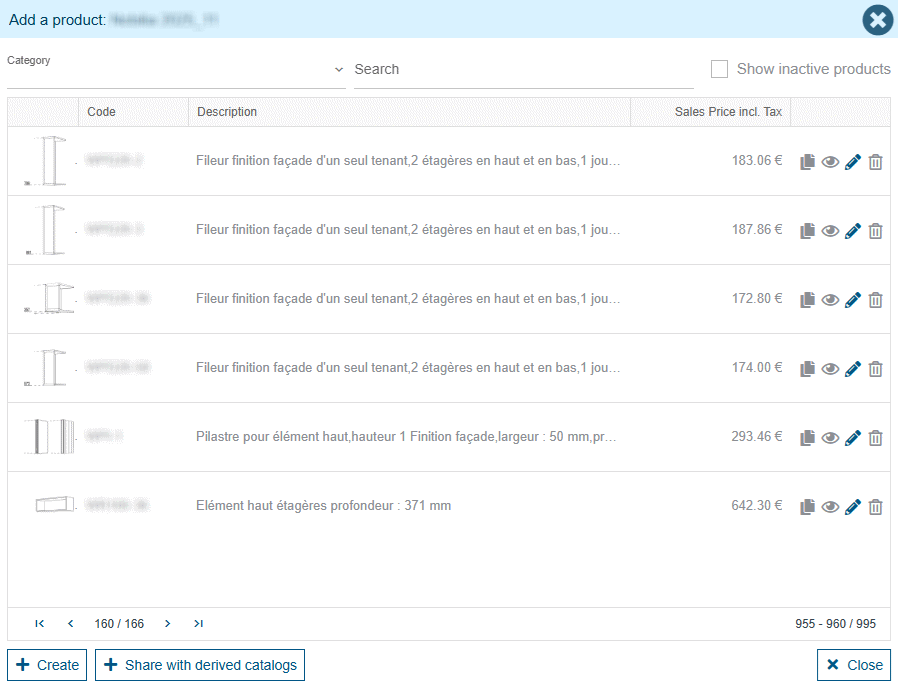
The icons on the right allow you to duplicate, consult, modify or disable the selected Product from the list. An additional button may also allow you to create a new one. All these functionnalities depend on your access rights.
A Product cannot be deleted. In order for Retail Ops to ensure data consistency, Products are only disabled.
Style list
Catalog Style definitions are accessed via the "View Styles" button (depending on your access rights). The full list of Programs linked to this Catalog is displayed:
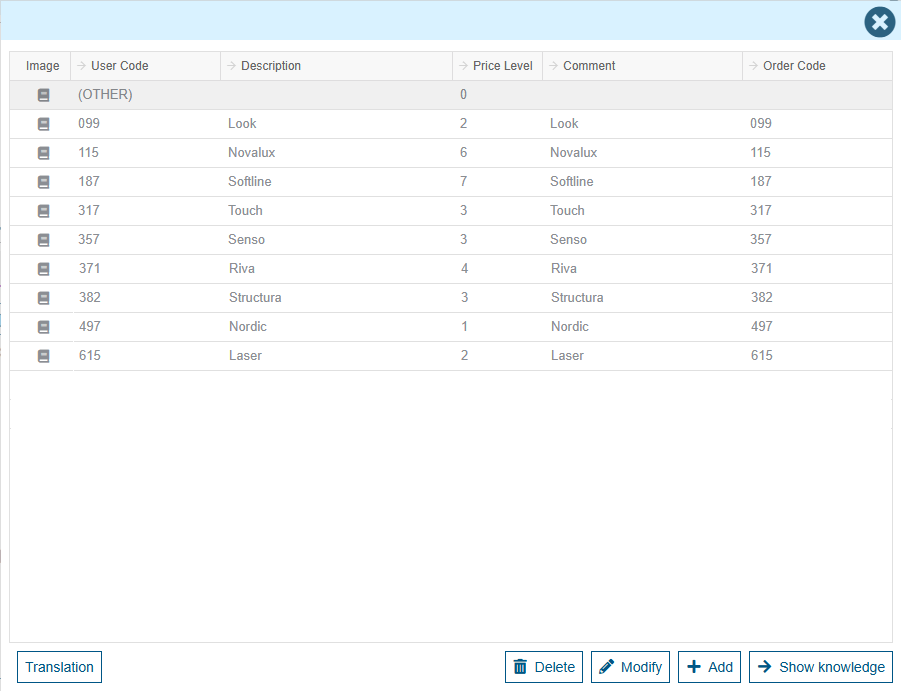
Clicking on the "Show knowledge" button allows you to access the full list of Features & Options:
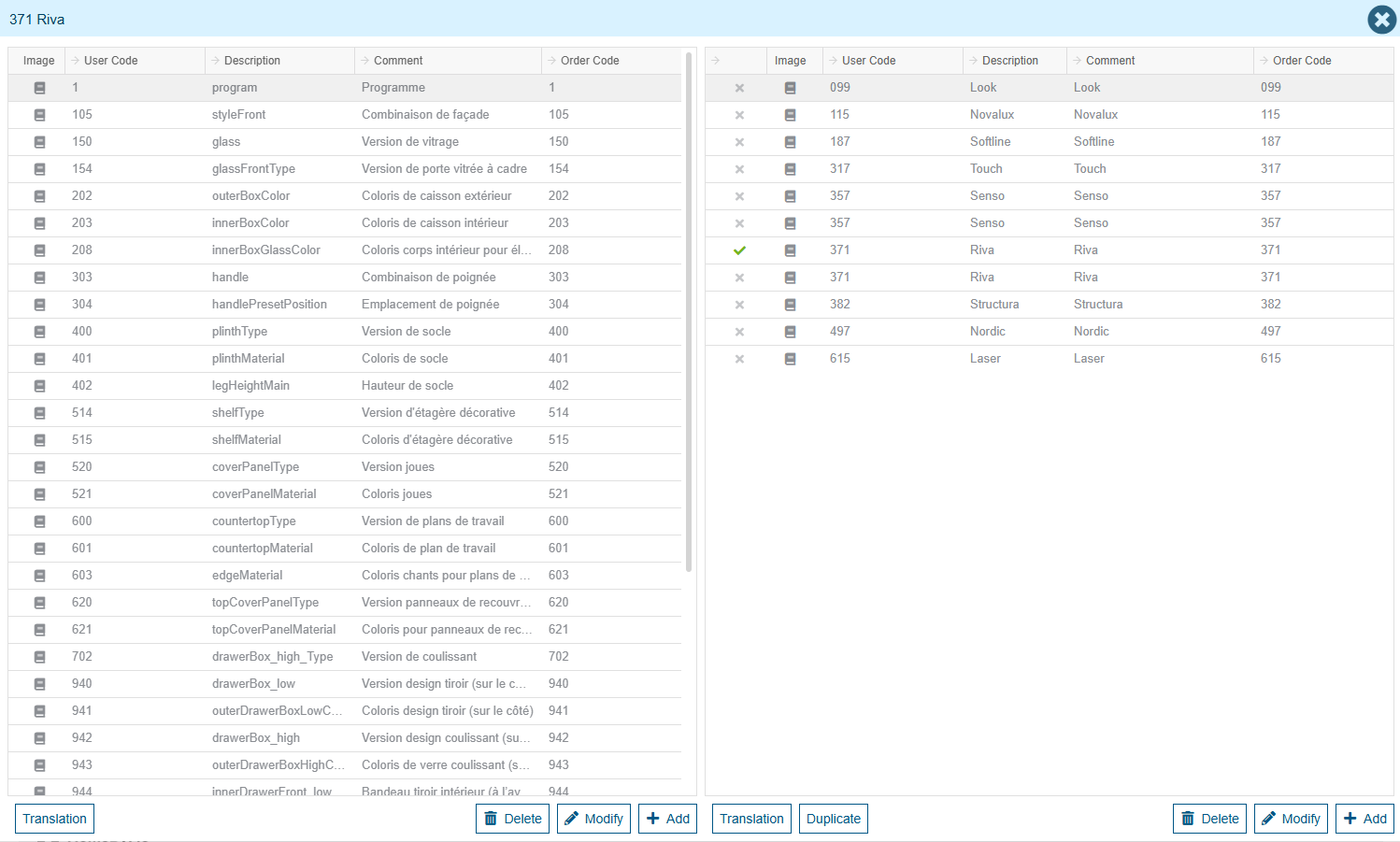
Selecting a Style feature on the left grid loads the list of related options on the right grid.
Even if you have sufficient access rights allowing you to modify your Catalog Style definitions, any future project importation is likely to override your modifications.
Coefficients
The "Coefficients" tab allows you to define specific coefficients depending on several criteria. These coefficients will be applied on Products when importing an external drawing to a Retail Ops Document or when adding Products from a local Catalog (please notice that in this case, several criteria may not be applicable).
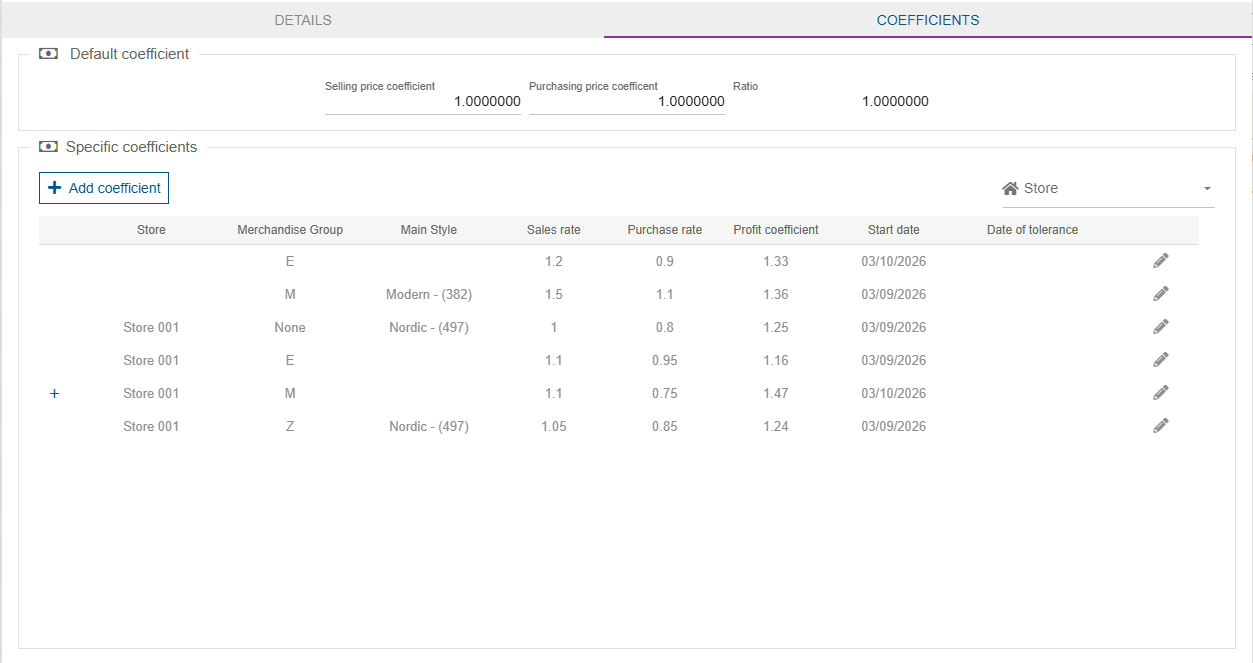
The list of coefficients displays the currently active coefficients and can be filtered by Store. Similar coefficient settings (i.e. with same application criteria) are grouped together. Clicking on the "+" icon on the left of the setting line displays the whole history of defined values, e.g:

The currently active setting is displayed first, and then the eventual obsolete or future settings, in a chronological order.
A setting which Starting date has already started can only be slightly modified: only its Ending date and Tolerance date can be changed. If you need to define different values for other properties (purchase value, sales value, margin correction), then you need to create a new definition matching the same condition criteria, but with a Starting date yet to come.
This limitation guarantees you a highly readable history of your prices evolutions.
On the other hand, a Setting which Starting date is yet to come can be completely modified or even removed, since it cannot have been applied yet.
Coefficient settings
Properties
A coefficient setting can be assigned several properties:
- Purchase value: this value will be applied to each corresponding Product number of points in order to compute its default Purchase price
- Sales value: this value will be applied to each corresponding Product number of points in order to compute its default Sales price (Taxes excluded)
- Margin correction value: Optionally used when generating your Purchase orders, according the global PROFITUSETARIFCOEFF setting. If active, will be used as a divider on purchased prices.
- Starting date: Date from which the Setting becomes active.
- Ending date: Last date of activity for the Setting. If not set, the Setting is active until a newer one replaces it.
- Tolerance date: Used for allowing a Sales order which was created before a Coefficient change to be purchased without needing to renew the applied coefficients. Of course, this tolerance date has to be agreed in advance with your Supplier.
An additional Margin coefficient is automatically computed by the system by just applying the "Sales coefficient/Purchase coefficient" ratio, in order for you to better identify the default margin that may be applied to related Products.
Application criteria
These values can be defined for different application criteria. Here are all the possible combinations of criteria, from the least important to the highest:
- Global/Default: if no other coefficient is defined, this is the default setting for all Products of the Catalog (lowest priority)
- Per Store: different values can be set depending on the Seller Store
- Per Merchandise group code
- Per Merchandise group code and Store
- Per Merchandise group code and Main Style definition code
- Per Merchandise group code and Main Style definition code and Store (highest priority)
Adding a new Coefficient setting
The dialog that allows you to create a new Coefficient setting offers you to choose the application condition criteria for your new Coefficient properties:
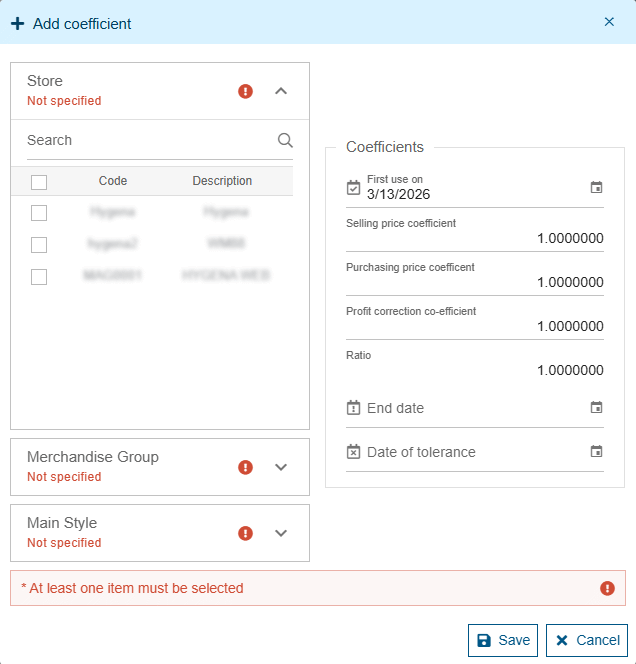
Here you can selected the application criteria conditionning your coefficient:
- Store selection: select one or several Stores which will be concerned by the Coefficient setting. If none is selected, it means that ALL available Stores of the Company will be concerned.
- Merchandise group: select or add one or more Merchandise groups that will condition the Coefficient setting application. Selecting none can mean different things, depending on your Main Style selection:
- If you did not select any Main Style either, this means that the Coefficient setting application will only check the Store context and ignore the Merchandise group and the Main Style values.
- If you did select one or more Main Style, this means that the Coefficient setting application will check the Main Style AND the "Empty" Merchandise group (i.e. no value assigned) values, eventually completed with the Store context if set.
- Main Style: select or add one or more Main Styles that will condition the Coefficient setting application. Selecting none means that the Coefficient setting does not depend on the Main Style.
A search bar on top of each list allows you to quickly reach a specific Store, Merchandise group or Style in the list in case you have lots.
An "Add" button also exists for both the Merchandise group and Style lists, in order for you to be able to prepare Coefficient settings on Catalogs you didn't necessarily start to use in your projects.
At least one of these 3 criteria must be selected. Else it would conflict with the "Global/Default coefficient" setting of the Catalog.
Application
When importing a drawing, Retail Ops will proceed like below in order to find the coefficients to be applied:
- Sort the active coefficients: only those which Starting date is older than the active Document creation date, which eventual Ending date is not passed yet, and with no newer active coefficient setting matching the same criteria.
- Sort them by application priority: the most precise definitions will be chosen.
- Define the Document Main Style definition. All Products of a same Catalog matching the same Merchandise group will be applied the main Style/Program coefficient setting, even if they are assigned a different Style/Program (but less used in the Document).
- Several coefficients may be applied in a same Document, if several Products have different characteristics: for example one coefficient setting for Products of the "Furniture" Merchandise group (possibly depending on their common main Program/Style), another one for Products of the "Appliance" Merchandise group, and another one for Products of other Merchandise groups (such as a default setting directly per Store).
By default, a Document keeps its creation date as an application date for the coefficients to be selected, even when refreshing a drawing importation. This is to ensure the Seller that the prices he may have negociated with his Customer won't change without his agreement.