Company
The Company (Master Franchise level) is created by our teams. It is this level that carries all the default settings related to the location of the company (language, currency, tax rates, etc.).
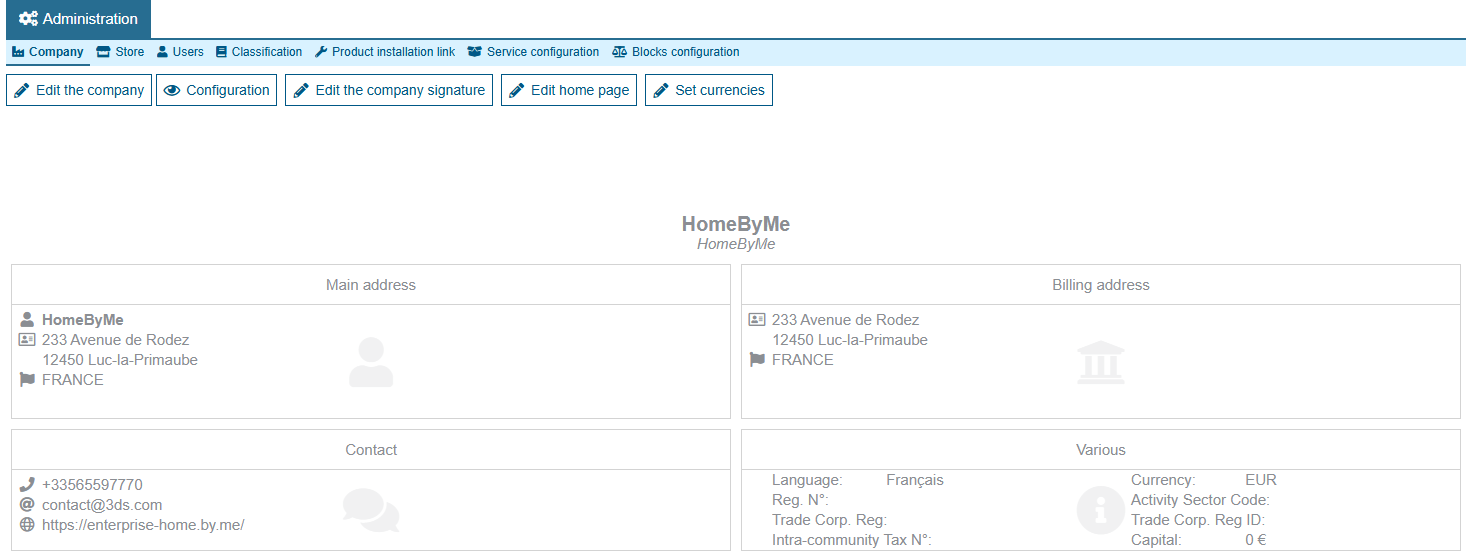
All the information necessary for the creation of this entity must be provided to our teams.
Company details
Clicking on the "Edit the company" button displays the Company detail form.
Here you can edit main information, such as your company name, addresses or phone numbers and color, but also the logo that will be used for the application and editions or the default Retail Ops environment color. But some information may also impact the Retail Ops behaviour, such as the used currency and taxes, or the validity period for quotations.
Configuration
The configuration menu can be used to activate/hide/customize certain specific features. Warning: similar settings may also exist at the Store level (cf.Store configuration):
| Category | Setting code | Setting type | Description |
|---|---|---|---|
| Global | COMPANY_USECOUNTRYDELIVERYTAXE | INTEGER | Activate VAT by country of delivery |
| HOMEPAGE_PROJECT | INTEGER | Start Retail Ops directly into the Project list | |
| IMPERIAL_UNIT | BOOLEAN | Select the default measurement system for all your dimensions | |
| Contact | ALLOWEDITSUPPLIERMF | BOOLEAN | Allow a store user to edit a Supplier "managed by the Master Franchise" |
| SHARE_ALL_CONTACTS | BOOLEAN | Share Contacts between all Stores of a same Company | |
| USEIDCARDNUMBER | INTEGER | Display the ID card number input area on the Contact details form | |
| USERGPD | BOOLEAN | Display/hide the GDPR-related features | |
| Project | SEND_EDILOGISTIC | BOOLEAN | Activate the EDI Logistics export feature |
| SURVEYFORPROFESSIONAL | INTEGER | Display the Project Discovery wizard even when the Project's Customer is a Professional | |
| SURVEYOPTIONAL | INTEGER | Make the Project Discovery wizard steps optional | |
| USEPROJECTFROMWEB | BOOLEAN | Import Web projects | |
| Document | AUTO_APPLY_DOC_COMPLEMENT | INTEGER | Auto compute document additional costs |
| DOCUMENT_GROUPMODE_DISPLAY | STRING | Available product grouping modes in the Document Totals form | |
| DOCUMENT_MANUAL_SAVE | BOOLEAN | Display "Edit/Cancel/Save" buttons on Sales documents | |
| DOCUMENT_MAX_VALIDITY_DELAY | INTEGER | Initialize a validity period for Quotations/Estimates | |
| DOCUMENT_PRICEMODE_DISPLAY | STRING | Select the available Price display modes | |
| DocumentLineGroupingMode | STRING | Select the Document line grouping mode for your Documents | |
| MARGIN_CODE | BOOLEAN | Display margin code in the Document form | |
| MONO_IMPORT_DOC | BOOLEAN | Limit the number of imported drawings to 1 per Document | |
| PROFITUSETARIFCOEFF | BOOLEAN | Use the Catalogs margin correction coefficients | |
| SHOW_HOUR_DOCUMENT | BOOLEAN | Display time information on the Document appointment dates | |
| USE_AUTO_BILL | BOOLEAN | Activate the automatic invoicing suggestions | |
| USE_EXTERNAL_PAYMENT | BOOLEAN | Use of an external system for payments | |
| USE_SHIPPING_FEES | BOOLEAN | Use the shipping costs feature | |
| UseDocumentContextMenu | STRING | Display a Context menu when clicking on a Document line | |
| Catalog | ALLOWEDITCATALOGMF | BOOLEAN | Allow a store user to edit a Catalog "managed by the Master Franchise" |
| User | PasswordDurationDays | INTEGER | Assign a validity duration for User passwords |
ALLOWEDITCATALOGMF
Allows you to edit a Catalog "managed by the Master Franchise" (cf. Stores availability) even when in the context of a Store (assuming that your access rights also allow you to edit a Catalog):
- 0: Catalogs managed by the Master Franchise are Read-only for Store users
- 1: Catalogs managed by the Master Franchise can be modified by Store users with sufficient access rights
ALLOWEDITSUPPLIERMF
Allows you to edit a Supplier "managed by the Master Franchise" even when in the context of a Store (assuming that your access rights also allow you to edit a Supplier):
- 0: Suppliers managed by the Master Franchise are Read-only for Store users
- 1: Suppliers managed by the Master Franchise can be modified by Store users with sufficient access rights
AUTO_APPLY_DOC_COMPLEMENT
Allows you to activate an automated computation of the Document additional fees depending on the related Computation rules:
- 0: Disable the automatic computation
- 1: Enable the automatic computation
COMPANY_USECOUNTRYDELIVERYTAXE
Allows you to select the default VAT rate origin for the Document:
- 0: Use the Company default settings
- 1: Use the Delivery Country & Zip code default Tax settings
DOCUMENT_GROUPMODE_DISPLAY
Allows you to select the available product grouping modes to be displayed on your Document Totals form:
- "0": Sum-up the Document prices by Product classifications only (cf. Classification)
- "1": Sum-up the Document prices by Product Catalogs only
- "2": Sum-up the Document prices by Product Catalogs AND classifications only
- "0;1", "0;2", "1;2", "0;1;2": Allow the previous Sum-ups to be accessible on your Document Totals form
DOCUMENT_MANUAL_SAVE
Allows you to force the end-user to click on dedicated buttons in order to Edit/Cancel/Save his Sales documents (except for Invoice & Credit note types):
- 0: Modifications on active Sales documents are immediately saved. No user action is required.
- 1: "Edit/Cancel/Save" buttons are added to the active Sales documents. The end-user needs to manually save his modifications.
DOCUMENT_MAX_VALIDITY_DELAY
Allows you to initialize a validity period for Quotations/Estimates. When trying to modify or transform a Quotation/Estimate X days after its creation, a Warning message will pop-up, noticing you to be careful about its prices, since the Company defined validity period is over:
- X (integer): number of days from a Quotation creation date before being warnt of a potential validity expiration
DOCUMENT_PRICEMODE_DISPLAY
Allows you to select the available price modes to be displayed on your Documents:
- "0": Only display price excluding taxes in the Document Totals form
- "1": Only display price including taxes in the Document Totals form
- "0;1": Display both price excluding taxes and including taxes in the Document Totals form
DocumentLineGroupingMode
Allows you to select the Document line grouping mode for your Documents:
- "" (empty): Lines are grouped only by Document line grouping (cf. Classification)
- "Countermark": Lines are grouped by Countermark
HOMEPAGE_PROJECT
Allows you to start Retail Ops directly on the Project list screen just after logging in instead of the default Homepage:
- 0: The default starting screen is the standard Homepage
- 1: The default starting screen is the Project list
IMPERIAL_UNIT
Allows you to choose the default measurement system for all your dimensions:
- 0: Display dimensions using the Metric system
- 1: Display dimensions using the Imperial system
MARGIN_CODE
Allows you to display a Code including the Document margin (in percentage and currency) on the Document footer and in its Totals form (cf. Margin):
- 0: Hide
- 1: Display
MONO_IMPORT_DOC
Allows you to limit the number of imported drawings to one per document maximum:
- 0: Several drawings can be imported into a single Document (e.g. in order to import a Kitchen and a Batchroom projects into the same Quotation)
- 1: Only 1 drawing can be imported in a Document
PasswordDurationDays
Allows you to assign a number of days of validity for a connection password. After this delay, Retail Ops will require the user to change his password:
- 0: User passwords have no expiration date. They still can be changed "on demand".
- X (integer): number of days of validity for any user password.
PROFITUSETARIFCOEFF
Allows you to apply a Margin correction value (cf. Coefficient settings) to your Document line prices when generating your Purchase orders:
- 0: Disable the feature
- 1: Apply your Catalogs Margin correction coefficients
SEND_EDILOGISTIC
Allows you to activate the EDI Platform document exportation feature:
- 0: Hide the exportation button
- 1: Display the exportation button
SHARE_ALL_CONTACTS
Allows you to share Customers between all Stores of your Company:
- 0: Each Store owns its Contact list
- 1: All Stores of the Company share their Contact list
SHOW_HOUR_DOCUMENT
Allows you to display the Time information near the Appointment dates of a Document (e.g. Delivery, Installation, ...):
- 0: Only display the Date information
- 1: Display both Date and Time information
SURVEYFORPROFESSIONAL
Allows you to display the Project Discovery wizard even when your Project's Customer is a Professional:
- 0: When creating a new Project, the Discovery wizard is only loaded for non-professional Customers
- 1: When creating a new Project, the Discovery wizard is loaded for all kinds of Customers
SURVEYOPTIONAL
Allows you to make the Project Discovery wizard steps optional:
- 0: When creating a new Project, the end-user is forced to pass through all steps of the Discovery wizard
- 1: A "Back" button is added under the Discovery wizard in order for the end-user to be able to leave it without completing all steps
USE_AUTO_BILL
Allows you to activate a proposal for generating an invoice when a deposit is paid in a Document:
- 0: No automatic invoicing is proposed
- 1: An automatic invoicing is proposed when a Document deposit is paid
USE_EXTERNAL_PAYMENT
Allows you to indicate that the Payments will be managed by an External system:
- 0: The Document payment terms can be marked as "Paid" directly from the Retail Ops Document form
- 1: The end-user cannot mark any Document payment term as "paid": this information has to be pushed by an External system via the Retail Ops API
The same setting exists at the Store level (cf. USE_EXTERNAL_PAYMENT). If one of both settings is active (i.e. 1), the System will consider that an External system leads the payments.
USE_SHIPPING_FEES
Allows you to use the Document additional fees feature and integrate Shipping fees and/or Fixed fees into the Document Totals form:
- 0: Hide the Document Additional fees area from the Document Totals form
- 1: Display the Document Additional fees area into the Document Totals form
UseDocumentContextMenu
Allows you to display a Context menu when clicking on a Document line:
- 0: Clicking on a Document line directly displays its detail window
- 1: Clicking on a Document line displays a Context menu which allows you to choose the operation to be made ("Move up", "Move down", "Duplicate", "Add add-on", "Edit", ...)
USEIDCARDNUMBER
Allows you to display the ID card number input area on the Contact details form, which is a legal obligation in some countries:
- 0: Hide
- 1: Display
USERGPD
Allows you to display/hide the GDPR-related features, such as in the Customer detail form (cf. GDPR) or in the Management menu (cf. GDPR):
- 0: Disable all GDPR-related features
- 1: Enable all GDPR-related features
USEPROJECTFROMWEB
Allows you to retrieve a Project created by a Web consumer from your linked website:
- 0: Disable the Web Projects features
- 1: Enable the Web Projects features
Signature of the company
You can define an email signature for your company, that will be proposed when writing an email. For example, this form allows you to include your logo, address or other coordinates.
Home page
This configuration screen allows you to modify the Retail Ops Home page by combining "modules" (i.e. customizable areas):
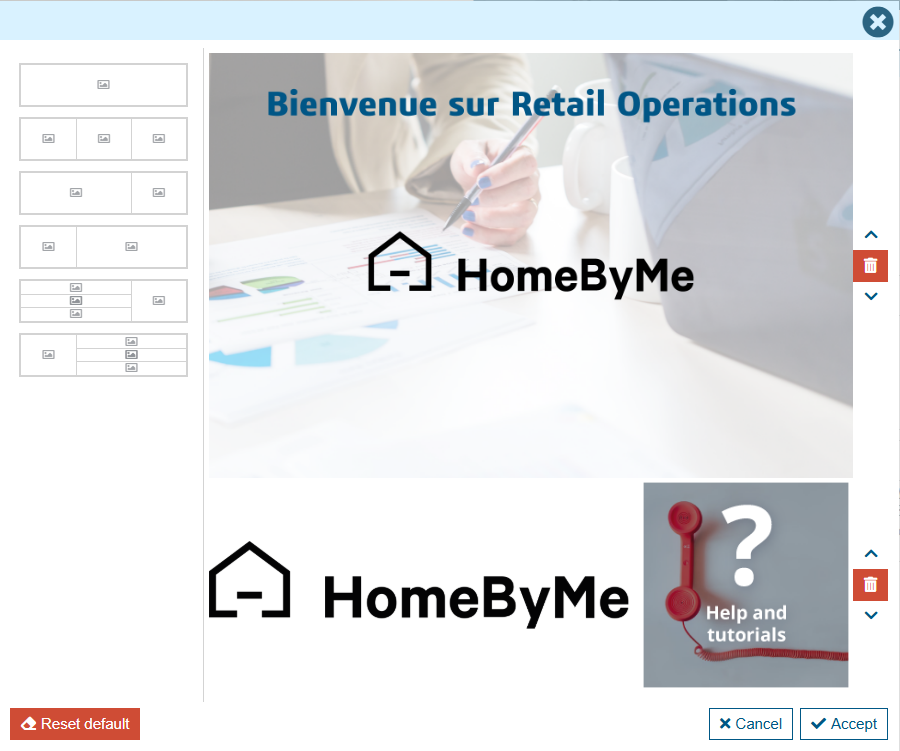
- Click on a module template on the left part of the screen in order to add it to your Home page configuration preview on the right side.
- Re-order your modules by using the arrows on the end right of the screen. Remove a module by using the related bin button.
- Clicking in each area of a module displays a pop-up menu that will allow you to add images and/or links (urls) that will redirect your Retail Ops users to desired websites.
- Save your modifications in order to confirm your new Home page definition.
You may need to re-connect to Retail Ops in order to display your newly modified Home page.
Currencies
The currency list screen allows you to change the conversion rate and rounding method of each currency that you may need to use, compared to the Euro (EUR) default, meaning that the Euro conversion rate will be set to 1.
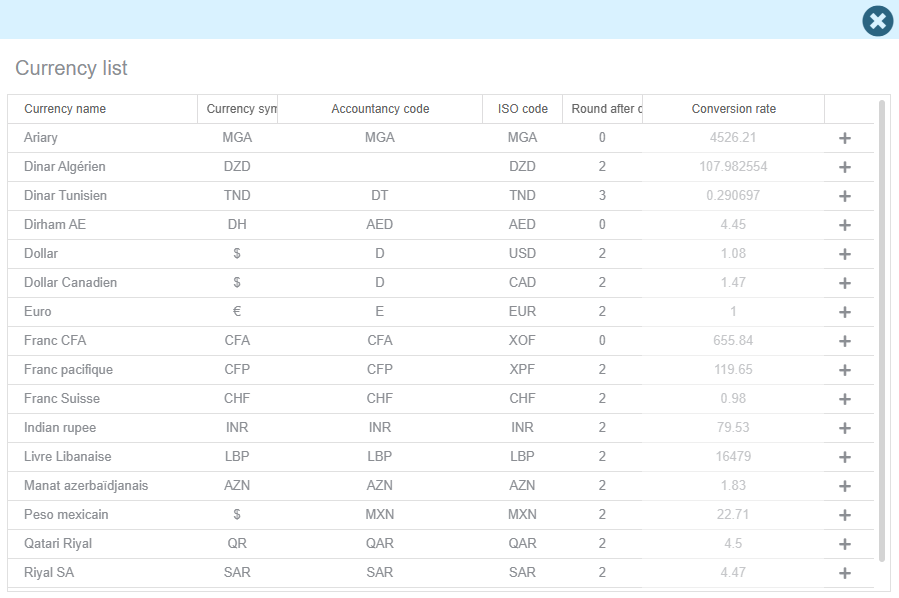
By default, exchange rates are based on the EUR currency. If you want to change this, you need to set your company’s currency at an exchange rate of 1 and modify the other rates.